How to Fix Aniimo Black Screen on Startup: Complete PC Troubleshooting Guide (2026)
Aniimo is finally preparing to throw PC players into Idyll, and honestly, this is exactly the kind of launch I was looking forward to. Pawprint Studio’s creature-catching action RPG has a lot going for it: open-world exploration, real-time combat, PvE and PvP encounters, and the Twining mechanic that gives the game its own identity instead of simply copying the usual monster-collecting formula.
Unfortunately, getting into Idyll is proving to be harder for some PC players than actually surviving it.
The Aniimo black screen problem can appear in several different ways. Some players launch the game and immediately get nothing but a black display. Others make it through the opening cinematic, watch the loading process reach 100%, and then sit there waiting for something that never happens. In the worst cases, Aniimo simply closes and dumps the player back onto the Windows desktop.
That’s particularly annoying when you’ve already waited through the download, pre-load, shader compilation and all the other launch-day nonsense.
I’ve put together the fixes I’d try first on my own gaming PC, starting with the solutions that can have the biggest impact. The good news is that most of these fixes are relatively painless and don’t require reinstalling the entire game.
What Causes the Aniimo Black Screen?
There isn’t one universal reason for the problem. A black screen during startup usually means Aniimo is failing somewhere between initializing its configuration, graphics API, display mode, or game files.
The most likely causes include:
- DirectX 12 conflicts with particular GPUs or driver configurations.
- Fullscreen and resolution problems, especially with high-refresh-rate or multi-monitor setups.
- Corrupted configuration or cache files created during pre-load or an update.
- Special characters in Windows or platform usernames causing path-related issues.
- Overlay software hooking into the game during initialization.
- Outdated or corrupted GPU drivers.
- Missing or damaged game files.
- Running the game from a slow HDD instead of an SSD.
The important thing is not to start randomly deleting folders and changing ten Windows settings at once. Work through the fixes in order. That way, you’ll know what actually solved the problem.
Fix 1: Switch Aniimo From DirectX 12 to DirectX 11
If Aniimo reaches the loading screen and freezes around 100%, DirectX 12 is one of the first things I’d investigate.
DX12 is fantastic when everything lines up correctly, but it can also be surprisingly temperamental at launch. A game can run perfectly once its rendering pipeline is initialized and still refuse to get that far in the first place.
If Aniimo gives you access to its initial graphics configuration, look for the graphics API option and switch from DX12 to DX11.
If you can’t reach that menu because the game crashes first, try changing the configuration manually.
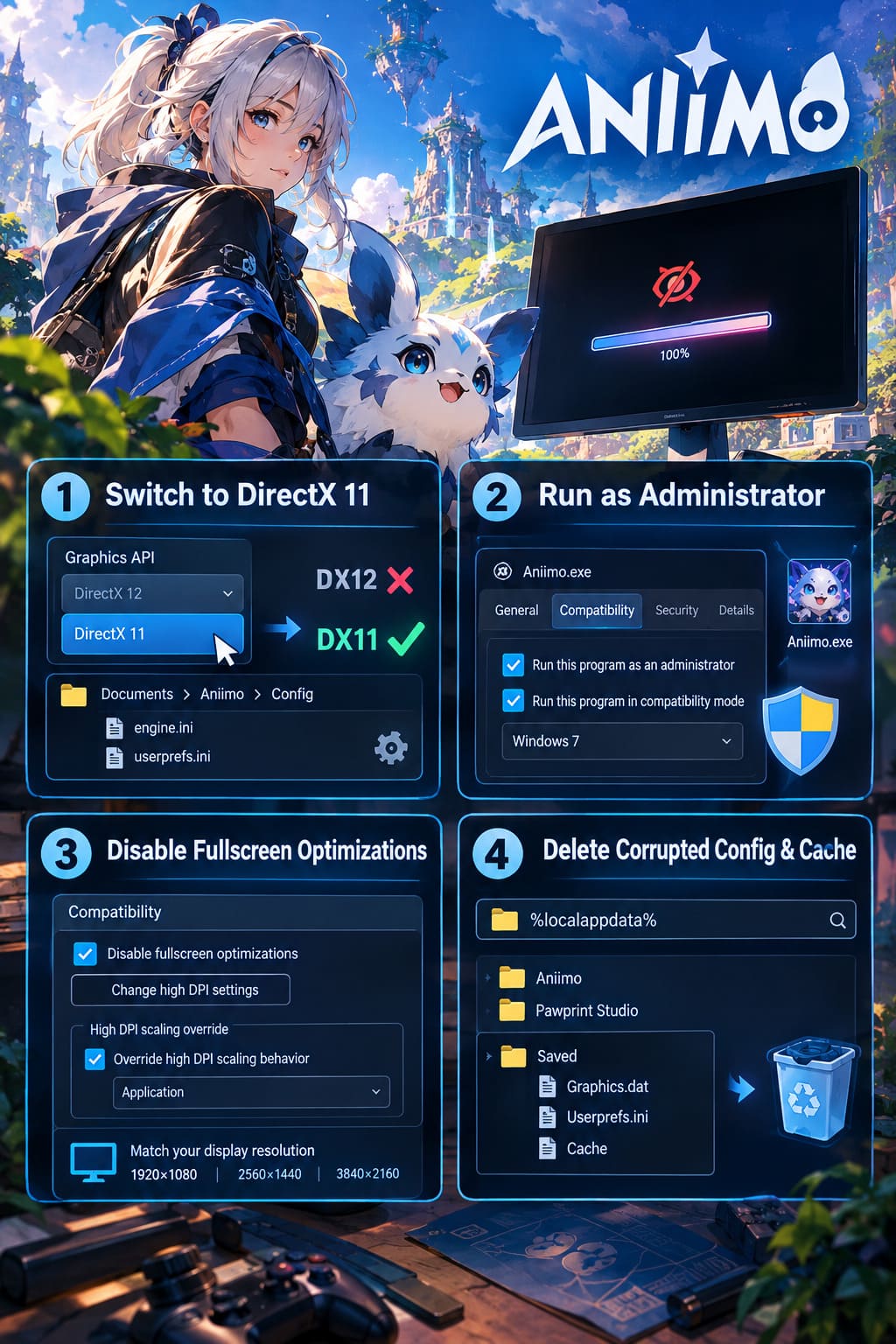
- Press Windows + R.
- Enter
Documentsand press Enter. - Look for the Aniimo folder.
- Open the Config folder.
- Search for files such as
engine.inioruserprefs.ini. - Open the relevant configuration file with Notepad.
- Search for entries referring to
DX12,DeviceType, orGraphicsAPI. - Change the graphics API from DX12 to DX11 where applicable.
- Save the file and restart Aniimo.
If DX12 was the culprit, this can be the difference between staring at a dead screen and actually reaching the main menu.
Fix 2: Run Aniimo as Administrator
Windows permissions can occasionally get in the way when a newly installed game needs to create or modify configuration files, caches and other launch data.
It’s not the glamorous fix, but I’ve lost count of how many PC games have been rescued by simply giving the executable the permissions it expected.
Find the Aniimo installation directory and locate the launcher and main executable.
Right-click launcher.exe, choose Properties, then open the Compatibility tab.
Enable:
- Run this program as an administrator
- Run this program in compatibility mode
If necessary, test Windows 8 or Windows 7 compatibility mode, particularly if the launcher itself is failing before the game starts.
Apply the changes and repeat the process for the main Aniimo.exe executable.
I wouldn’t normally recommend compatibility mode for a modern game unless you’re troubleshooting a specific launch problem, but when you’re already looking at a black screen, it’s absolutely worth testing.
Fix 3: Disable Fullscreen Optimizations
Fullscreen handling has caused countless headaches across PC gaming, particularly when games interact with Windows scaling, multiple monitors and high-refresh-rate displays.
Aniimo can potentially run into similar problems.
Navigate to Aniimo.exe, right-click it and select Properties.
Under Compatibility, enable:
Disable fullscreen optimizations
Then select Change high DPI settings and enable Override high DPI scaling behavior, using Application as the scaling option.
After that, check your Windows display resolution.
If you’re playing at 1920×1080, make sure Windows is also running at 1920×1080 before launching the game. The same applies to 2560×1440, 3840×2160 and other resolutions.
This sounds almost too simple, but display negotiation problems can create some spectacularly stupid launch failures.
Fix 4: Delete Aniimo’s Corrupted Configuration and Cache
If Aniimo worked during testing or pre-load but suddenly stopped launching after an update, corrupted local settings are a prime suspect.
First, completely close Aniimo. Open Task Manager with:
Ctrl + Shift + Esc
Make sure there isn’t still a hidden Aniimo process running.
Now press Windows + R and enter:
%localappdata%
Search for an Aniimo or Pawprint Studio folder.
Depending on the game’s final directory structure, look for a Saved folder containing graphics or preference files such as:
Graphics.datUserprefs.ini- Other local graphics/configuration cache files
Back up the files if you want to be extra cautious, then remove the relevant corrupted configuration.
The next time Aniimo starts, it should generate fresh settings.
This is one of my favorite troubleshooting tricks because it doesn’t require downloading the entire game again. You’re essentially telling Aniimo: forget whatever terrible graphics decision you made last time and start over.
Fix 5: Check Your Username for Special Characters
This is one of the stranger potential problems.
Some PC games have trouble handling unusual characters in profile names or Windows user directories. If your account path contains symbols, emojis, brackets or non-ASCII characters, Aniimo may have trouble reading configuration or save-related paths correctly.
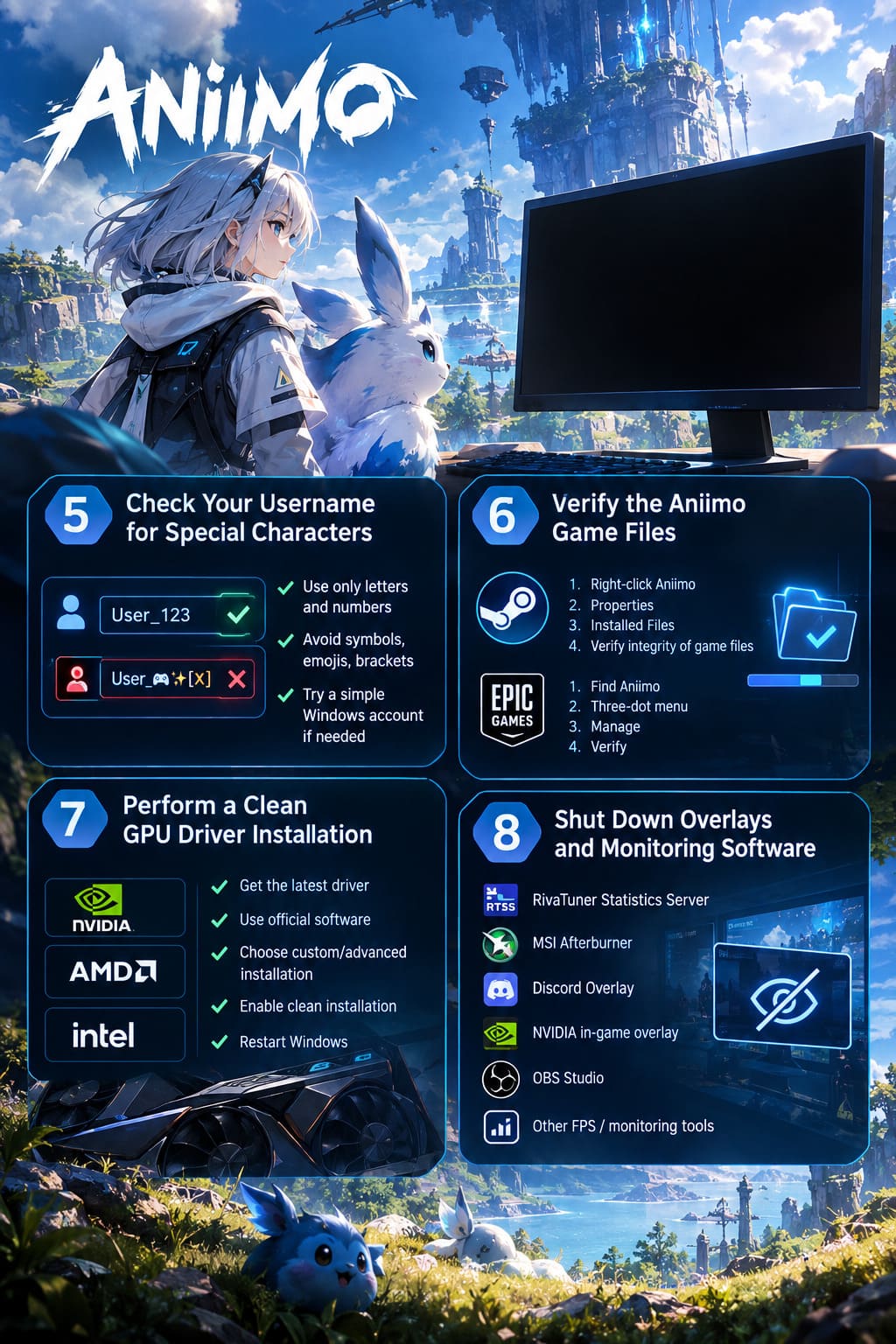
Check your Steam or Epic display name first.
As a temporary test, switch to a simple name containing only normal letters and numbers.
If your actual Windows user folder contains unusual characters and nothing else has worked, you can test Aniimo from a separate local Windows administrator account using a simple alphanumeric username.
This is obviously a more drastic workaround, so don’t create a new Windows account as your first move. I’d only try it after the easier solutions fail.
Fix 6: Verify the Aniimo Game Files
Before blaming your GPU, Windows installation or entire PC, make sure the game itself isn’t missing files.
Steam
Open your Steam Library and:
- Right-click Aniimo.
- Select Properties.
- Open Installed Files.
- Select Verify integrity of game files.
- Wait for Steam to complete the scan.
If damaged or missing files are discovered, Steam should automatically download replacements.
Epic Games Store
For the Epic Games version:
- Open your Epic Games Library.
- Find Aniimo.
- Click the three-dot menu.
- Select Manage.
- Click Verify.
This is particularly important after a large pre-load. A huge game download can technically finish while still containing damaged or incomplete data.
Fix 7: Perform a Clean GPU Driver Installation
A modern PC game can be brutally sensitive to graphics drivers, especially around launch.
If you’re using an NVIDIA GeForce, AMD Radeon or Intel Arc GPU, install the newest driver available for your hardware.
For the cleanest test, don’t simply install the new driver over everything and hope for the best. Use the manufacturer’s official software and choose the clean installation option when available.
The basic process is:
- Identify your GPU.
- Download the newest official driver.
- Choose the custom/advanced installation option where available.
- Select the clean-install option.
- Complete the installation.
- Restart Windows.
- Try launching Aniimo again.
I’d particularly prioritize this if the black screen appeared immediately after updating Aniimo or Windows.
Fix 8: Shut Down Overlays and Monitoring Software
This is another classic PC-gaming troubleshooting step.
Applications that inject overlays or monitoring information into games can occasionally interfere with rendering initialization.
Before launching Aniimo, completely close:
- RivaTuner Statistics Server
- MSI Afterburner
- Discord Overlay
- NVIDIA in-game overlay
- OBS Studio
- Other FPS counters, capture utilities or hardware monitoring tools
Don’t just minimize them. Close them completely from the system tray when possible.
Once Aniimo successfully reaches the main menu and enters gameplay, you can test your overlays one at a time.
If the black screen comes back after enabling one particular application, you’ve found the problem.
Aniimo PC System Requirements
If none of these fixes work, it’s time to check whether your hardware is actually within the game’s target specifications.
| Component | Minimum | Recommended |
|---|---|---|
| OS | Windows 10/11 64-bit | Windows 11 64-bit |
| CPU | Intel Core i5-8400 / Ryzen 3 3100 | Intel Core i7-10700 / Ryzen 5 5600 |
| RAM | 12 GB | 16 GB |
| GPU | GTX 1060 6GB / RX 580 | RTX 3060 / RX 6700 |
| DirectX | Version 11 or 12 | Version 11 or 12 |
| Storage | 40 GB SSD | 40 GB NVMe SSD |
The SSD requirement deserves special attention.
If you’re attempting to run Aniimo from an old mechanical HDD, don’t be surprised if loading times become ridiculous. Modern open-world games constantly stream assets, shaders and environmental data, and a slow storage device can turn a normal loading sequence into a timeout nightmare.
If you have an SSD available, move Aniimo there before spending hours performing increasingly complicated Windows surgery.
My Recommended Order for Fixing Aniimo
If I were sitting at my own PC with Aniimo stuck on a black screen, I wouldn’t perform every solution immediately.
I’d go through them like this:
- Restart the PC and close all overlays.
- Verify the game files.
- Update the GPU driver.
- Switch DX12 to DX11.
- Reset Aniimo’s local configuration/cache.
- Disable fullscreen optimizations.
- Run the launcher and game as administrator.
- Test the username/profile workaround.
That order starts with the safest and fastest fixes before moving toward more unusual troubleshooting.
Aniimo Lag Fix: How to Stop Stuttering, Low FPS, and Network Latency
What If Aniimo Still Won’t Launch?
If you’ve worked through everything above and Aniimo still gives you nothing but a black screen, don’t immediately assume your PC is broken.
A launch-day game can have problems that simply cannot be fixed locally.
Keep an eye on official Aniimo announcements, community channels and developer updates. If a large number of players suddenly report the same crash at the same loading point, there’s a good chance the problem is on the game’s side rather than yours.
For persistent crashes, collect useful diagnostic information instead of sending support a message that simply says “game doesn’t work.”
Windows Event Viewer can provide crash information, while Aniimo’s own crash logs or dump files can give the developers much more useful data.
Aniimo Multiplayer Guide: How to Play Co-Op With Friends in 2026
Final Verdict
The Aniimo black screen issue is frustrating because it can happen before you’ve even had the chance to play the game. Thankfully, most of the common causes are fairly ordinary PC problems: a troublesome graphics API, broken configuration files, Windows fullscreen behavior, damaged game data, outdated drivers or an overlay getting in the way.
My first three moves would be verify the files, disable overlays and try DX11. Those are quick, relatively safe and capable of solving a surprising number of launch problems.
If Aniimo is still sitting on a black screen after that, start looking at configuration files, display settings, drivers and account-path issues.
And if thousands of other Pathfinders are suddenly reporting exactly the same problem? At that point, stop reinstalling Windows. It’s probably Aniimo, not your PC.