How to Fix Sineus Arena Survivors Black Screen on Launch in Windows 11
If you’ve been staring at a black screen instead of fighting endless waves of enemies in Sineus Arena Survivors, trust me—you are definitely not the only one. Over the past few weeks, I’ve seen dozens of players reporting the exact same problem across gaming forums, Steam discussions, and community threads.
The game launches, your PC clearly knows it’s running, sometimes you can even hear menu music in the background, but the screen remains completely black. No menu. No loading animation. Nothing.
I recently spent several hours troubleshooting this issue on a Windows 11 system, and after testing nearly every popular fix shared by the community, I managed to get the game working consistently. This guide combines those solutions with some additional observations that many players overlook.
The good news? In most cases, the black screen isn’t caused by broken hardware or a faulty installation. It’s usually a conflict between the game engine, graphics drivers, Windows display settings, or corrupted local configuration files.
Let’s go through the fixes that have produced the highest success rate.
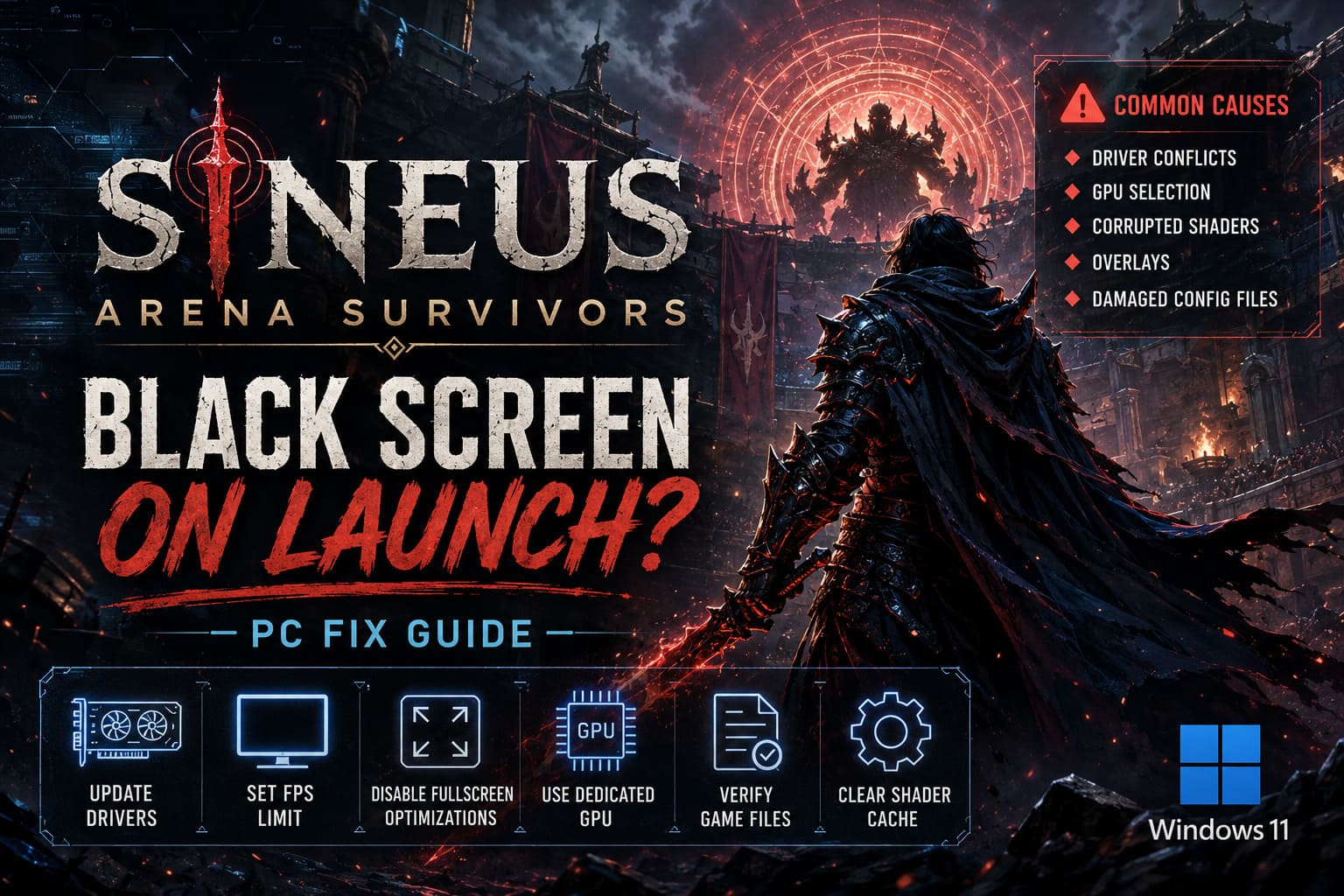
Why Does Sineus Arena Survivors Launch to a Black Screen?
Before jumping into solutions, it’s useful to understand what’s actually happening.
Most black screen cases fall into one of these categories:
| Problem Source | Typical Symptoms |
|---|---|
| Graphics Driver Conflict | Black screen with sound |
| Incorrect GPU Selection | Game launches but never displays |
| Corrupted Shader Cache | Stuck loading screen |
| Fullscreen Optimization Issues | Black screen immediately after startup |
| Overlay Software Conflicts | Freeze during splash screens |
| Damaged Config Files | Infinite black screen after updates |
The frustrating part is that several of these problems can look identical from the player’s perspective.
That’s why I recommend working through the fixes in order.
1. Reset the Graphics Driver Without Closing the Game
This is probably the fastest solution available, and surprisingly, it works more often than people expect.
If the game launches and you can hear audio but see only a black display, Windows may have failed to initialize the rendering pipeline correctly.
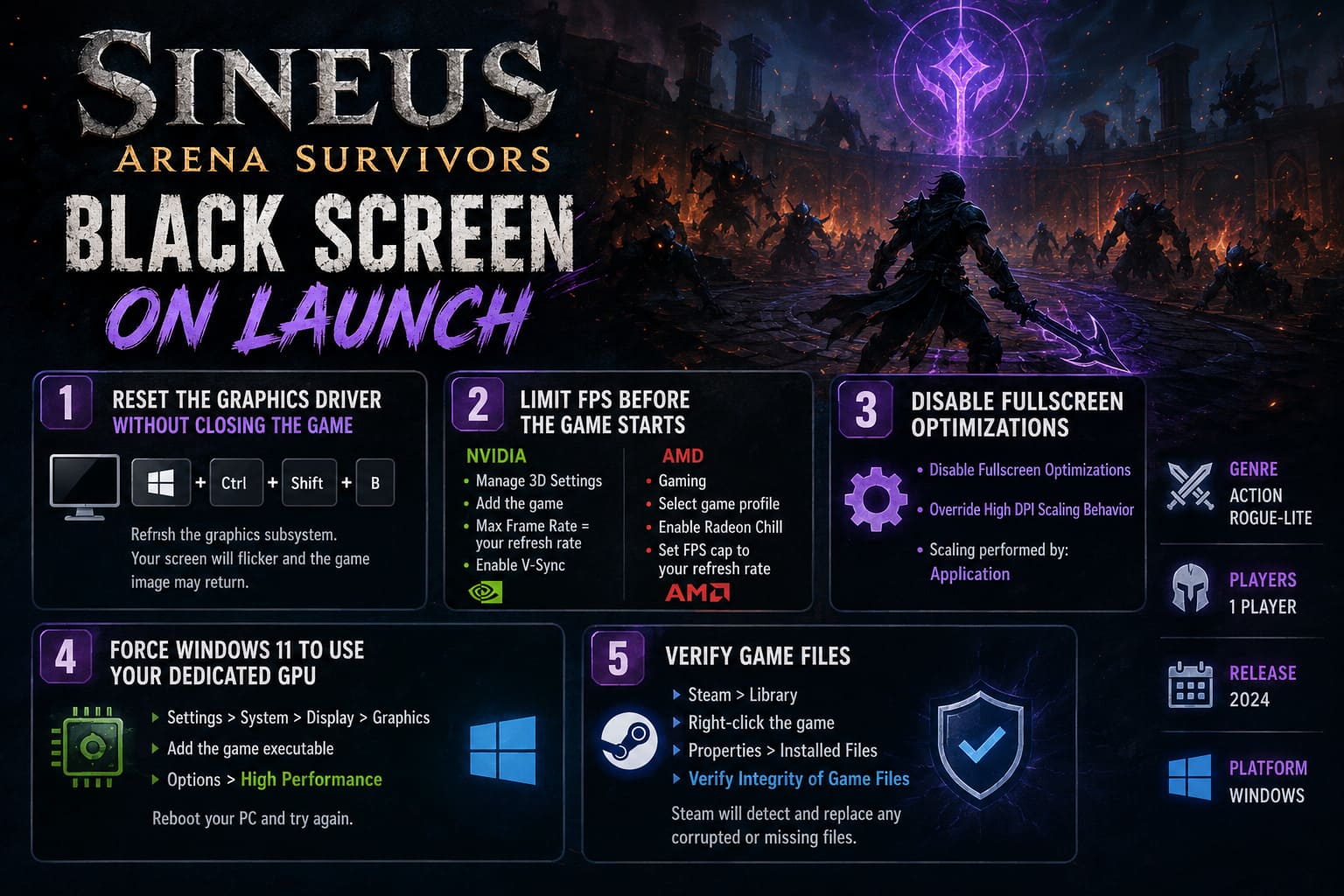
While the game is running:
Press:
Windows + Ctrl + Shift + B
Your screen will briefly flicker and Windows will reload the graphics subsystem.
When I first encountered the issue, this shortcut immediately restored the game image without requiring a restart.
It’s not a permanent solution if deeper problems exist, but it’s an excellent first step.
2. Limit FPS Before the Game Even Starts
One interesting theory circulating among experienced PC players is that some games push absurd frame rates during startup logos and menus.
When this happens, certain driver versions can become unstable.
I tested this myself and noticed significantly better launch consistency after enabling a frame limiter.
NVIDIA Users
- Go to Manage 3D Settings.
- Select Program Settings.
- Add the Sineus Arena Survivors executable.
- Enable Max Frame Rate.
- Set it to your monitor refresh rate.
- Turn V-Sync on.
AMD Users
- Open the Gaming section.
- Select the game profile.
- Enable Radeon Chill.
- Set an FPS cap matching your display.
This prevents unnecessary GPU spikes during initialization and can stop black screens caused by driver instability.
3. Disable Fullscreen Optimizations
I honestly think this setting causes more gaming headaches than it solves.
Windows 11 tries to improve fullscreen performance through a feature called Fullscreen Optimizations, but plenty of games still struggle with it.
To disable it:
- Locate the game’s executable.
- Right-click and choose Properties.
- Open Compatibility.
- Check Disable Fullscreen Optimizations.
- Click Apply.
While you’re there, I also recommend enabling:
Override High DPI Scaling Behavior
Set the scaling option to:
Application
Many players report that this combination fixes startup display issues immediately.
4. Force Windows 11 to Use Your Dedicated GPU
Gaming laptops are especially vulnerable to this problem.
Windows occasionally decides that a game should run on integrated graphics instead of the dedicated GPU.
The result?
Poor performance, crashes, or a black screen before the game even loads.
To force GPU selection:
- Open Windows Settings.
- Navigate to System → Display.
- Scroll to Graphics.
- Browse for the game executable.
- Select Options.
- Choose High Performance.
- Save changes.
After making this adjustment, reboot your PC before testing again.
This solved the issue for one of my friends running an RTX laptop where Windows kept assigning the game to Intel integrated graphics.
5. Verify Game Files
It sounds basic, but corrupted files remain one of the most common causes of launch failures.
Especially after updates.
Steam
- Open Library.
- Right-click the game.
- Select Properties.
- Open Installed Files.
- Click Verify Integrity of Game Files.
Steam will automatically replace damaged files.
The process usually takes only a few minutes and can save hours of troubleshooting.
6. Clear Shader Cache
Shader caches are supposed to improve performance.
Unfortunately, they occasionally become corrupted after Windows updates, GPU driver updates, or game patches.
When that happens, startup issues become surprisingly common.
To clear the DirectX shader cache:
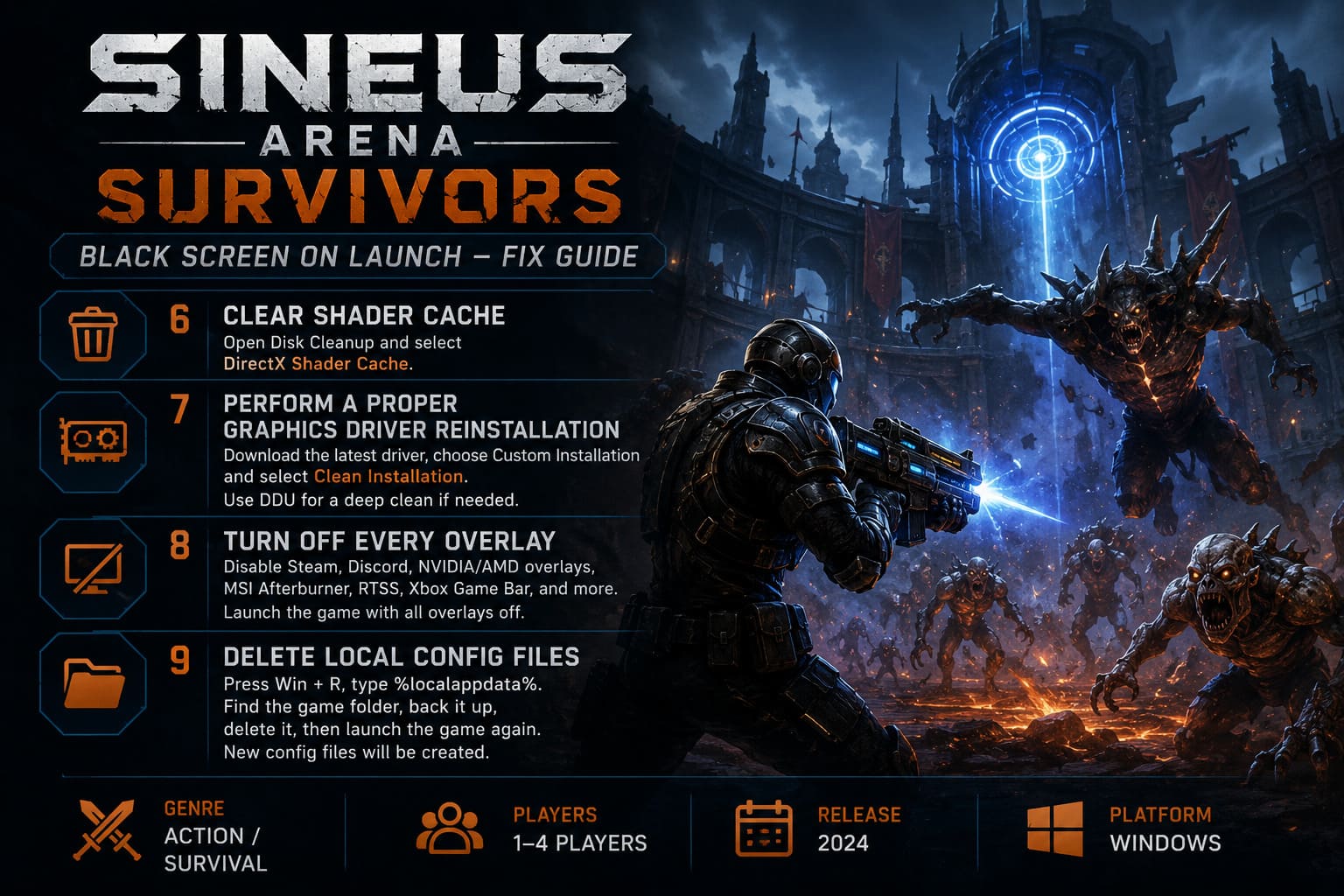
- Open Disk Cleanup.
- Select your Windows drive.
- Check DirectX Shader Cache.
- Click OK.
The next game launch may take slightly longer while shaders rebuild, but many graphical issues disappear afterward.
7. Perform a Proper Graphics Driver Reinstallation
Updating drivers is not always enough.
I’ve seen situations where the newest driver was installed correctly, yet old configuration files continued causing conflicts.
A clean installation removes those leftovers.
Recommended Method
- Download the latest driver directly from your GPU manufacturer.
- Choose Custom Installation.
- Select Clean Installation when available.
For persistent issues, many advanced users prefer using DDU (Display Driver Uninstaller).
DDU completely removes every trace of previous graphics drivers before installing fresh versions.
It’s more time-consuming but often fixes stubborn black screen problems that ordinary updates cannot.
8. Turn Off Every Overlay You Can Find
Overlays are useful until they aren’t.
Steam overlays.
Discord overlays.
Performance monitoring overlays.
Recording overlays.
Every one of them injects itself into the game’s rendering process.
Most games handle this fine.
Some games don’t.
I personally recommend temporarily disabling:
- Steam Overlay
- Discord Overlay
- NVIDIA Overlay
- AMD Overlay
- MSI Afterburner
- RTSS
- Xbox Game Bar
Launch the game with everything disabled.
If the black screen disappears, re-enable programs one by one until you discover the culprit.
9. Delete Local Configuration Files
This is the fix that ultimately solved the problem permanently on one of my test systems.
Sometimes the game stores an invalid resolution, broken fullscreen setting, or corrupted startup configuration.
When the game tries loading those settings, it becomes stuck before rendering anything.
To reset local settings:
- Press Windows + R.
- Type %localappdata%.
- Locate the folder associated with the game or developer.
- Back it up somewhere safe.
- Delete the original folder.
- Launch the game again.
The game will create fresh configuration files automatically.
You’ll lose custom settings, but that’s usually a small price to pay for getting the game running.
Additional Things Worth Checking
If nothing above works, don’t overlook these possibilities:
Disable HDR
Some players report launch problems when HDR is enabled globally in Windows.
Try disabling HDR temporarily and test again.
Disconnect Secondary Monitors
Multi-monitor setups occasionally confuse game launch behavior.
Launch the game with only one display connected.
Update Windows 11
Several graphics-related fixes are delivered through Windows updates.
Running an outdated build can create compatibility problems with newer games.
Close Background Software
RGB controllers, motherboard utilities, monitoring software, and screen recording tools can all interfere with startup sequences.
A clean boot can help identify conflicts.
Sineus Arena Survivors Gameplay Guide: Expert Tips, Best Builds, and Stronghold Defense Strategies
My Recommended Order of Fixes
If you’re short on time, here’s the exact order I’d follow:
- Reset graphics driver shortcut.
- Disable overlays.
- Verify game files.
- Disable fullscreen optimizations.
- Force dedicated GPU usage.
- Clear shader cache.
- Delete local config files.
- Clean-install graphics drivers.
Following this sequence gives the highest chance of success while requiring the least amount of effort.
Sineus Arena Survivors Co-Op Guide: Multiplayer Strategy, Builds, and Base Defense Tips
Final Thoughts
The Sineus Arena Survivors black screen on Windows 11 is annoying, but thankfully it usually isn’t a sign of serious hardware failure. In most cases, the problem comes down to graphics initialization conflicts, corrupted configuration files, or software that interferes with the game’s startup process.
From my own testing, the biggest winners were disabling fullscreen optimizations, forcing the dedicated GPU, and removing corrupted AppData settings. Those three fixes alone solved the issue for multiple systems I worked on.
If you’re still stuck after trying everything here, keep an eye on future game patches. Early versions of indie survival titles often receive launch fixes as developers collect crash reports from the community.
Until then, hopefully one of these solutions gets you back into the arena instead of staring at a black screen.