WARDOGS Best Settings: Ultimate FPS Boost & Competitive Visibility Guide
WARDOGS is the kind of shooter that can make a perfectly decent gaming PC suddenly question its life choices. You can spend one minute quietly scouting a mountain road and the next be standing in the middle of a 100-player firefight while vehicles explode, buildings come down, artillery fills the screen with smoke, and three teams are fighting over the same objective. I love that chaos, but there is a catch: WARDOGS can punish badly optimized settings very quickly.
Developed by BULKHEAD and published by Team17, the game uses Unreal Engine with its custom War Dynamics Framework to create huge battles across destructible environments. That scale is a big part of the appeal, but it also means you cannot simply throw every graphics option onto Epic and expect a stable competitive experience. For me, the ideal setup is not about making the game look like a movie. It is about keeping the image sharp, enemies easy to read, and FPS stable when the battlefield turns into absolute madness.
After experimenting with the available settings and looking at the kinds of problems players have been discussing during testing, I would build my setup around one simple rule: keep the settings that improve visibility and cut the effects that mostly exist to make explosions prettier.
Ultimate WARDOGS Spotter Guide: How to Tag Enemies and Earn Max Cash
The First Thing I’d Do: Check Your Hardware
Before changing individual options, it is worth knowing what kind of performance your PC is realistically designed to deliver.
The recommended hardware for WARDOGS is aimed at a 1440p medium-quality experience above roughly 70 FPS natively, while 4K medium can make use of upscaling to stay above 60 FPS. The recommended setup includes Windows 11, an Intel Core i7-12700K or AMD Ryzen 7 5700X, 16GB of RAM and a GPU around the level of an Nvidia RTX 3070 or AMD RX 6700 XT.
There is another detail I would not ignore: storage. WARDOGS has huge environments and plenty of assets to stream, so putting the game on a fast SSD is much safer than running it from an old mechanical hard drive. Nobody wants to be driving across the map at full speed only for the game to start loading the world like it is 2012.
If your PC is below the recommended specification, don’t panic. You can still get a much better experience by being selective with the settings rather than simply dropping everything to Low.
My Best WARDOGS Display Settings
Display settings are where I would start because they affect how the entire game feels. Even a beautiful 100 FPS setup can feel terrible if the display configuration introduces unnecessary latency.
| Setting | My Recommendation |
|---|---|
| Window Mode | Fullscreen |
| Resolution | Native monitor resolution |
| FPS Limit | Match refresh rate |
| V-Sync | Off |
| G-Sync / FreeSync | On if available |
Fullscreen is my preferred choice for competitive play. Borderless is convenient, especially if you constantly move between applications or monitors, but exclusive fullscreen generally gives me a cleaner feeling when I am trying to minimize distractions and latency.
For resolution, stick with your monitor’s native resolution whenever possible. I would much rather lower a few expensive graphics settings than play at a blurry resolution and struggle to identify someone hiding 200 meters away.
If you have a 144Hz monitor, a 144 FPS cap is perfectly reasonable. If you’re using G-Sync, I personally prefer capping slightly below the refresh ceiling, such as 141 FPS on a 144Hz display. The exact number is less important than avoiding unnecessary FPS spikes and keeping frame pacing consistent.
And yes, I would turn V-Sync off for competitive WARDOGS. Input latency matters when someone suddenly appears around a corner and you have a fraction of a second to react.
The Graphics Settings That Actually Matter
This is where things get interesting. Not every graphics setting deserves the same treatment, and blindly setting everything to Low can actually make the game harder to play.
View Distance: High
This is one setting where I don’t like being aggressive with reductions.
WARDOGS is built around large battlefields, long sightlines, vehicles and constantly changing objectives. Being able to see distant structures and terrain properly is incredibly useful for spotting movement and understanding where the enemy is coming from.
High is my preferred setting, although Epic can make sense if your hardware has enough headroom.
The important point is that I would rather sacrifice some shadows than sacrifice the information I get from the environment.
Shadows: Low
This is one of the easiest cuts.
High-quality shadows can consume a surprising amount of GPU performance, especially when there are countless objects and structures around you. In a game where frame drops are most annoying during huge fights, I don’t think the visual improvement is worth the cost.
I also find that lower shadow quality can make dark interiors and corners easier to read.
Competitive recommendation: Low.
Global Illumination: Off or Low
If I had to pick one setting to reduce first on a struggling PC, Global Illumination would be near the top of my list.
Realistic bounced lighting looks great when you’re slowly exploring the map. It looks considerably less important when 30 players, several vehicles and a collapsing structure are fighting for your GPU’s attention.
Turning Global Illumination down can give you valuable performance headroom while also making some areas of the map easier to read.
For competitive play, Off or Low is my choice.
Mesh Quality: Medium or High
This is one setting I would not completely destroy just for extra FPS.
WARDOGS has plenty of foliage, trees, structures and environmental detail. Dropping mesh quality too far can make vegetation look ugly and overly simplified, which isn’t just a visual problem. It can make spotting players hiding around or inside vegetation more difficult.
I’d start with Medium, then move to High if performance allows.
This is a classic example of why ‘everything on Low’ isn’t always the best competitive configuration.
Texture Quality: High
Textures are a little different from settings like shadows and lighting.
If your graphics card has enough VRAM, I would keep textures at High. You get a cleaner-looking environment without necessarily destroying your FPS.
An 8GB+ VRAM card should generally give you more room here, although your exact experience will depend on the rest of your hardware and resolution. If you notice stuttering that looks like a VRAM problem, Medium is the obvious fallback.
Effects Quality: Medium
This is where WARDOGS can get ridiculous.
Explosions, smoke, vehicle destruction, artillery and collapsing structures can all happen at the same time. High or Epic effects might look fantastic in screenshots, but screenshots aren’t shooting back at you.
Medium is the sweet spot for me. You still get enough visual information to understand what’s happening without asking your GPU to render every explosion like a Hollywood blockbuster.
Post-Processing: Low
Post-processing is another area where I prefer a clean image over cinematic presentation.
Lowering it can remove some of the extra visual processing that makes the image feel softer or busier than necessary. For competitive play, I want to immediately recognize movement rather than admire a fancy filter.
Low is the easy recommendation.
Motion Blur: Off
This one isn’t even a debate for me.
Turn it off.
When you’re flicking your mouse toward an enemy, the last thing you need is artificial blur making the image less readable.
Depth of Field: Off
Same story.
Depth of field can look cool in cinematic scenes, but multiplayer combat isn’t a photography simulator. I want everything relevant to the fight to remain visually clear.
Off.
DLSS, FSR and Upscaling: Don’t Ignore These
Upscaling is one of the best tools available if you’re trying to increase FPS without making WARDOGS look terrible.
For Nvidia users, I would start with DLSS Quality. It offers a useful performance improvement while generally retaining enough detail for long-range combat. Quality is where I would start because going too aggressive with upscaling can make small targets, foliage and weapon sights look noticeably softer.
If you’re running a powerful GPU and already getting significantly more FPS than your monitor can display, DLAA can be worth considering for maximum image quality. Just remember that DLAA is about image quality, not gaining performance.
For AMD users, FSR Quality is the sensible starting point. If the image looks too soft, particularly around red-dot or holographic sights, don’t immediately assume your GPU is broken. Upscaling can affect tiny high-contrast details in ways that become obvious when you’re aiming.
In that situation, I would experiment with a higher internal resolution or a less aggressive upscaling preset.
My Competitive HUD and Gameplay Settings
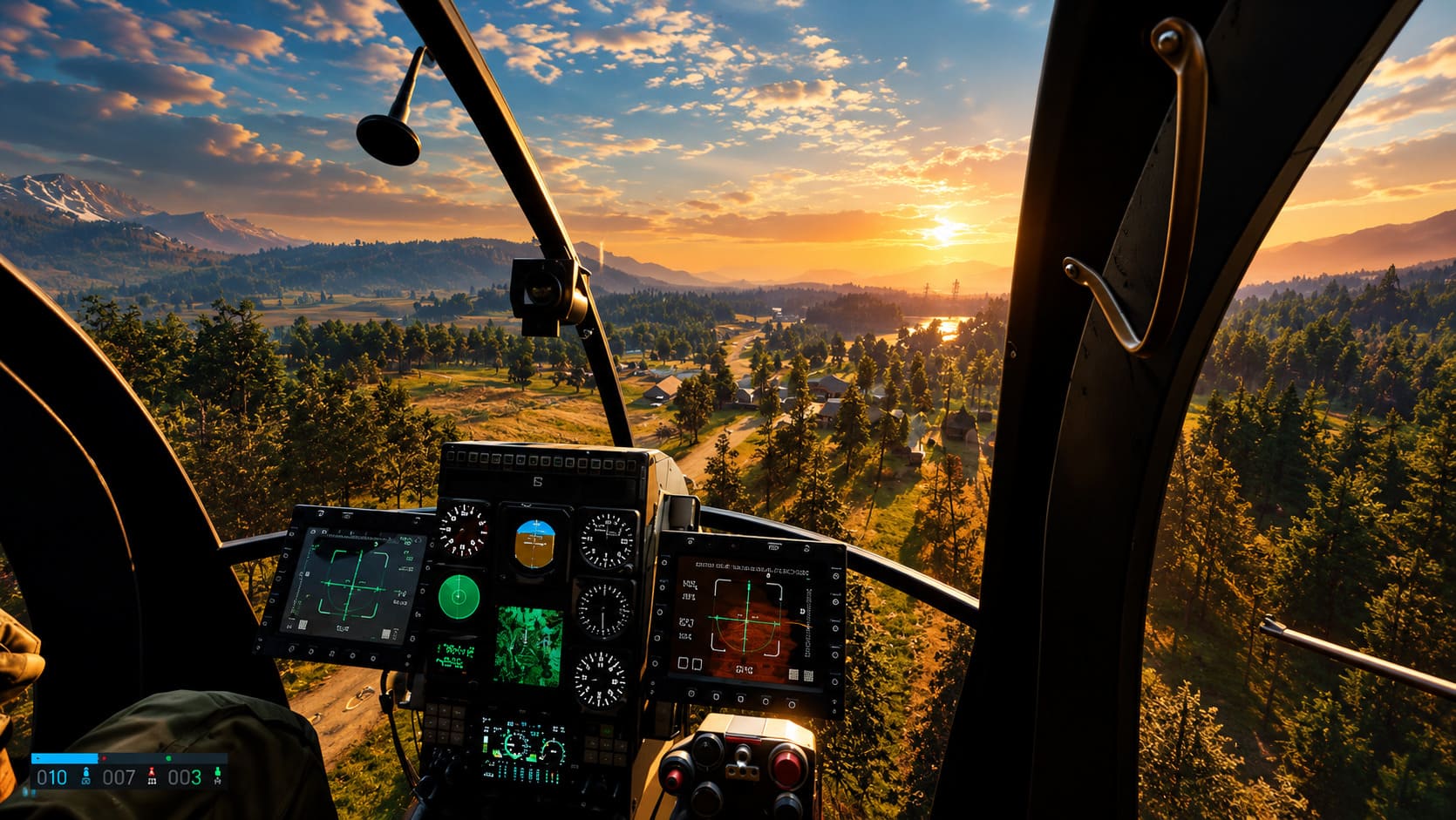
Graphics aren’t everything. A good HUD can make a surprisingly big difference when the battlefield becomes chaotic.
Adaptive Crosshair: Off
I personally prefer a static crosshair.
If you’re used to games such as Counter-Strike or Valorant, an adaptive reticle that changes according to movement and recoil can feel distracting. A fixed center point makes it easier to build consistent muscle memory.
That said, this is one of those settings where personal preference genuinely matters.
Minimap Rotation: On
I strongly recommend enabling minimap rotation.
When you’re moving through a huge environment, having the map orientation match the direction you’re facing makes it much faster to understand enemy positions, vehicle approaches and objective changes.
It might sound like a small convenience, but during a hectic fight, those little reductions in mental processing add up.
HUD Information: Start With Always On
WARDOGS throws a lot of information at the player, especially while you’re learning its systems.
I would initially keep important information feeds visible instead of relying heavily on dynamic notifications. Once you’ve learned the maps and understand what the various alerts mean, you can start turning things down to reduce clutter.
For a new player, missing an important objective or logistical notification simply because the HUD faded away is frustrating.
Audio Settings Matter More Than People Think
This is a tactical shooter, so sound should be treated as information rather than decoration.
I recommend using the Headphones output option and disabling unnecessary virtual surround processing in your operating system or headset software. The goal is to let the game’s own spatial audio do the work.
Footsteps, vehicles, gunfire and destruction can tell you where the fight is happening before you see anything on screen.
If you have a decent pair of headphones, I would absolutely spend some time learning how WARDOGS sounds at different distances. In a huge multiplayer battle, hearing a vehicle approach a few seconds before it arrives can be more useful than another 5% of texture quality.
The ‘Potato Mode’ Setup
Not everyone is playing on an RTX 4080, and honestly, that’s fine.
If you’re running an older GTX card or an entry-level RX GPU, I’d prioritize stable 60 FPS over pretty graphics every single time. The developers have discussed testing the game on more modest hardware, including systems around a GTX 1660-class GPU, which gives lower-end players some reason to be optimistic.
If you’re struggling during major battles, start here:
- Global Illumination: Off
- Shadows: Low
- Effects: Medium or Low
- Post-Processing: Low
- Upscaling: Balanced
- Textures: Medium if VRAM is limited
- Motion Blur: Off
- Depth of Field: Off
- View Distance: Medium or High
The most important thing is not to chase an impressive average FPS number while ignoring frame drops. If your counter says 90 FPS but the game repeatedly plunges into the 40s whenever a major battle begins, the experience will still feel awful.
I’d rather play at a consistent 70 FPS than bounce between 120 and 45.
My Final WARDOGS Settings Philosophy
The best WARDOGS settings aren’t necessarily the ones that produce the prettiest screenshots. They’re the settings that let you see enemies, understand the battlefield and maintain stable performance when everything goes completely insane.
My personal priority would look something like this:
- Stable FPS
- Clear enemy visibility
- Low input latency
- Good long-range detail
- Everything else
That’s why I keep view distance relatively high while cutting shadows, global illumination, motion blur and excessive effects. Those settings preserve the information I actually need while removing visual features that don’t help me win a gunfight.
WARDOGS is at its best when you’re fully immersed in the chaos rather than fighting your own graphics settings. Once the game is running smoothly, you can finally focus on the fun part: figuring out where the other two teams are, stealing objectives, surviving vehicle attacks and wondering why you just spent five minutes building a position that someone destroyed in ten seconds.
And honestly, that’s exactly the kind of multiplayer nonsense I play games for.