Aniimo Lag Fix: How to Stop Stuttering, Low FPS, and Network Latency
I really like what Aniimo is trying to do. The idea of exploring a huge world, collecting creatures, fighting in real time, and then actually becoming those creatures through the Twining mechanic is exactly the kind of thing that can keep me playing for hours. But there is one problem that can ruin all of that very quickly: bad PC performance.
Aniimo has a lot going on behind the scenes. You are constantly moving through large environments, loading new assets, fighting creatures, interacting with other players, and switching between different gameplay systems. When everything works properly, the world of Idyll can look fantastic. When it doesn’t, you get the familiar combination of stuttering, sudden FPS drops, input delay and network lag.
After going through the most common performance complaints and the fixes that actually make sense, I’ve put together this Aniimo PC performance guide for players who want a smoother experience without spending hours randomly changing graphics settings.
First Things First: Put Aniimo on an SSD
This is probably the least exciting recommendation here, but it is also one of the most important.
If Aniimo is installed on an old mechanical hard drive, move it to an SSD before doing anything complicated.
The game has to stream a lot of environmental data while you move around Idyll. Large areas, creatures, textures and other assets are loaded constantly, and an HDD can become a serious bottleneck. The result is often a short freeze or hitch when entering a new area, turning the camera quickly, or traveling through the world.
For reference, the recommended PC configuration is roughly:
| Component | Recommended |
|---|---|
| CPU | Ryzen 5 5600 / Core i7-10700 |
| RAM | 16 GB |
| GPU | RTX 3060 / Radeon RX 6700 |
| Storage | 40 GB SSD |
You don’t necessarily need an expensive NVMe drive. A decent SATA SSD is already a huge improvement over an HDD for this type of game.
My advice: if you’re experiencing mysterious stutters despite having a decent graphics card, check the installation drive first. Sometimes the “GPU problem” isn’t a GPU problem at all.
Don’t Ignore Intel 13th and 14th Gen CPU Stability
This one deserves special attention if you’re using a desktop Intel processor from the 13th or 14th generation.
Processors such as the Core i9-13900K and i9-14900K can be extremely fast, but systems running aggressive motherboard power settings have also become notorious for instability in demanding games.
Aniimo’s combination of shader compilation, CPU-heavy world simulation and multiplayer activity can expose instability that isn’t immediately obvious in other games.
Before blaming Aniimo, I’d make sure your motherboard BIOS is current.
Look for a BIOS update that includes newer Intel microcode and stability improvements. Also check whether your motherboard has an automatic performance profile that ignores Intel’s recommended power limits.
If your system is unstable, you can try:
- Updating the motherboard BIOS.
- Loading Intel’s baseline/default CPU settings.
- Returning PL1/PL2 to sensible Intel-recommended limits.
- Reducing the P-Core ratio by 1–2 multipliers if you’re running an aggressive configuration.
- Testing with E-Cores disabled temporarily if you’re trying to identify the source of short freezes.
I wouldn’t recommend immediately disabling E-Cores permanently. Use that as a troubleshooting step, not your first solution.
If Aniimo crashes, freezes for half a second, or randomly throws you back to desktop while your temperatures look completely normal, CPU stability is absolutely worth investigating.
NVIDIA Settings That Are Actually Worth Changing
There’s a temptation with PC games to change twenty settings in NVIDIA Control Panel and hope for the best. I don’t recommend that.
For Aniimo, I’d keep it simple.
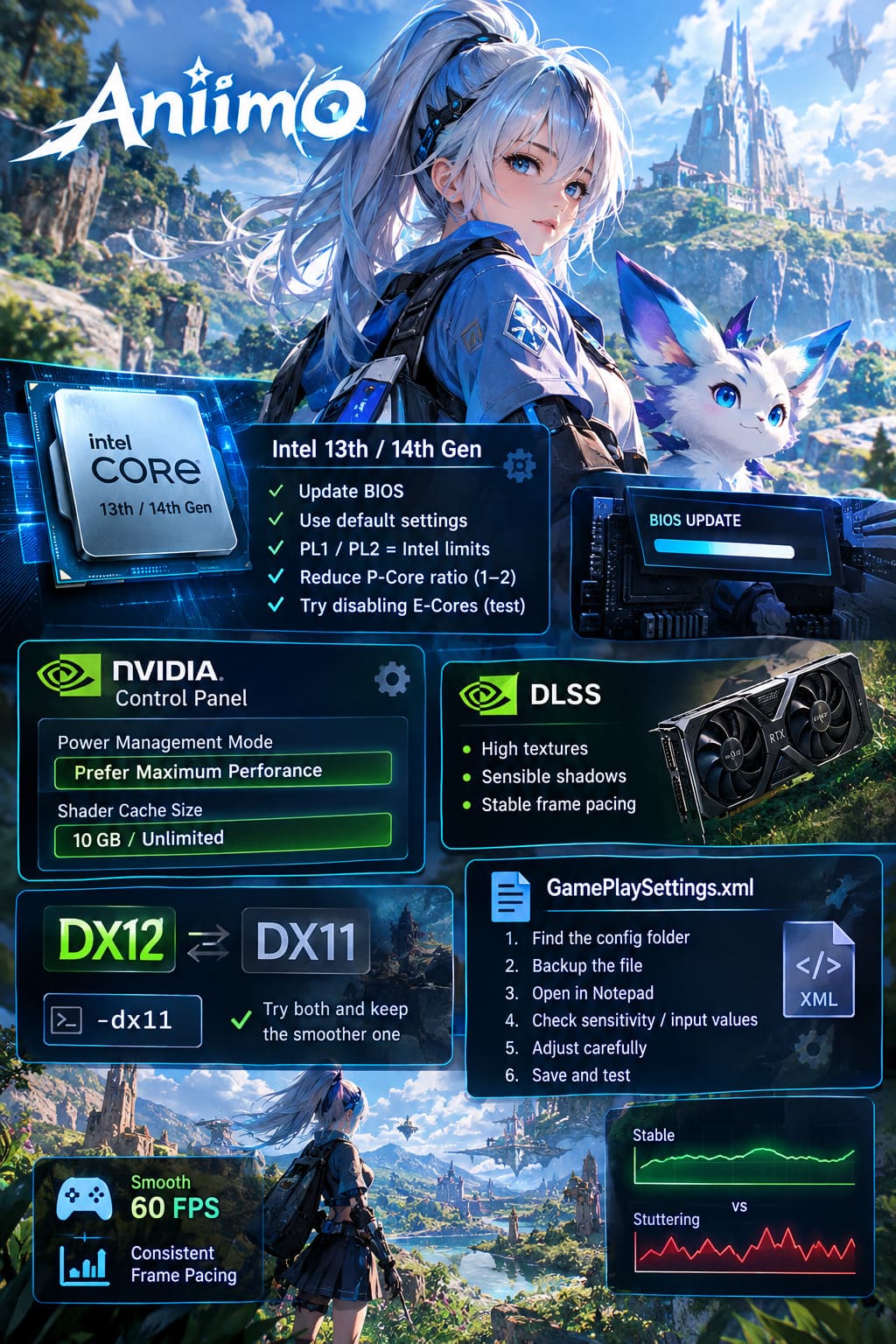
Open NVIDIA Control Panel → Manage 3D Settings → Program Settings, then select Aniimo’s actual executable.
The setting I’d prioritize is:
Power Management Mode → Prefer Maximum Performance
This tells the GPU to stay ready for demanding workloads instead of aggressively changing its power state.
You can also increase the Shader Cache Size to 10 GB or Unlimited if you have sufficient SSD space. Shader compilation is one of those things that can cause annoying little hitches, particularly when you’re entering new areas or encountering visual effects for the first time.
And yes, keep your GPU drivers updated. A brand-new game is exactly the kind of situation where driver optimizations can matter.
What About DLSS?
If you’re using a modern NVIDIA GPU, DLSS can be extremely useful. But don’t immediately crank every graphical option to maximum just because your GPU has enough raw horsepower.
For a smoother experience, I’d rather have:
High textures + sensible shadows + DLSS + stable frame pacing
than:
Ultra everything + inconsistent FPS + constant micro-stutters.
A game that holds a consistent 60 FPS generally feels much better than one that jumps between 90 and 45 FPS every few seconds.
DX12 vs DX11: The Black Screen Fix Worth Trying
One of the more frustrating problems is getting stuck after the loading process reaches 100%.
If Aniimo consistently gives you a black screen or freezes during startup, DirectX 12 may be the first thing I’d investigate.
If your launcher supports launch arguments, try:
-dx11
This isn’t a universal solution, but switching APIs can help identify whether the problem is related to the DX12 rendering path or driver interaction.
On the other hand, if you’re using older hardware and experiencing poor CPU-side performance, DX12 may actually provide better results once your drivers are updated.
So don’t treat DX11 as automatically “better.” Test both APIs and keep whichever gives you more consistent frame pacing.
What About GamePlaySettings.xml?
This is where I’d be a little more careful.
Community reports have pointed toward configuration files such as GamePlaySettings.xml when dealing with sensitivity and input behavior. If you’re comfortable editing configuration files, it’s worth checking whether your settings are being overwritten or behaving strangely.
The general approach is:
- Locate the game’s configuration folder.
- Find
GamePlaySettings.xml. - Make a backup before changing anything.
- Open the file in Notepad.
- Look for mouse sensitivity or input-related values.
- Adjust the value carefully.
- Save the file and test the game.
Some players have reported better camera behavior after changing sensitivity values manually.
Personally, I would not immediately mark the entire file as Read-Only. That can prevent the game from saving legitimate settings and potentially create another problem. Make a backup first and only use Read-Only if you have a specific reason to stop the game from overwriting a known problematic value.
That’s a much safer approach than blindly changing random XML parameters from a forum post.
Fixing High Ping and Rubber-Banding
FPS problems are only half of the story.
If the game feels smooth visually but your creatures and other players are teleporting around, attacks register late, or you’re constantly rubber-banding, you’re dealing with network latency rather than rendering performance.
The first thing I’d do is switch from Wi-Fi to Ethernet.
For competitive multiplayer, especially something like Egg Heist, a wired connection is still the boring but reliable answer. Even excellent Wi-Fi can experience interference and packet loss when several devices are using the same network.
If your connection is behaving strangely, open Command Prompt as administrator and run:
ipconfig /flushdns
Then:
netsh winsock reset
Restart Windows afterward.
Changing DNS can also help with connection resolution, although I wouldn’t expect DNS changes to magically turn a 100 ms connection into a 30 ms one. Services such as Google DNS or Cloudflare DNS can improve reliability in some situations, but DNS is not a replacement for a good route to the game server.
Also check what else is using your connection.
Cloud synchronization, game downloads, video streaming and other large transfers can cause latency spikes. If your family is watching 4K video while you’re trying to play a competitive match, no amount of GPU optimization is going to fix that.
Background Apps Can Cause More Trouble Than You Think
I always recommend checking Task Manager before going down the rabbit hole of advanced tweaks.
Press:
Ctrl + Shift + Esc
Then look at CPU, Memory, GPU and Network usage.
You may find something obvious eating resources in the background. Browser tabs, launchers, cloud storage, recording software and overlays can all contribute to a bad experience.
I would especially test Aniimo with unnecessary overlays disabled.
Discord overlays, recording utilities and third-party monitoring software aren’t guaranteed to cause problems, but when you’re troubleshooting stuttering, removing extra variables makes the process much easier.
Once the game runs properly, you can turn things back on one by one.
When the Game Stutters Near Walls or Water
This is one of those problems that can feel completely random while you’re playing.
If you notice dramatic FPS drops when your character gets close to certain walls, enters water, or transitions between movement states, the issue may be related to physics, collision checks or environmental streaming rather than your graphics settings.
If Aniimo gives you a Physics Quality or Collision-related option, lowering it is worth testing.
You can also reduce unnecessary visual effects and avoid keeping the camera pressed directly against geometry.
This sounds minor, but in an open-world game, camera and collision systems can interact in surprisingly expensive ways.
If the stutter happens consistently in the exact same location, that’s another clue that you’re dealing with an engine or area-specific issue rather than a weak GPU.
Twining Can Cause Its Own Performance Spikes
The Twining mechanic is one of the coolest parts of Aniimo, but it also means the game has to deal with additional creature models, animations, effects and potentially new texture data.
If you experience a short freeze whenever you transform, check your texture settings and VRAM usage.
For an 8 GB graphics card, I wouldn’t automatically use Epic textures just because the game allows it. High textures can often look nearly identical while leaving more VRAM available for everything else.
A simple rule I like is:
| VRAM | Starting Texture Setting |
|---|---|
| 4–6 GB | Medium |
| 8 GB | High |
| 10–12 GB | High / Epic |
| 16 GB+ | Epic, if performance allows |
These aren’t hard rules, but they’re a good starting point.
Texture quality usually has a smaller impact on FPS than shadows, volumetric effects and other expensive settings, while excessive VRAM usage can create ugly stutters.
Aniimo Multiplayer Guide: How to Play Co-Op With Friends in 2026
My Recommended Aniimo Performance Setup
If I were setting up Aniimo on a fresh PC today, I wouldn’t chase the highest possible benchmark number. I’d aim for consistency.
My starting checklist would be:
- Install Aniimo on an SSD.
- Update GPU drivers.
- Update motherboard BIOS.
- Check Intel 13th/14th Gen CPU stability.
- Use Prefer Maximum Performance for Aniimo in NVIDIA Control Panel.
- Increase Shader Cache if necessary.
- Test both DX11 and DX12 if you encounter startup problems.
- Use DLSS on supported NVIDIA hardware.
- Keep textures within your available VRAM.
- Disable unnecessary overlays while troubleshooting.
- Use Ethernet for competitive multiplayer.
- Check background network usage.
- Avoid blindly editing configuration files without making backups.
The biggest mistake is changing everything at once. If you do that and Aniimo suddenly feels better, you won’t know which change actually fixed the problem.
Change one or two things, test for 15–20 minutes, and move on.
Aniimo System Requirements: Storage Size, PC Specs, and Gameplay Guide (2026)
Final Thoughts
Aniimo is exactly the type of game where stable performance matters more than chasing an impressive FPS number. You’re constantly moving through a large world, fighting, collecting creatures and loading new environments. Small frame-time spikes become much more noticeable when they happen during combat or exploration.
The good news is that many of the most common problems have fairly straightforward solutions.
An SSD can eliminate asset-streaming bottlenecks. A proper BIOS configuration can stabilize problematic Intel systems. Sensible GPU settings can improve frame pacing, while a wired connection can make multiplayer feel dramatically more responsive.
And if none of those fixes work, don’t assume your PC is suddenly too weak for Aniimo. Sometimes a new game simply has an engine-side problem that only the developers can fix.
My biggest recommendation is to prioritize consistency over maximum graphics quality. A stable 60 FPS with sensible settings is far more enjoyable than staring at beautiful Ultra graphics while the game freezes every few seconds.
Once Aniimo is running smoothly, that’s when Idyll becomes much more enjoyable. And honestly, that’s what I’m looking for from a game like this: less time staring at performance graphs and more time exploring, fighting and finding the next creature worth keeping.