Cyberpunk 2077 REDengine Error Flatlined Crash Bypass & Fix Guide (2026)
Cyberpunk 2077 has come a long way since its rocky launch. Today it’s one of my favorite RPGs, and after hundreds of hours wandering around Night City, I still think few games match its atmosphere. That said, there is one problem that refuses to disappear completely: the infamous “Whoa! Cyberpunk 2077 has flatlined” error.
The frustrating part is that this crash doesn’t only affect older PCs. I’ve seen it happen on powerful gaming rigs with modern Intel and AMD processors, RTX graphics cards, fresh Windows installations, and the newest GPU drivers. Sometimes the game crashes before reaching the main menu, while other times it happens after 30 minutes of perfectly smooth gameplay.
After comparing community discussions, trying different solutions myself, and seeing which methods consistently solve the issue, I noticed something important: there isn’t one universal fix. The REDengine crash is usually the result of several different factors, from launcher issues to unstable hardware settings or leftover mod files.
This guide focuses on the solutions that are genuinely worth trying before considering a complete Windows reinstall.
Why Does Cyberpunk 2077 Keep Flatlining?
When REDengine displays the flatlined message, it simply means the game encountered a fatal error it couldn’t recover from.
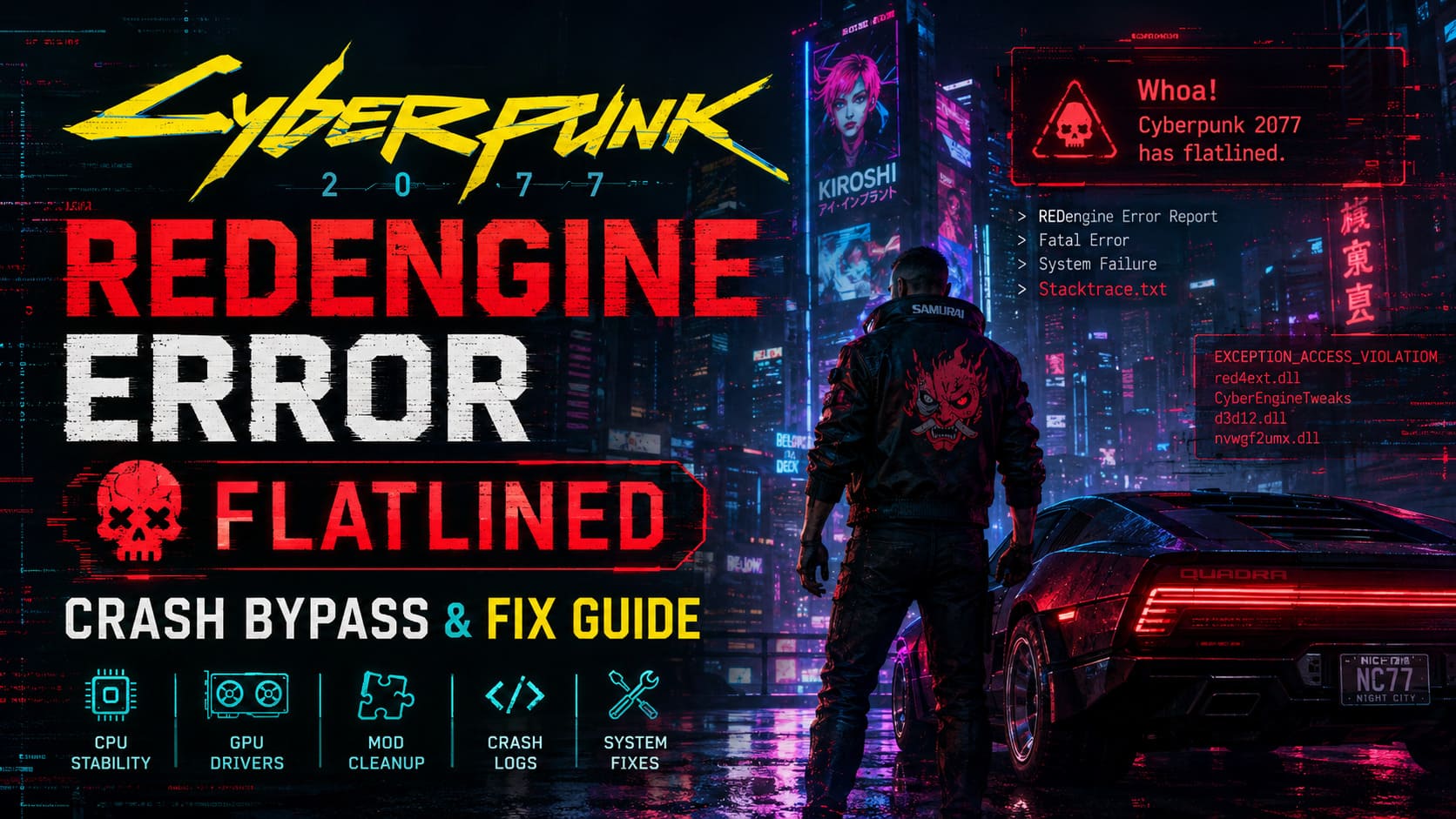
The most common causes include:
- corrupted game files;
- outdated or broken mods;
- unstable CPU or GPU overclocks;
- graphics driver conflicts;
- damaged Visual C++ runtime libraries;
- overlay software interfering with DirectX 12;
- Windows configuration problems.
The difficult part is that two players can receive the exact same crash message for completely different reasons.
Skip REDlauncher First
If Cyberpunk crashes immediately after pressing Play, the launcher itself might actually be the problem.
One of the quickest tests is launching the game without REDlauncher.

On Steam, simply open the game’s properties and add:
--modded --skip-launcherto the Launch Options.
You can also run Cyberpunk2077.exe directly from the game’s bin\x64 folder.
In my experience, this simple test instantly tells you whether you’re dealing with a launcher issue or an actual game problem. If the executable works perfectly while Steam or GOG keeps crashing, you’ve already narrowed down the cause significantly.
CPU Stability Matters More Than You Think
This surprised me the most.
Many people automatically blame GPU drivers whenever Cyberpunk crashes, but modern CPUs—especially high-end Intel chips—have become a much more common source of instability.
I’ve seen systems pass heavy benchmarks and stress tests without any issues, yet Cyberpunk would still randomly flatline during busy city scenes.
If you’re running an unlocked Intel processor, particularly recent Core i7 or Core i9 models, check your motherboard BIOS.
Many manufacturers ship aggressive power profiles enabled by default. These settings often push voltage and power limits beyond Intel’s official specifications.
Returning the processor closer to stock limits can dramatically improve stability.
Some motherboard features worth disabling include:
- ASUS MultiCore Enhancement
- Gigabyte PerfDrive
- MSI Enhanced Turbo
- Similar automatic performance presets
These profiles can improve benchmark numbers but aren’t always ideal for long gaming sessions.
Remove Every Trace of Old Mods
One lesson I learned the hard way:
Deleting the game isn’t the same as removing mods.
Steam verifies official files only. It won’t touch external script folders, plugin frameworks, or manually installed archives.
If you’ve ever experimented with:
- Cyber Engine Tweaks
- RED4ext
- REDmod
- Vortex
- Nexus Mods
there’s a good chance some old files are still sitting inside the installation directory.
A proper cleanup involves deleting the major engine folders before verifying the game files again.
This forces Steam or GOG to rebuild the installation instead of keeping broken scripts that continue causing crashes.
Honestly, this solved more startup crashes for me than any driver update ever did.
Graphics Drivers Aren’t Always Better When They’re Newer
Many gamers install every GPU driver the day it’s released.
Normally that’s a good idea.
But Cyberpunk has occasionally behaved better with slightly older drivers than with brand-new releases.
Instead of repeatedly installing drivers over existing ones, perform a clean installation.
Using Display Driver Uninstaller (DDU) removes leftover files that Windows often leaves behind after multiple driver upgrades.
After reinstalling your graphics driver, avoid enabling every optional gaming feature immediately.
Test the game first.
If stability improves, then gradually re-enable additional features.
NVIDIA Factory Overclocks Can Also Cause Problems
One trick many players never discover is NVIDIA’s Debug Mode.
Some factory-overclocked graphics cards operate perfectly in almost every game but become unstable under Cyberpunk’s heavy GPU workload.
Enabling Debug Mode temporarily forces reference clock speeds.
It’s an easy test that costs almost nothing to try.
If crashes suddenly disappear, you’ve found the culprit without touching BIOS settings or third-party overclocking software.

Don’t Ignore Visual C++ Libraries
It sounds boring.
It doesn’t feel like something that should crash a modern AAA game.
Yet damaged Visual C++ Redistributables remain one of the simplest causes of launch failures.
Repair every installed Microsoft Visual C++ package instead of uninstalling them.
The repair process usually takes only a few minutes.
I also recommend reinstalling DirectX runtime components afterward.
Even if Windows says everything is current, replacing damaged runtime files can eliminate strange startup crashes.
Turn Off Overlays Before Troubleshooting Anything Else
Modern gaming software loves overlays.
Discord has one.
Steam has one.
GeForce Experience has one.
MSI Afterburner often installs RTSS.
Even motherboard audio software sometimes injects overlays or background services.
The problem is that Cyberpunk’s DirectX 12 renderer doesn’t always play nicely with all of them running together.
During troubleshooting, disable everything.
That includes:
- Discord Overlay
- Steam Overlay
- NVIDIA Overlay
- AMD Overlay
- RTSS
- MSI Afterburner
- Nahimic Audio
- ASUS Sonic Studio
Once the game becomes stable, enable them one at a time.
That approach saves hours of guessing.
Read the Crash Log Instead of Guessing
One thing I wish more players knew is that Cyberpunk actually tells you quite a lot about why it crashed.
Crash reports are stored inside the REDengine report folder.
The most useful file is usually stacktrace.txt.
| Crash Message | Most Likely Cause | Recommended Action |
|---|---|---|
| EXCEPTION_ACCESS_VIOLATION | Memory instability, CPU settings, corrupted mods | Remove mods, check BIOS, test RAM |
| CyberEngineTweaks | Broken mod framework | Delete and reinstall compatible mods |
| red4ext | Outdated scripting extension | Remove old files and install updated versions |
| d3d12.dll | DirectX or graphics driver issue | Clean GPU driver installation |
| nvwgf2umx.dll | NVIDIA driver instability | Try another driver version or reduce GPU overclock |
Reading the log won’t always give an instant answer, but it narrows the investigation dramatically.
My Personal Troubleshooting Order
Whenever Cyberpunk starts crashing on a fresh system, this is the exact order I follow:
- Skip REDlauncher and launch the executable directly.
- Disable every overlay running in Windows.
- Verify game files after removing leftover mod folders.
- Perform a clean graphics driver installation.
- Repair Visual C++ Redistributables.
- Reset CPU and GPU overclocks to stock settings.
- Check the crash logs if the issue still persists.
In my experience, this order eliminates the majority of flatlined crashes without wasting time on unnecessary Windows tweaks.
Cyberpunk 2077 High CPU Temperature and 100% Usage: 2026 Fix Guide
Final Thoughts
Cyberpunk 2077 has matured into an outstanding RPG, but its REDengine remains incredibly demanding. What makes the Flatlined error so frustrating is that it isn’t a single bug—it is a generic crash message that can be triggered by everything from unstable BIOS settings to outdated mods or conflicting background software.
If there’s one takeaway from my own experience, it’s this: avoid changing ten things at once. Test one solution, launch the game, and only move to the next step if the crash returns. That makes it much easier to identify the real cause instead of masking it.
The good news is that most flatlined errors are fixable without reinstalling Windows or replacing hardware. A clean game directory, stable CPU settings, fresh graphics drivers, repaired runtime libraries, and a clutter-free software environment are usually enough to get you back into Night City.
Once everything is stable, you can finally stop troubleshooting and get back to what Cyberpunk 2077 does best—immersing you in one of the most atmospheric open worlds ever created.