How to Fix Echoes of Aincrad Black Screen and Crashing on Launch
There’s nothing more frustrating than buying a game you’ve been looking forward to, clicking Play, hearing the music start… and then staring at a completely black screen. Unfortunately, that’s exactly what many PC players have experienced with Echoes of Aincrad. Some players get stuck before reaching the main menu, while others only encounter the issue after progressing through important story missions. Either way, it’s a fast way to kill the excitement.
The good news is that this doesn’t appear to be a hardware failure in most cases. After reading through Steam discussions, Reddit posts, and testing several community fixes myself, it became clear that there isn’t one universal cause. Instead, several different bugs can produce almost identical symptoms. Fortunately, most of them can be solved without reinstalling Windows or replacing hardware.
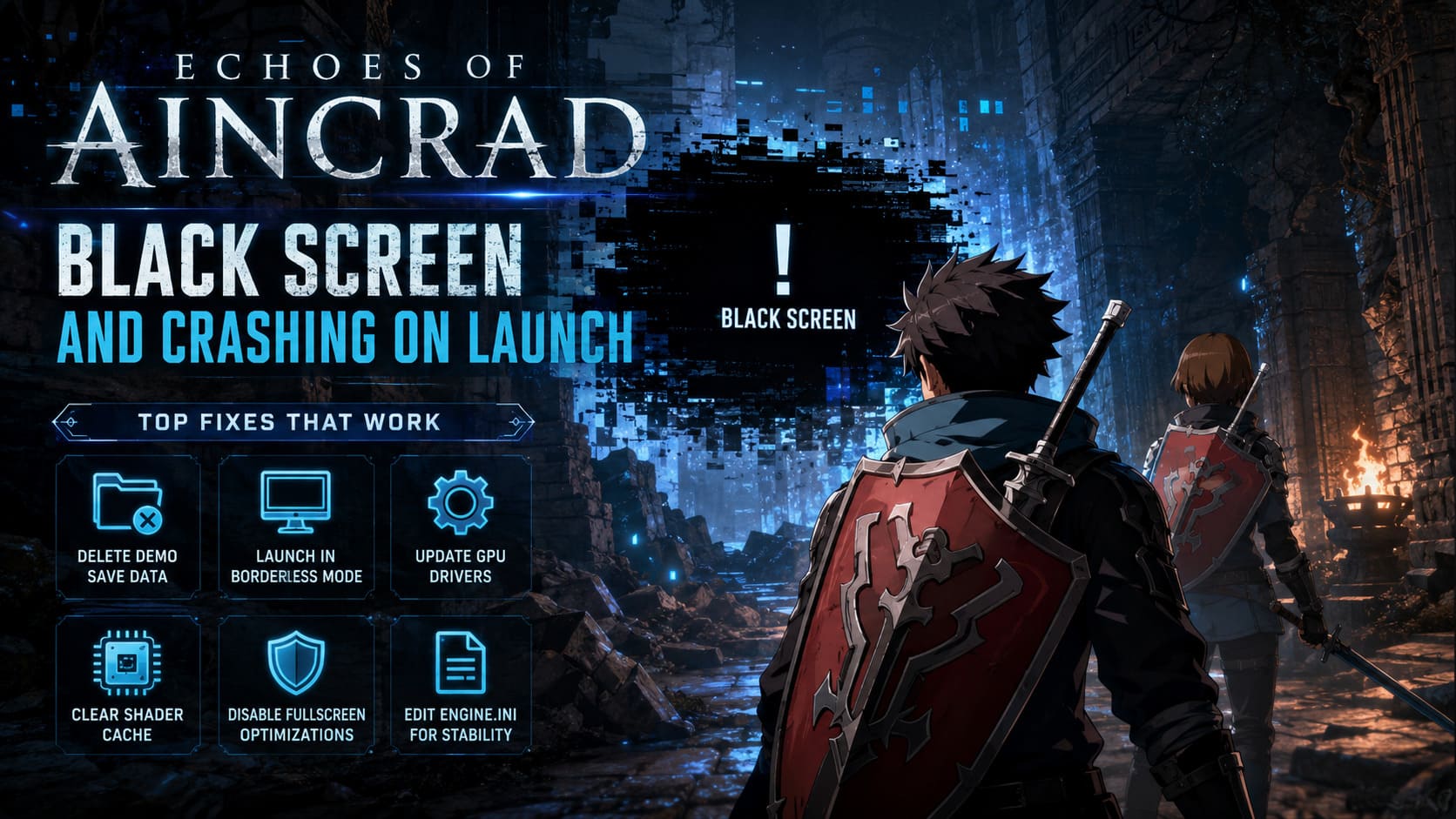
Below are the fixes that have helped the largest number of players get back into the game.
Why Does Echoes of Aincrad Show a Black Screen?
A black screen usually means the game launches successfully but fails during the graphics initialization process or gets stuck loading corrupted game data. Sometimes you’ll even hear menu music or background sounds while the display stays completely black.
How to Fix Echoes of Aincrad Crash on Launch, Crashing at Startup, and Not Loading on PC
The most common reasons include:
- Broken quest scripting
- Corrupted save files
- Demo save conflicts
- Display mode incompatibility
- Outdated GPU drivers
- Shader cache corruption
- Windows compatibility conflicts
- Incorrect graphics configuration files
Finding the exact cause may take a few minutes, but most fixes are simple enough to try one after another.
Switch Your Companion During Bugged Story Missions
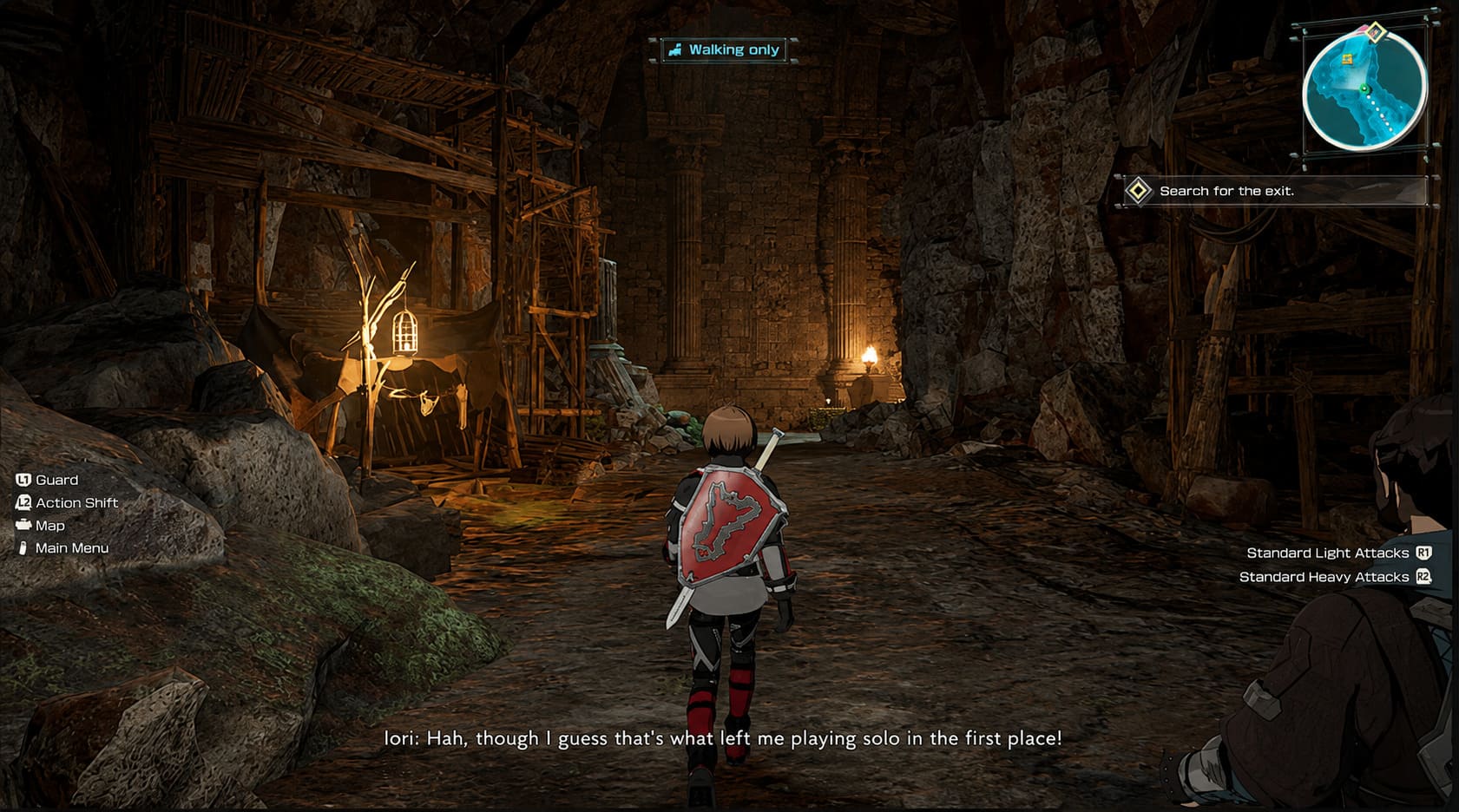
One of the strangest bugs I’ve seen affects specific story quests instead of the entire game. Several players discovered that after finishing battles or entering portals during missions like Original Sin or Cave Diver, the game immediately freezes on a black screen.
The interesting part is that the issue isn’t always the quest itself—it can be triggered by your active companion.
If you’re using Asuna during these sequences, try the following:
- Exit the game.
- Reload your latest save.
- Open the party menu.
- Replace Asuna with Iori, Zash, or Argo.
- Complete the problematic section.
- Switch back afterward if you want.
It sounds oddly specific, but community reports suggest this workaround consistently bypasses the broken event scripting until developers release a permanent fix.
Delete Old Demo Save Data
This is probably the first fix I’d recommend if you played the demo before purchasing the full game.
Several players discovered that leftover demo save files confuse the retail version during startup. Instead of loading normally, the game gets trapped on splash screens or jumps straight into a permanent black display.
A clean save profile often fixes the problem.
Here’s the general process:
- Disable Steam Cloud for the game.
- Navigate to your local save folder inside %localappdata%.
- Find the EchoesofAincrad save directory.
- Delete the demo save file or remove the entire Saved folder.
- Launch the game again.
- If everything works, re-enable Steam Cloud and upload the new local save.
It takes only a few minutes and has solved startup issues for a surprising number of players.
Launch the Game in Borderless Window Mode
I’ve lost count of how many Unreal Engine games have been fixed simply by avoiding exclusive fullscreen mode.
Modern monitors with unusual refresh rates, HDR settings, or multiple displays sometimes confuse the engine during startup. Instead of initializing correctly, the game simply never renders an image.
Adding launch parameters through Steam forces a safer display mode.
Use these launch options:
| Launch Option | Purpose |
|---|---|
| -windowed -noborder | Starts the game in borderless window mode. |
| -dx11 | Forces DirectX 11 rendering. |
| -dx12 | Forces DirectX 12 rendering. |
If one DirectX version doesn’t work, it’s worth trying the other. I’ve seen older GPUs behave much better with DirectX 11, while newer systems usually perform best with DirectX 12.
Update Your Graphics Driver and Rebuild Shader Cache
Driver updates are easy to ignore until a brand-new game refuses to cooperate.
Echoes of Aincrad launched with several GPU-specific issues affecting NVIDIA, AMD, and Intel users alike. Intel Arc owners seemed to experience particularly noticeable launch problems until newer drivers became available.
Updating your graphics driver should always be followed by clearing old shader caches.
Old compiled shaders sometimes conflict with newer drivers, leading to crashes before gameplay even begins.
It’s worth clearing:
- DirectX Shader Cache
- NVIDIA shader cache (if applicable)
- AMD shader cache
- Intel graphics cache
The next launch will take slightly longer because the game rebuilds everything from scratch, but that’s usually a good sign.
Disable Windows Fullscreen Optimizations
Windows tries to ‘help’ games by applying fullscreen optimizations automatically. In reality, I’ve seen this feature create more problems than it solves.
If the display freezes immediately after startup, changing compatibility settings can make a noticeable difference.
Locate the game’s executable and enable:
- Disable Fullscreen Optimizations
- Run this program as Administrator
These two options eliminate several Windows permission and display management conflicts before the game even starts rendering.
It isn’t a guaranteed fix, but it’s easy enough that it’s worth trying.
Edit Engine.ini for More Stable Graphics Settings
This solution is aimed at players who still can’t get into the game after trying everything else.
Unreal Engine stores many graphics settings inside configuration files, and sometimes manually overriding them works better than letting the game detect hardware automatically.
Open the Engine.ini file located inside the game’s configuration folder and add optimized rendering parameters that reduce demanding graphical features.
Common adjustments include:
- Lower texture streaming requirements.
- Reduce shadow complexity.
- Disable unnecessary rendering features.
- Limit expensive visual effects.
After editing the file, setting it to Read Only prevents the game from replacing your custom configuration during future launches.
I wouldn’t recommend editing configuration files as the first troubleshooting step, but it’s definitely one of the more effective advanced fixes.
Additional Things Worth Trying
Sometimes the simplest solutions end up being the right ones.
If the black screen still appears, I’d also check these quick fixes before assuming something is seriously broken:
- Verify game files through Steam.
- Disconnect unnecessary USB devices.
- Disable Discord and GeForce overlays.
- Close MSI Afterburner or RivaTuner temporarily.
- Disable third-party antivirus for testing.
- Restart your PC after every major change.
- Try launching with only one monitor connected.
I’ve personally solved launch problems in several Unreal Engine games simply by disabling overlays that were hooking into DirectX during startup.
Which Fix Works Most Often?
Looking through hundreds of player reports, a clear pattern starts to appear.
| Problem | Most Effective Solution |
|---|---|
| Black screen after story quests | Change companion character. |
| Black screen before menu | Delete demo save data. |
| Startup crash | Borderless launch options. |
| Instant freeze | Update GPU drivers. |
| Graphics never appear | Clear shader cache. |
| Random launch failures | Disable fullscreen optimizations. |
There isn’t one magic button that fixes every installation, but these solutions cover the overwhelming majority of reported cases.
Final Thoughts
Technical issues at launch are disappointing, especially for a game built around fast-paced action and memorable story moments. Thankfully, Echoes of Aincrad’s black screen problem doesn’t seem to point toward failing hardware in most situations. Instead, it’s largely tied to software conflicts, corrupted saves, and a few oddly specific scripting bugs that the community has already mapped out.
If I had to recommend an order, I’d start with deleting old demo saves, then launch the game in borderless mode, update GPU drivers, and finally work through the compatibility settings. Players stuck during story missions should absolutely try changing companions before doing anything more complicated—that workaround has been surprisingly reliable. Hopefully upcoming patches remove the need for these workarounds altogether, but until then, these fixes offer the best chance of getting back into Aincrad without losing your progress.