How to Fix Echoes of Aincrad Low FPS and Stuttering on PC
I was genuinely excited when Sword Art Online: Echoes of Aincrad launched on PC. The idea of exploring Aincrad with modern visuals sounded like exactly what SAO fans had been waiting for. Unfortunately, the excitement lasted only until I reached larger outdoor areas, where my smooth gameplay suddenly turned into a slideshow.
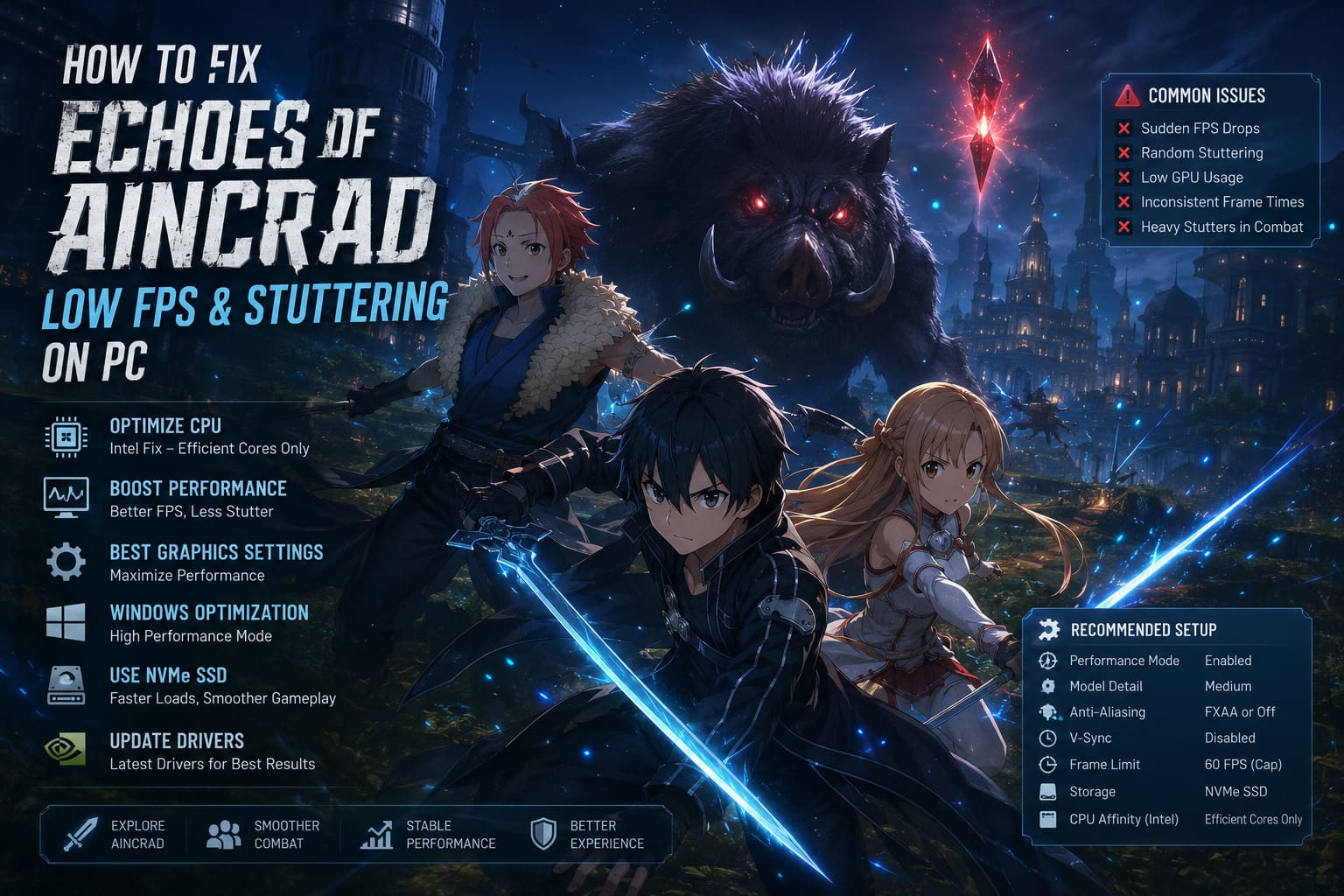
The strange part is that this isn’t just happening on older hardware. I’ve seen countless reports from players running powerful gaming PCs who are still struggling with low FPS, random stuttering, inconsistent frame times, and poor GPU usage. After trying different fixes myself and comparing notes with the community, I found several changes that actually make a noticeable difference.
If you’re frustrated because combat feels choppy or towns become nearly unplayable, these are the solutions worth trying first.
Why Performance Feels So Inconsistent
One thing became obvious after spending time with the game: the performance issues aren’t caused by weak hardware alone. Echoes of Aincrad appears to suffer from optimization problems that become much more noticeable when multiple NPCs, enemies, or detailed environmental assets are loaded simultaneously.
Indoor areas often perform surprisingly well, while moving into the Town of Beginnings, open fields, or busy quest locations can instantly cut frame rates in half. Even systems equipped with recent RTX graphics cards aren’t immune.
How to Fix Echoes of Aincrad Black Screen and Crashing on Launch
Some of the most common symptoms include:
- Sudden FPS drops during exploration
- Short freezes while rotating the camera
- GPU utilization staying unexpectedly low
- CPU temperatures climbing despite poor performance
- Heavy stuttering whenever new enemies appear
From my experience, these problems aren’t constant. They appear in specific locations, which strongly suggests that the game engine struggles with certain rendering workloads rather than the entire game.
The Intel CPU Fix That Made the Biggest Difference
Out of every solution I tested, this one produced the largest improvement.
Players using newer Intel processors discovered that the game doesn’t always distribute CPU workloads efficiently. Instead of balancing tasks properly, it tends to overload the Performance Cores, creating a bottleneck that prevents the graphics card from reaching full utilization.
The result is a strange situation where:
| Before the Fix | After the Fix |
|---|---|
| Low GPU usage | GPU works much closer to full capacity |
| Heavy frame drops | More stable FPS |
| Frequent stutters | Much smoother gameplay |
| CPU overloaded | Better workload distribution |
To test this yourself:
- Start the game normally.
- Open Task Manager using Ctrl + Shift + Esc.
- Switch to the Details tab.
- Find the game’s executable.
- Open Set Affinity.
- Disable the Performance Cores while leaving the Efficient Cores active.
- Return to the game and compare the results.
It sounds backwards at first, but plenty of players have reported dramatic improvements after making this adjustment.
If you don’t want to repeat these steps every launch, utilities like Process Lasso can save the CPU affinity settings automatically.
Graphics Settings That Actually Improve Performance
Unlike many modern PC releases, Echoes of Aincrad doesn’t offer an especially deep graphics menu. Still, several options have a much bigger impact than others.
After experimenting for a while, these settings delivered the best balance between visuals and performance.
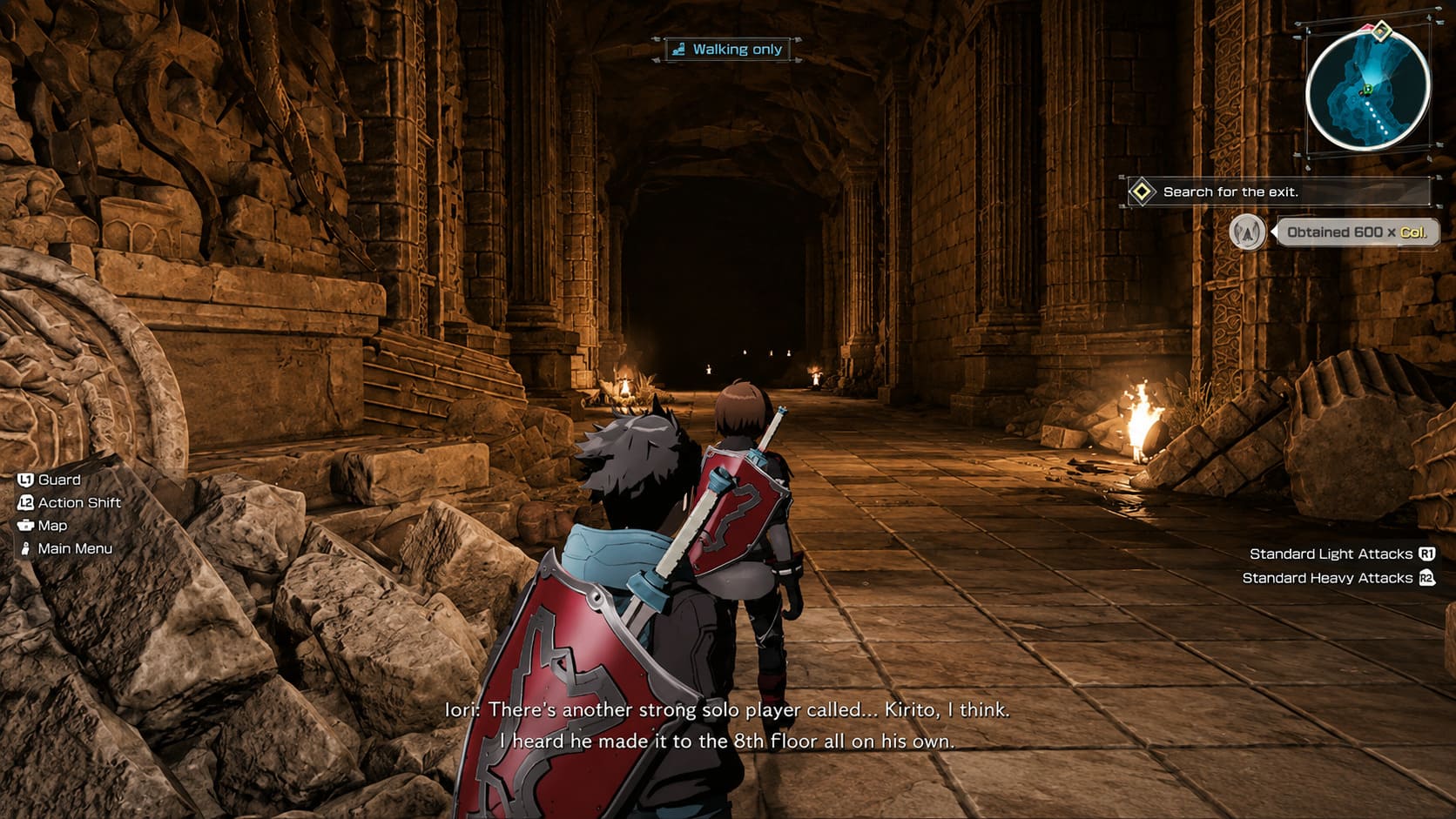
Prioritize Performance Mode
This should be your first change. Besides increasing frame rates, Performance Mode also removes some of the heavy atmospheric effects that can make distant environments look hazy. Personally, I actually prefer the cleaner image.
Reduce Model Detail
Large cities are packed with NPCs and environmental objects. Lowering Model Detail from High to Medium—or even Low—helps reduce the workload considerably without making the game look outdated.
Replace TSR Anti-Aliasing
The default Temporal Super Resolution implementation isn’t my favorite. It tends to introduce blurry edges, ghosting behind moving objects, inconsistent frame pacing, and additional micro-stutters.
Switching to FXAA or disabling anti-aliasing entirely often produces a sharper image while improving responsiveness.
Disable V-Sync
Instead of relying on the game’s V-Sync implementation, disable it completely and cap your frame rate externally through your GPU control panel. A stable 60 FPS usually feels much better than constantly jumping between 120 FPS and 45 FPS during combat.
Editing Unreal Engine Configuration Files
One thing I appreciate about Unreal Engine games is that advanced users usually have additional tweaking options beyond the in-game menus. Echoes of Aincrad is no exception.
The Engine.ini configuration file allows experienced PC players to adjust rendering behavior that isn’t normally exposed through the settings menu. Community tweaks mainly focus on reducing unnecessary post-processing while forcing cleaner native rendering.
Although this isn’t required for everyone, it’s worth considering if you’ve already lowered the in-game graphics settings and still experience inconsistent performance.
Don’t forget to make the configuration file read-only after saving your changes. Otherwise, the game may overwrite your custom settings the next time it launches.
Windows Settings Are Worth Checking Too
Sometimes Windows itself becomes part of the problem. New game releases don’t always receive ideal resource allocation automatically, especially during launch week. A few operating system adjustments can help eliminate unnecessary performance losses.
I recommend checking the following:
- Assign the game to High Performance in Windows Graphics Settings.
- Disable Fullscreen Optimizations in the executable properties.
- Close unnecessary background applications before launching.
- Make sure Windows isn’t running in a restrictive power-saving mode.
These aren’t miracle fixes individually, but together they help create a much more consistent experience.
Keep Drivers and Storage in Mind
This may sound obvious, but it’s still worth mentioning because it genuinely matters. Always install the latest graphics driver available for your GPU. Both NVIDIA and AMD regularly release driver updates targeting newly launched games, and those optimizations can improve stability as much as raw FPS.
Storage speed also plays a role. Installing the game on an NVMe SSD significantly reduces loading delays and helps minimize streaming-related stutters while moving between larger areas. Traditional hard drives can still run the game, but they’re far more likely to introduce hitching as new assets load.
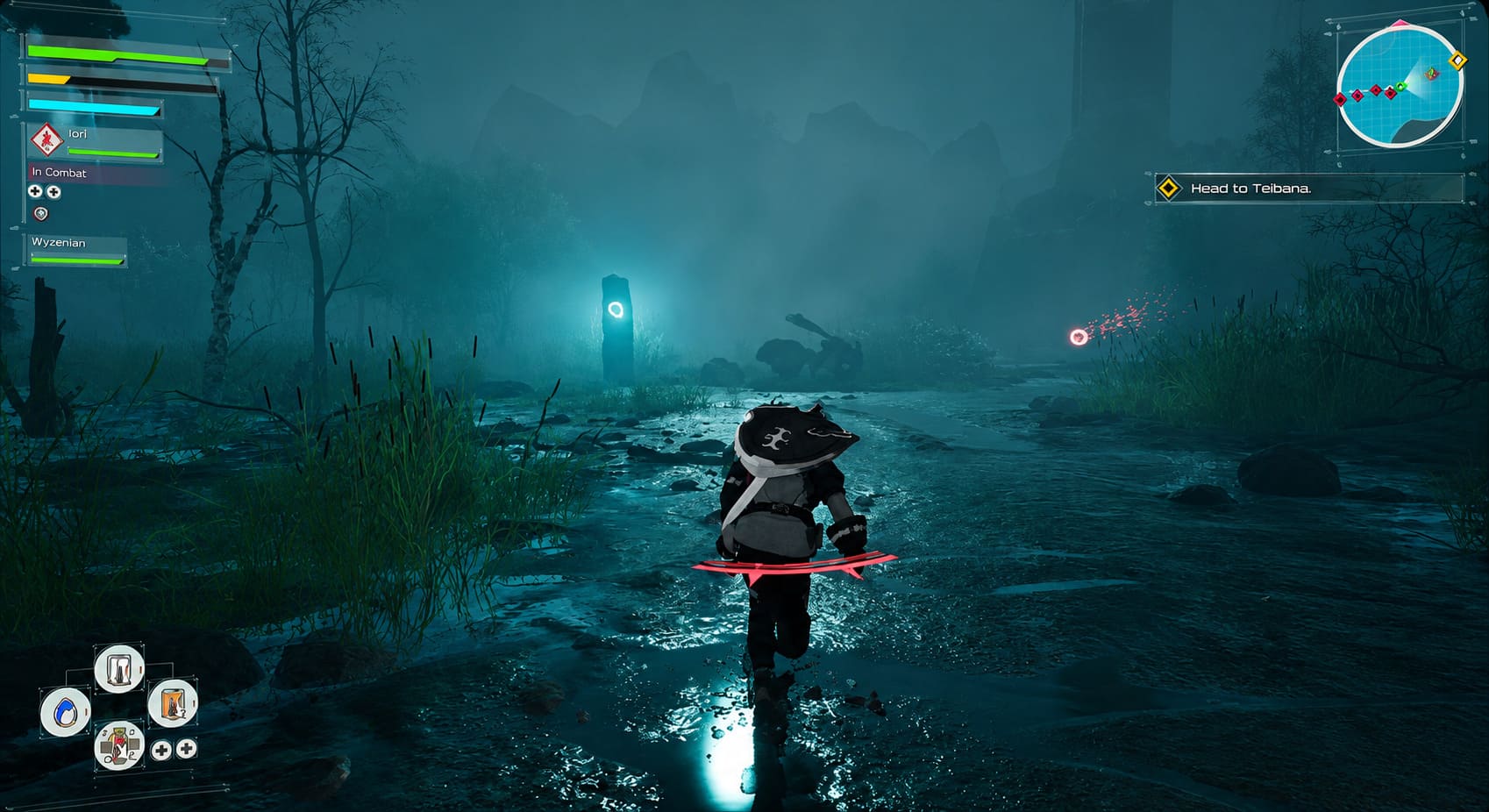
My Recommended Performance Setup
After trying different combinations, this is the configuration I’d personally recommend for most PC players.
| Setting | Recommendation |
|---|---|
| Performance Mode | Enabled |
| Model Detail | Medium |
| Anti-Aliasing | FXAA or Off |
| V-Sync | Disabled |
| Frame Limit | 60 FPS (external cap) |
| Windows Graphics Mode | High Performance |
| Storage | NVMe SSD |
| CPU Affinity (Intel) | Efficient Cores Only |
This setup won’t magically fix every optimization issue built into the game, but it noticeably smooths out exploration and combat.
Final Thoughts
As someone who enjoys testing new PC releases, I find Sword Art Online: Echoes of Aincrad both impressive and frustrating. The art direction, environments, and feeling of exploring Aincrad are genuinely enjoyable, but the technical side clearly needs more work.
The good news is that the biggest performance problems aren’t impossible to work around. A combination of CPU affinity adjustments, smarter graphics settings, Windows optimization, and up-to-date drivers can transform the experience from constant stuttering into something that’s actually fun to play.
I’m still hoping future patches improve Unreal Engine 5 optimization, especially in crowded towns and open-world regions. Until then, these community-tested tweaks are easily the best way to recover lost performance and keep your adventure through Aincrad running as smoothly as possible.