How to Fix Echoes of Aincrad Crash on Launch, Crashing at Startup, and Not Loading on PC
Few things are more frustrating than waiting for a new RPG to launch, downloading it the second it becomes available, and then watching it crash before reaching the main menu. Echoes of Aincrad is exactly the kind of game many Sword Art Online fans have been waiting for, so it’s disappointing that plenty of PC players are running into launch problems instead of exploring Aincrad.
I’ve dealt with enough Unreal Engine games over the years to recognize the pattern almost immediately. Whether it was Lords of the Fallen, Remnant II, Black Myth: Wukong, or several smaller UE5 releases, the first week often comes with crashes, shader compilation problems, and random compatibility issues. The good news is that most of these problems aren’t permanent, and many can be fixed without reinstalling Windows or replacing hardware.
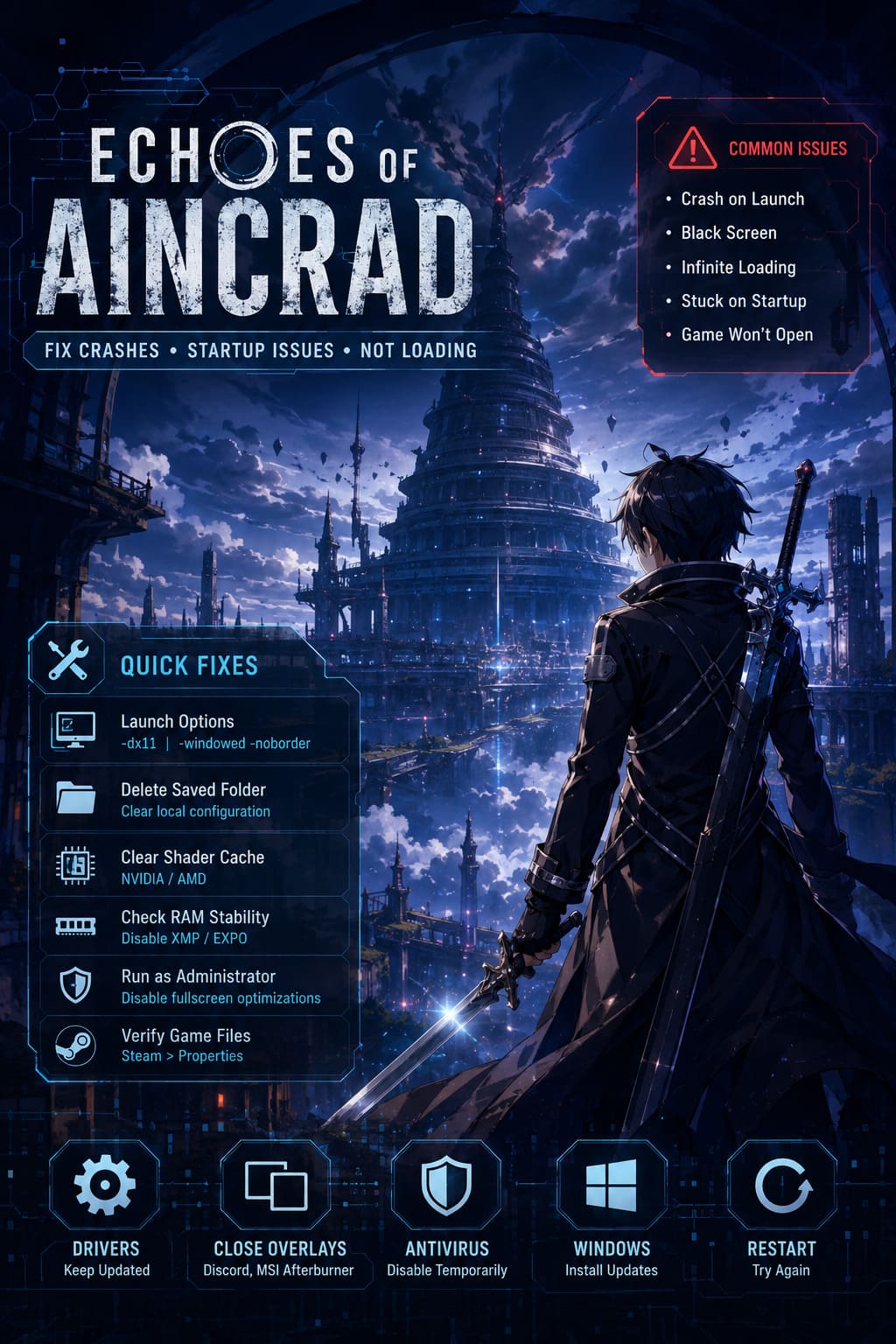
If Echoes of Aincrad crashes on startup, freezes on a black screen, gets stuck loading forever, or immediately closes after pressing Play on Steam, these are the solutions I’d try first.
Why Echoes of Aincrad Keeps Crashing
The majority of startup problems don’t actually come from broken hardware. Instead, they usually fall into a few common categories that appear in almost every Unreal Engine 5 launch.
The biggest offenders include:
- Corrupted shader cache
- DirectX 12 compatibility issues
- Damaged local configuration files
- Missing or corrupted Steam files
- Memory instability caused by RAM overclocking
- Windows permission conflicts
The nice thing is that these are relatively easy to troubleshoot if you approach them one step at a time instead of changing everything at once.
SpiritVale 7 Base Classes Skills Overview: 2026 Strategy Guide
Try Launching the Game in Windowed Mode
One of the oldest PC gaming tricks still works surprisingly often.
Sometimes the game simply doesn’t like the fullscreen resolution it tries to use during its first launch. Instead of loading correctly, it crashes before displaying anything useful.
Open your Steam Library, right-click Echoes of Aincrad, select Properties, and locate Launch Options.
Enter:
-windowed -noborder
This forces the game into a borderless window that matches your desktop resolution instead of trying to initialize exclusive fullscreen.
If that doesn’t help, remove those commands and try:
-dx11
Switching from DirectX 12 to DirectX 11 can solve startup crashes on systems that struggle with newer rendering features. While DX11 may sacrifice a few visual improvements, I’d happily accept that over staring at the desktop every time I press Play.
Delete the Local Configuration Cache
One fix that has rescued several Unreal Engine games for me is clearing the local save configuration.
This doesn’t erase your cloud progress stored by Steam, but it removes corrupted settings that may have been generated during the first launch.
Here’s what to do:
- Press Windows + R.
- Type %localappdata%.
- Find the Echoes of Aincrad folder.
- Open the Saved directory.
- Make a backup if you want extra peace of mind.
- Delete the original Saved folder.
- Launch the game again.
When the game starts again, it rebuilds fresh configuration files. I’ve seen this solve everything from endless loading screens to instant crashes after selecting a character.
Clear Your Shader Cache
If there’s one thing Unreal Engine 5 loves doing, it’s compiling thousands of shaders.
Unfortunately, if even a small part of that process goes wrong, the entire startup sequence can fail.
For NVIDIA Users
- Open NVIDIA Control Panel.
- Go to Manage 3D Settings.
- Find Shader Cache Size.
- Disable it temporarily.
- Restart your PC.
- Enable it again and choose 10 GB or Unlimited.
For AMD Users
- Open AMD Adrenalin.
- Navigate to Graphics.
- Open Advanced Settings.
- Click Reset Shader Cache.
I’ve fixed several UE5 games this way, and it’s usually one of the quickest things to test before moving on to more advanced troubleshooting.
Check Your RAM Stability
This one surprises a lot of people.
If your RAM is running with an aggressive XMP or EXPO profile, the game may crash while unpacking large compressed files during startup. That doesn’t automatically mean your memory is defective. Some games simply push memory controllers harder than synthetic benchmarks ever do.
If you’ve recently enabled memory overclocking, try temporarily disabling XMP or EXPO in your BIOS and see if the crashes disappear.
Likewise, owners of certain Intel 13th and 14th generation processors have reported fewer startup issues after slightly reducing CPU performance core ratios or lowering motherboard power limits during troubleshooting. I wouldn’t leave those settings permanently reduced unless necessary, but they’re worth testing if nothing else has worked.
Run the Game as Administrator
Windows security features occasionally interfere with modern games in strange ways.
Instead of displaying a useful error message, the game simply closes without explanation.
To eliminate that possibility:
- Open the game’s installation folder through Steam.
- Find the main executable.
- Right-click it and choose Properties.
- Open the Compatibility tab.
- Enable Run this program as an administrator.
- Enable Disable fullscreen optimizations.
- Save the changes.
It takes less than a minute, and while it doesn’t solve every issue, it’s simple enough that I always include it in my troubleshooting routine.

Verify Steam Game Files
Sometimes the download itself is the problem.
Power outages, interrupted downloads, antivirus software, or even storage hiccups can leave one or two important files damaged without Steam noticing immediately.
Fortunately, verifying files is easy.
Open Steam, right-click Echoes of Aincrad, choose Properties, then Installed Files, and select Verify integrity of game files.
Steam compares your installation against the official version and automatically replaces anything that’s missing or corrupted.
This has saved me from unnecessary reinstalls more times than I can count.
Extra Things Worth Checking
If none of the main fixes solve your problem, there are still a few additional steps worth trying before giving up.
- Update your graphics driver.
- Close MSI Afterburner or other overlay software.
- Disable Discord Overlay.
- Temporarily disable third-party antivirus.
- Install the latest Windows updates.
- Restart your PC before launching again.
Overlay applications are especially notorious for causing strange launch behavior in newly released PC games. Whenever a game refuses to start, I usually close every monitoring tool first just to eliminate unnecessary variables.
Quick Troubleshooting Summary
| Problem | Recommended Fix |
|---|---|
| Crash immediately after pressing Play | Launch with -dx11 |
| Black screen on startup | Use -windowed -noborder |
| Infinite loading screen | Delete the Saved folder in Local AppData |
| Unreal Engine shader errors | Reset your GPU shader cache |
| Random startup crashes | Disable XMP or EXPO temporarily |
| Steam won’t launch the game | Verify game files |
| Silent crash to desktop | Run as administrator and disable fullscreen optimizations |
Final Thoughts
I’ve played enough PC releases over the years to know that launch-week technical issues are almost becoming part of the tradition, especially with Unreal Engine 5 titles. While that’s obviously not ideal, it also means the community usually discovers reliable fixes long before official patches arrive.
For Echoes of Aincrad, I’d start with the simplest options first: verify the game files, switch to DirectX 11, clear the shader cache, and delete the local configuration folder. Those four fixes alone seem to solve the majority of startup problems players are reporting. If you’re using memory overclocking or running a heavily tweaked system, testing with stock settings is also worth a few minutes.
Hopefully the developers release stability updates quickly, because underneath these technical hiccups is an RPG that deserves to be experienced without fighting the launcher before fighting monsters.