Echoes of Aincrad Best Settings for Low End PC: Fix Low FPS and Stuttering
Echoes of Aincrad immediately caught my attention because I’m always interested in anime-inspired action RPGs with large worlds to explore. The combat feels fast, the environments are beautiful, and the atmosphere captures that classic Sword Art Online adventure. Unfortunately, my excitement faded a little after reaching the open areas. The tutorial ran perfectly, but the moment I entered the Town of Beginnings, my frame rate dropped hard.
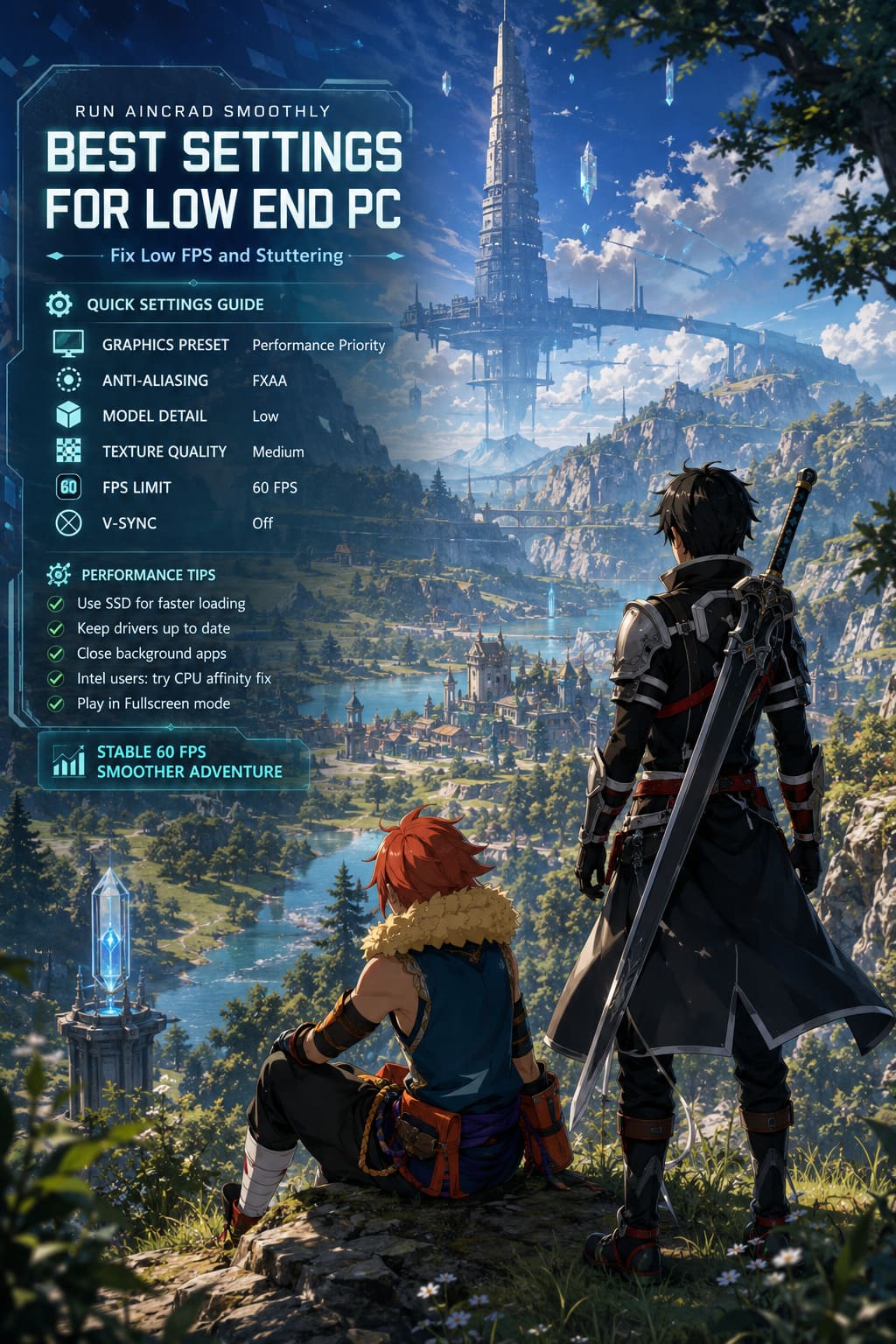
After experimenting with nearly every graphics option, comparing results with other players, and testing different Windows tweaks, I found that the game can actually run surprisingly well on modest hardware. You don’t need an expensive gaming PC to enjoy it. If you’re playing on a GTX 1650, RX 570, older RTX card, Steam Deck, ROG Ally, Legion Go, or another budget system, these settings can make a noticeable difference.
Echoes of Aincrad Engine.ini Tweaks: Ultimate PC Optimization Guide for Max FPS and Clarity
Why Echoes of Aincrad Struggles on Older Hardware
From my experience, the biggest issue isn’t that the game looks incredible — it’s that the optimization isn’t always consistent. Indoor locations perform much better than large outdoor zones, where the engine suddenly has to render long distances, detailed vegetation, NPCs, and multiple combat effects simultaneously.
Several things seem to contribute to performance problems:
- Heavy Unreal Engine rendering.
- High CPU usage in open-world areas.
- Poor thread scheduling on some Intel processors.
- Large asset streaming when entering new regions.
- Background applications consuming valuable RAM.
If you’re still using a traditional HDD, upgrading to an SSD will probably provide one of the biggest improvements. Asset loading becomes much smoother, and those annoying pauses while moving between areas become far less frequent.
My Recommended Graphics Settings
After plenty of testing, I eventually stopped chasing maximum visual quality and focused on keeping gameplay smooth. Honestly, I’d rather lose a little graphical detail than deal with random FPS drops during boss fights.
| Setting | Recommended Value | Why It Helps |
|---|---|---|
| Display Mode | Fullscreen | Reduces Windows overhead and improves stability. |
| Resolution | Native or 1600×900 / 1280×720 | Lower resolutions greatly reduce GPU workload. |
| Graphics Preset | Performance Priority | Removes expensive visual effects while keeping the game attractive. |
| Anti-Aliasing | FXAA | Much lighter than TSR and delivers a noticeable FPS boost. |
| Model Detail | Low | One of the largest performance gains available. |
| Texture Quality | Medium (High with 6GB+ VRAM) | Keeps visuals sharp without overwhelming memory. |
| Texture Filtering | 2x–4x | Saves resources with only a tiny visual difference. |
| V-Sync | Off | Reduces input latency during combat. |
| FPS Limit | 60 FPS | Improves frame pacing and prevents unnecessary GPU spikes. |
| Camera Shake | Off | Better visibility during intense battles. |
This combination transformed the experience on my older PC. Instead of bouncing between 25 and 60 FPS every few minutes, performance stayed much more predictable.
Performance Priority Is Better Than It Sounds
Normally, I avoid performance presets because many games end up looking blurry or flat. That wasn’t really the case here.
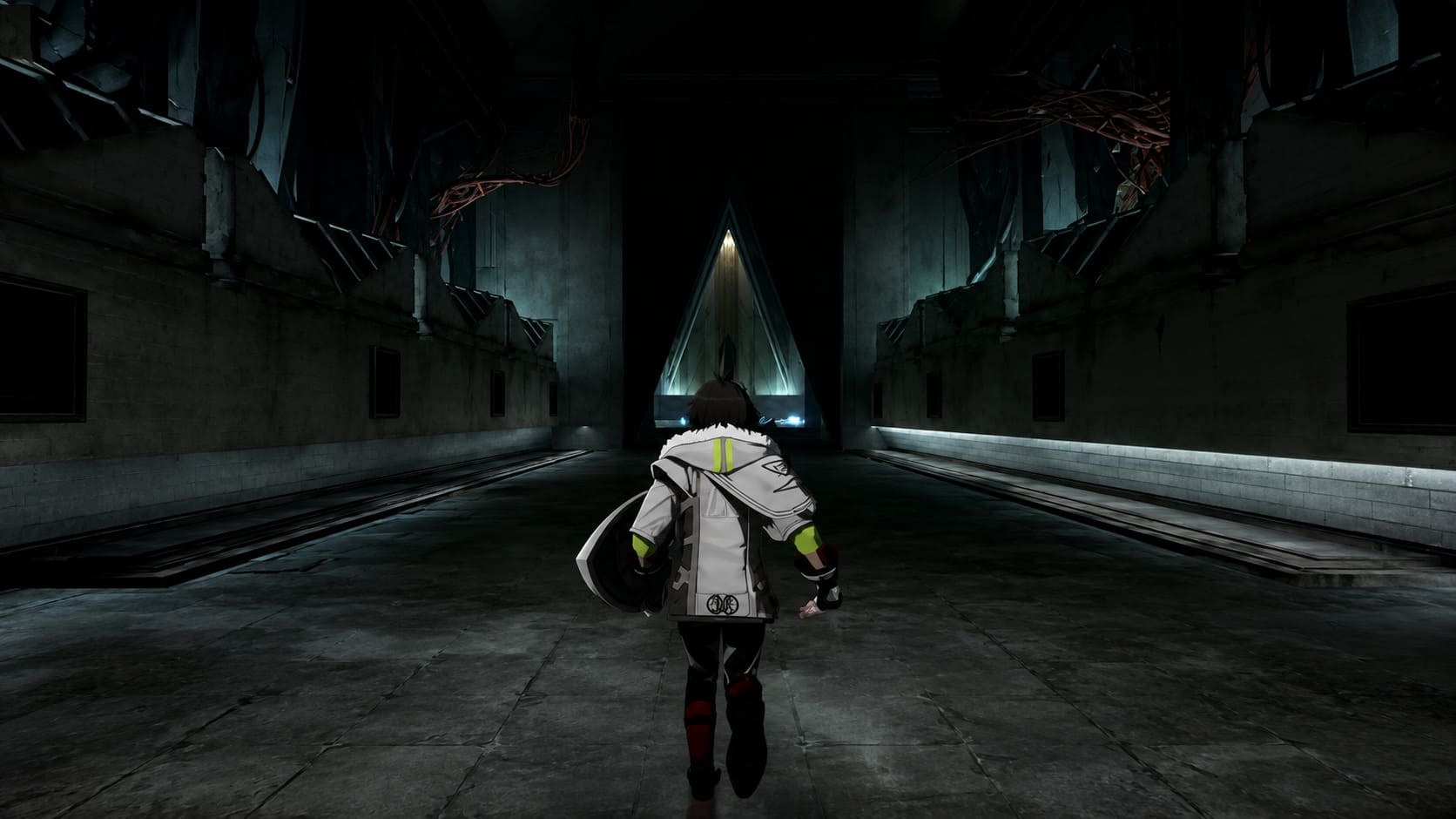
Echoes of Aincrad mainly removes dense atmospheric fog and several expensive lighting effects. Surprisingly, I actually preferred the cleaner image. Characters became easier to see during combat, distant enemies were more visible, and the world still looked attractive enough to stay immersive.
Sometimes chasing ultra settings simply isn’t worth sacrificing smooth gameplay.
FXAA Makes a Bigger Difference Than Expected
The default anti-aliasing option uses TSR, which certainly produces a sharper image. The downside is that it also puts a significant load on weaker GPUs.
Switching to FXAA was probably the fastest performance improvement I found. The image becomes slightly softer, but during actual gameplay I barely noticed it. What I did notice was combat becoming much smoother, especially when several enemies and visual effects filled the screen.
If your GPU is already struggling, this setting alone may recover a surprising amount of performance.
Lower Model Detail Before Anything Else
Many graphics settings only provide tiny improvements. Model Detail is different.
Lowering this option reduces the complexity of character models, armor, and distant objects, which eases both CPU and GPU usage. In crowded towns or multiplayer situations, the difference can be dramatic.
I’d recommend lowering this before sacrificing texture quality. Good textures still help the game look modern, while simplified models are much less noticeable during normal gameplay.
Keep Textures Higher If Your VRAM Allows It
One mistake I see many players make is immediately dropping every slider to the lowest value.
Textures mostly depend on available VRAM instead of raw graphics processing power. If your graphics card has 4GB or more, Medium textures usually work perfectly well. Cards with 6GB or higher can often handle High textures without major performance losses.
That lets the environments and character equipment retain plenty of detail while you reduce the settings that actually hurt frame rates.
Intel CPU Users Should Try the Affinity Fix
One of the more interesting discoveries from the community involves newer Intel processors with hybrid architectures.
Some players noticed that once they entered larger outdoor zones, CPU scheduling became inconsistent. GPU utilization suddenly dropped while certain CPU threads maxed out, creating massive FPS losses despite relatively powerful hardware.
Changing CPU affinity through Windows Task Manager has helped many players recover stable performance.
The process is straightforward:
- Launch the game.
- Open Task Manager.
- Go to the Details tab.
- Find EchoesofAincrad-Win64-Shipping.exe.
- Right-click and choose Set Affinity.
- Experiment with different core assignments depending on your processor.
Results naturally vary from system to system, but many users reported significantly higher GPU utilization after making this adjustment.

Windows Tweaks That Actually Help
Not every optimization guide on the internet is worth following. Personally, I avoid registry edits and questionable ‘FPS boosters.’ However, there are several Windows adjustments that consistently improve gaming performance.
I recommend doing the following:
- Enable High Performance graphics mode in Windows Graphics Settings.
- Install the newest Nvidia, AMD, or Intel graphics drivers.
- Close Chrome, Discord, launchers, and unnecessary background software.
- Disable heavy overlays if you don’t need them.
- Make sure the game is installed on an SSD.
None of these changes are magical individually, but together they reduce background resource usage enough to keep gameplay smoother.
Frame Caps Are Underrated
Many players immediately disable FPS limits hoping for the highest numbers possible. I used to do exactly the same.
For Echoes of Aincrad, I actually found that locking the game to 60 FPS produced a much better experience. Instead of constantly jumping between 55, 78, 91, and 43 FPS, the hardware maintained a consistent workload. Temperatures stayed lower, frame pacing improved, and sudden combat stutters became much less common.
Unless you’re running very powerful hardware with a high-refresh monitor, a stable frame rate usually feels better than an unstable higher average.
My Final Thoughts
Echoes of Aincrad definitely deserves more optimization from the developers, but that doesn’t mean players with older hardware have to suffer through constant lag and stuttering. After spending several hours experimenting, I found that smart settings matter far more than simply owning expensive components.
Running Performance Priority, switching to FXAA, lowering Model Detail, keeping textures at a sensible level, and applying a few Windows optimizations turned the game from a frustrating experience into one I genuinely enjoyed. If you’re still seeing heavy frame drops, especially on Intel systems, trying the CPU affinity workaround may be the final piece that brings everything together.
The world of Aincrad is far more enjoyable when combat feels responsive and exploration stays smooth. With the right configuration, even a modest gaming PC can deliver a stable, enjoyable adventure without requiring a costly hardware upgrade.