Echoes of Aincrad Engine.ini Tweaks: Ultimate PC Optimization Guide for Max FPS and Clarity
Echoes of Aincrad immediately caught my attention because it captures the atmosphere that many Sword Art Online fans have wanted to explore for years. Walking through familiar locations, fighting monsters, and seeing Aincrad recreated with modern visuals is genuinely exciting. Unfortunately, my first few hours on PC weren’t nearly as enjoyable as I expected. Instead of being impressed by the graphics, I found myself distracted by inconsistent frame rates, blurry visuals, and annoying stuttering every time I entered crowded areas.
The good news is that this isn’t unusual for many Unreal Engine 5 games during launch. I’ve seen similar problems in plenty of recent releases, and in many cases, a few manual Engine.ini tweaks make a surprisingly big difference. If you’re willing to spend just a few minutes editing a configuration file, you can often get smoother gameplay than the default settings provide.
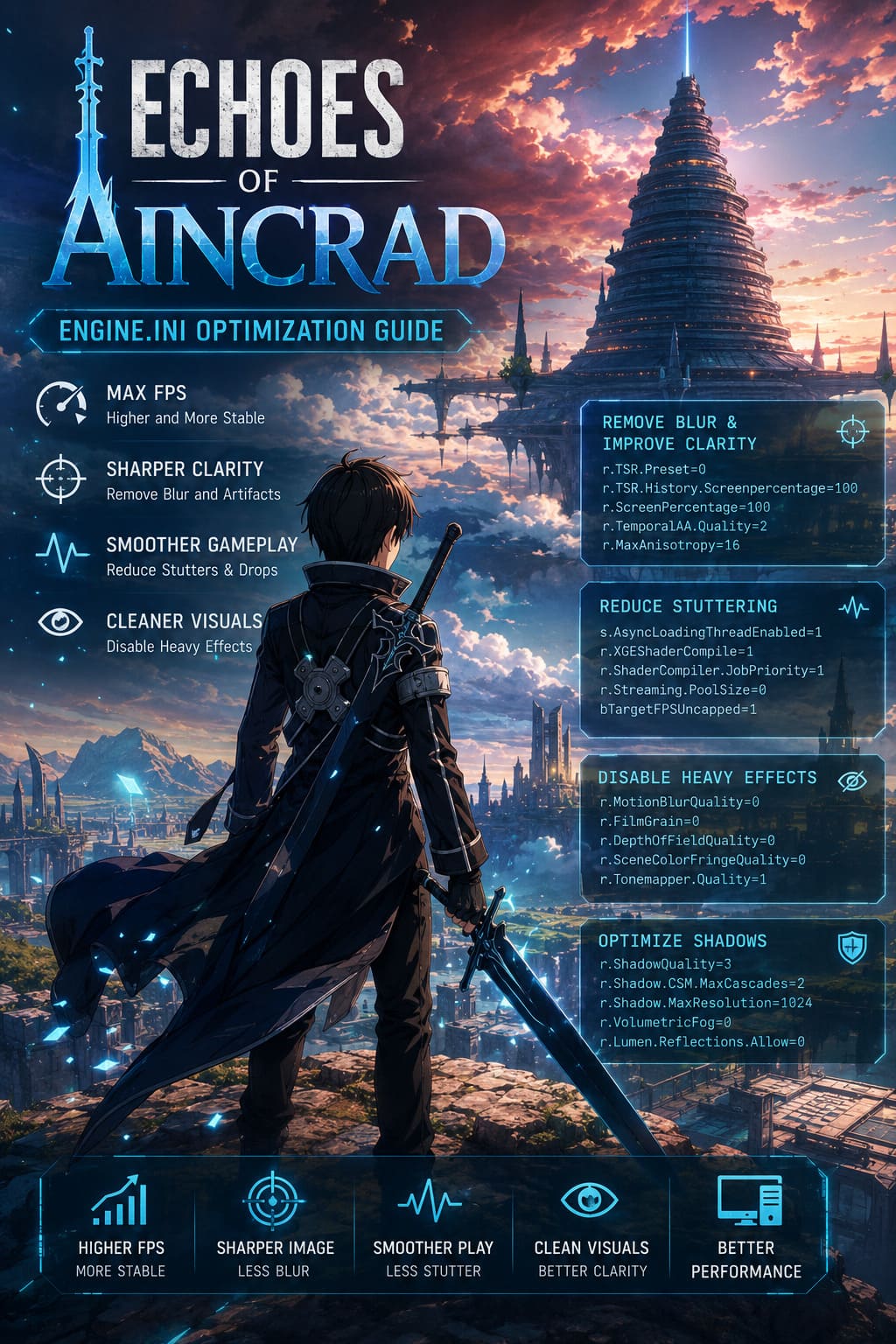
In this guide, I’ll show the Engine.ini changes that many PC players have been using to improve FPS, image clarity, and overall responsiveness in Echoes of Aincrad.
Why the Default PC Settings Feel Underwhelming
The game certainly looks impressive, but the default graphics configuration isn’t ideal for every system. Even players with powerful graphics cards have reported noticeable frame drops while exploring large outdoor areas or busy towns.
How to Fix Echoes of Aincrad Fatal Error and Crashing on Startup
Some of the most common issues include:
- Heavy image blur caused by aggressive TSR settings.
- Random stuttering while moving between different zones.
- Frame drops during large battles.
- Overly strong post-processing effects that reduce both performance and visual clarity.
What surprised me most was how much sharper the game became after reducing several unnecessary visual effects. The anime-inspired art style actually benefits from cleaner rendering instead of cinematic filters.
How to Edit the Engine.ini File
Before making any changes, always create a backup of your original configuration file. If something doesn’t work as expected, you can restore everything within seconds.
Follow these steps:
- Close Echoes of Aincrad completely.
- Press Windows + R.
- Enter the following path:
%localappdata%\EchoesofAincrad\Saved\Config\WindowsClient\
- Open Engine.ini using Notepad or Notepad++.
- Scroll to the bottom of the file.
- Paste the optimization settings.
- Save the file.
- Right-click Engine.ini, open Properties, enable Read-Only, and apply the changes.
Making the file read-only helps prevent the game from overwriting your custom configuration after launching.
Remove Blur and Improve Image Quality
One of my biggest complaints was how soft everything looked. Character faces, distant textures, and even menu elements didn’t appear as crisp as they should.
The following settings reduce aggressive Temporal Super Resolution behavior while keeping anti-aliasing stable.
[/Script/Engine.RendererSettings]
r.DefaultFeature.AntiAliasing=2
r.TemporalAA.Quality=2
r.TSR.Preset=0
r.TSR.History.Screenpercentage=100
r.ScreenPercentage=100
r.TSR.Velocity.Filter=1
r.MaxAnisotropy=16
After applying these values, the difference is immediately noticeable.
Benefits include:
- Cleaner textures.
- Sharper UI elements.
- Less ghosting while moving.
- Better overall image clarity.
For players using native monitor resolution, these settings often produce a much more natural-looking picture.
Reduce Stuttering During Exploration
Large Unreal Engine 5 games frequently struggle with asset streaming. Every time new textures, shaders, or environments load, performance can briefly drop.
These Engine.ini settings help improve background loading:
[SystemSettings]
r.XGEShaderCompile=1
r.ShaderCompiler.JobPriority=1
s.AsyncLoadingThreadEnabled=1
r.Streaming.PoolSize=0
r.Streaming.LimitPoolSizeToVRAM=1
r.Streaming.DefragDynamicBounds=1
bTargetFPSUncapped=1
What I personally noticed wasn’t necessarily a huge FPS increase but far fewer annoying micro-stutters while traveling across larger maps.
Dynamic VRAM allocation also tends to work better than forcing a fixed streaming pool on modern GPUs.
Disable Expensive Visual Effects
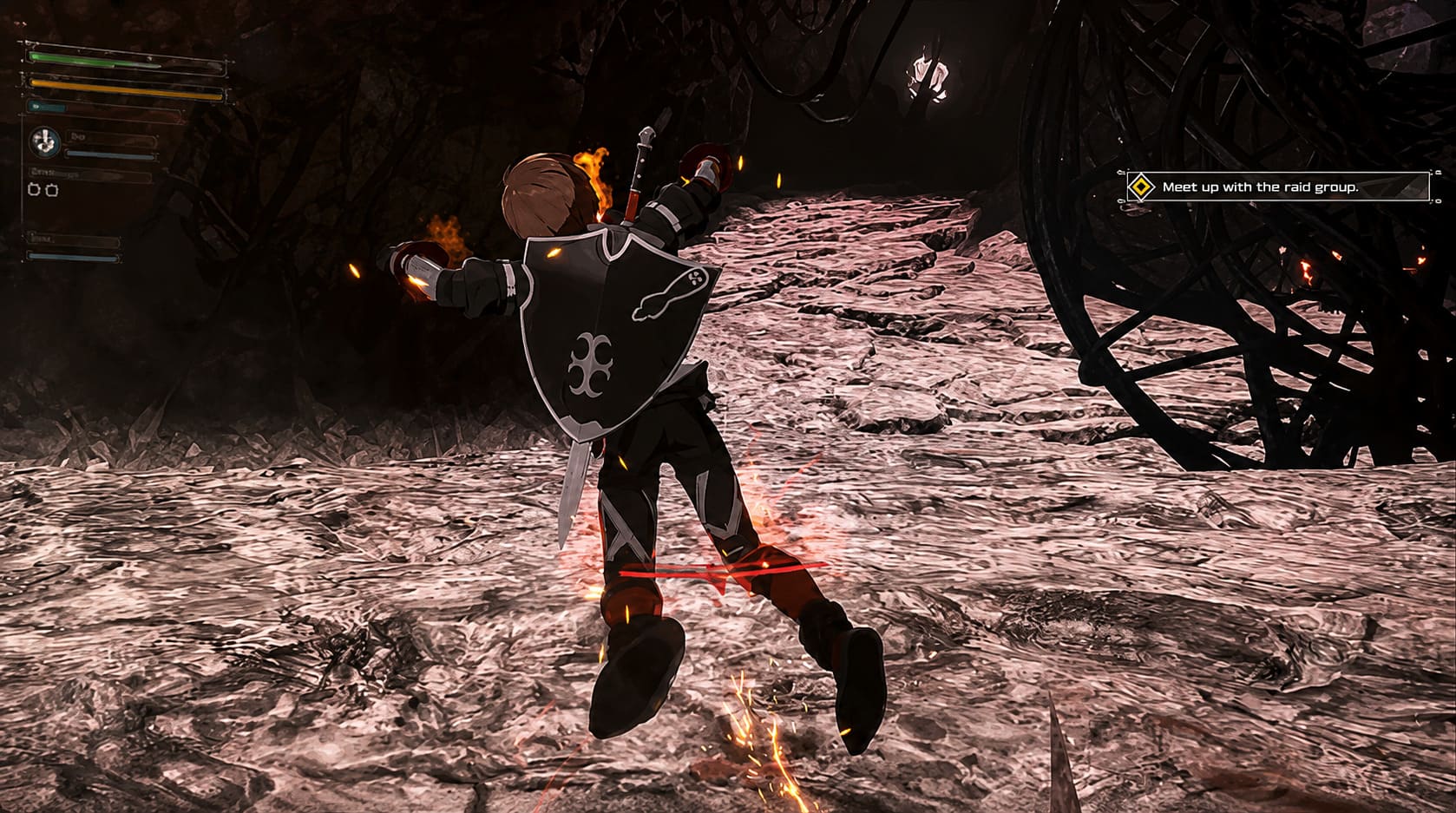
Modern games often enable numerous cinematic effects that look great in screenshots but aren’t particularly helpful during actual gameplay. For an action RPG where combat reactions matter, I’d much rather have a clean image than artificial film effects.
Paste the following settings:
r.MotionBlurQuality=0
r.MotionBlur.Max=0
r.BlurGBuffer=0
r.SceneColorFringeQuality=0
r.DepthOfFieldQuality=0
r.Tonemapper.Quality=1
r.FilmGrain=0
r.AmbientOcclusionLevels=1
These settings disable several demanding effects, including motion blur, film grain, chromatic aberration, and heavy depth of field.
The result is a noticeably cleaner presentation that also frees additional GPU resources.
Optimize Shadows for Better FPS
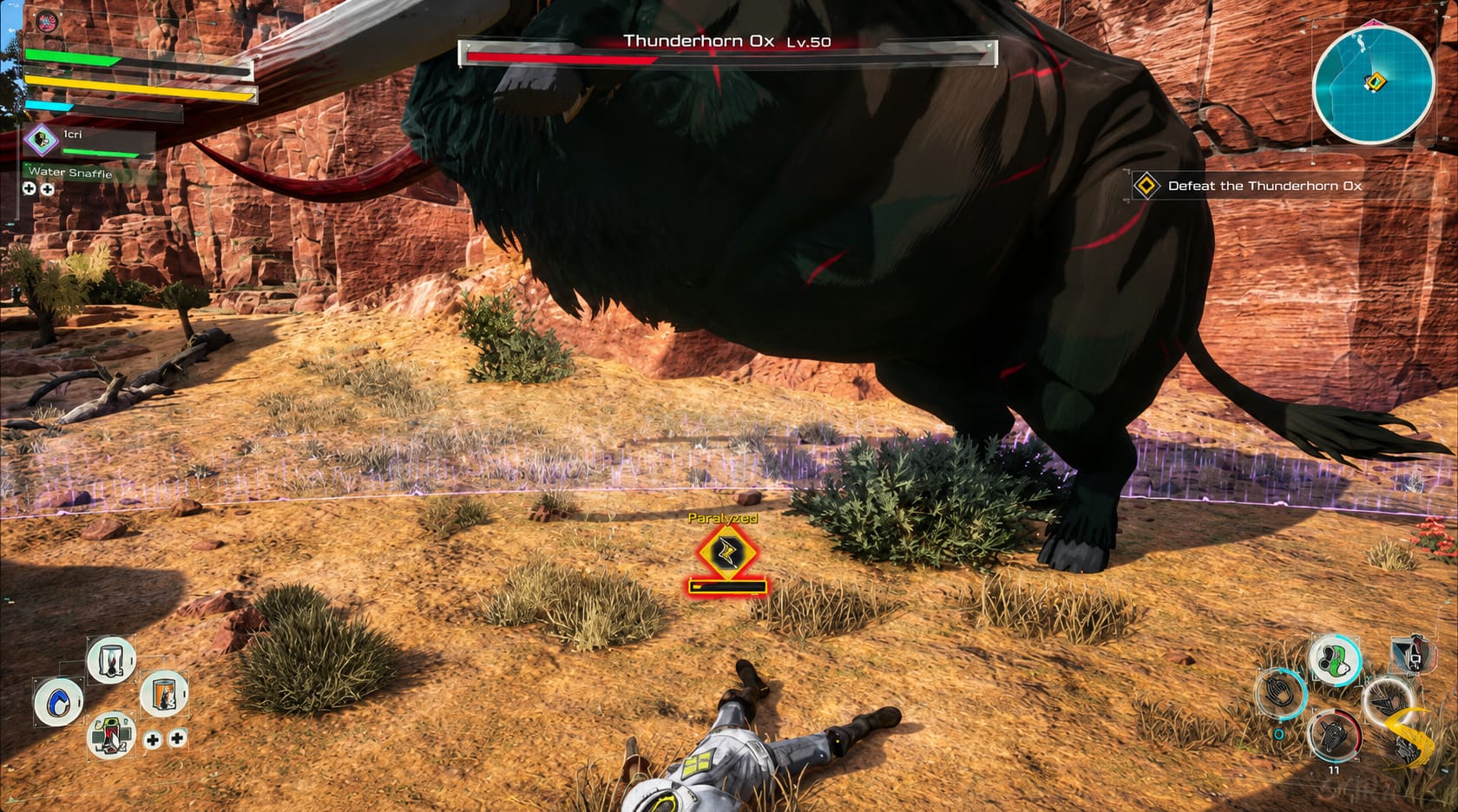
Shadow rendering is one of the largest performance costs in Unreal Engine 5. Lowering shadow complexity usually provides one of the biggest performance improvements without dramatically changing visual quality.
Use these settings:
r.ShadowQuality=3
r.Shadow.CSM.MaxCascades=2
r.Shadow.MaxResolution=1024
r.Shadow.DistanceScale=0.85
r.VolumetricFog=0
r.Lumen.Reflections.Allow=0
Disabling volumetric fog was one of my favorite tweaks because environments became much easier to read during combat while gaining extra FPS at the same time.
Players using handheld PCs or mid-range graphics cards should notice especially good improvements here.
Expected Improvements
| Optimization | Expected Result |
|---|---|
| TSR adjustments | Sharper graphics with less blur |
| Async streaming | Reduced traversal stuttering |
| Motion blur removal | Clearer image during combat |
| Shadow optimization | Higher average FPS |
| Volumetric fog disabled | Better visibility and improved performance |
| Dynamic VRAM streaming | More consistent frame pacing |
These tweaks won’t magically double your framerate, but together they create a noticeably smoother experience.
CPU Affinity Fix for Severe FPS Drops
If you’ve already optimized the Engine.ini and still experience sudden drops to 20–30 FPS, the problem may not be the graphics settings at all.
Some players with newer Intel processors have found that Windows occasionally schedules threads inefficiently, causing poor GPU utilization.
A quick workaround is:
- Launch the game.
- Open Task Manager.
- Go to the Details tab.
- Find EchoesofAincrad-Win64-Shipping.exe.
- Right-click it.
- Choose Set Affinity.
- Experiment by disabling either Performance cores or Efficient cores depending on your processor.
This isn’t a guaranteed fix for everyone, but it’s worth testing if your GPU usage suddenly drops while your CPU remains heavily loaded.
Additional Tips for Better Performance
Besides Engine.ini tweaks, I also recommend a few general optimizations that have helped me across many Unreal Engine titles.
- Install the latest GPU drivers.
- Enable XMP or EXPO memory profiles if supported.
- Install the game on an SSD rather than an HDD.
- Close unnecessary background software before launching.
- Let shader compilation finish before judging performance.
- Avoid running heavy overlays unless you need them.
These small changes often combine with Engine.ini tweaks to produce much more stable gameplay.
Final Thoughts
I always prefer when developers solve optimization problems through official patches, but the reality is that many PC releases need a little help during their first weeks. Echoes of Aincrad already has a strong gameplay foundation, and once the technical issues are reduced, it’s much easier to appreciate everything the game does well.
From my experience, the biggest improvements came from removing excessive post-processing, reducing blur, and improving texture streaming. None of these tweaks dramatically change the game’s appearance—in fact, I’d argue they make its colorful anime-inspired world look better. Combat feels more responsive, environments appear sharper, and those frustrating hitching moments become much less frequent.
If you’re struggling with inconsistent performance, don’t immediately assume your hardware is the problem. Spending five minutes editing Engine.ini can completely change how Echoes of Aincrad feels on PC, making exploration, boss fights, and long grinding sessions far smoother than the default configuration ever manages.