Dimraeth Save File Location: How to Find, Backup, and Transfer Save Data on Windows PC
If you’ve already sunk dozens of hours into Dimraeth, you probably know the feeling: finding a great piece of elemental gear, pushing a character to another level, recruiting useful allies, then spending way too long making your stronghold look exactly right. Losing all of that because of a corrupted save is the kind of gaming disaster nobody wants to experience.
That’s why knowing the Dimraeth save file location on Windows PC isn’t just a piece of technical trivia. It’s something every serious player should understand, especially while the game is still going through an active development cycle.
Developed and published by Mudtek, Dimraeth combines pixel-art exploration, Souls-lite combat, character builds, base construction, and multiplayer progression for up to eight players. Your adventure can involve a huge amount of progress, and the game separates that progression between your individual character and the world you’re playing in.
That distinction is particularly important when you’re backing up or transferring saves.
I’ve dealt with enough PC games where a perfectly good save disappears after an update, crash, mod experiment, or cloud-sync mess to know one simple rule: if a game matters to you, make your own backup. Steam Cloud is useful, but I wouldn’t treat it as the only safety net.
Here is everything you need to know about finding and protecting your Dimraeth saves.
Where Does Dimraeth Store Save Files on PC?
The first thing to remember is the game’s Steam AppID: 2402680.
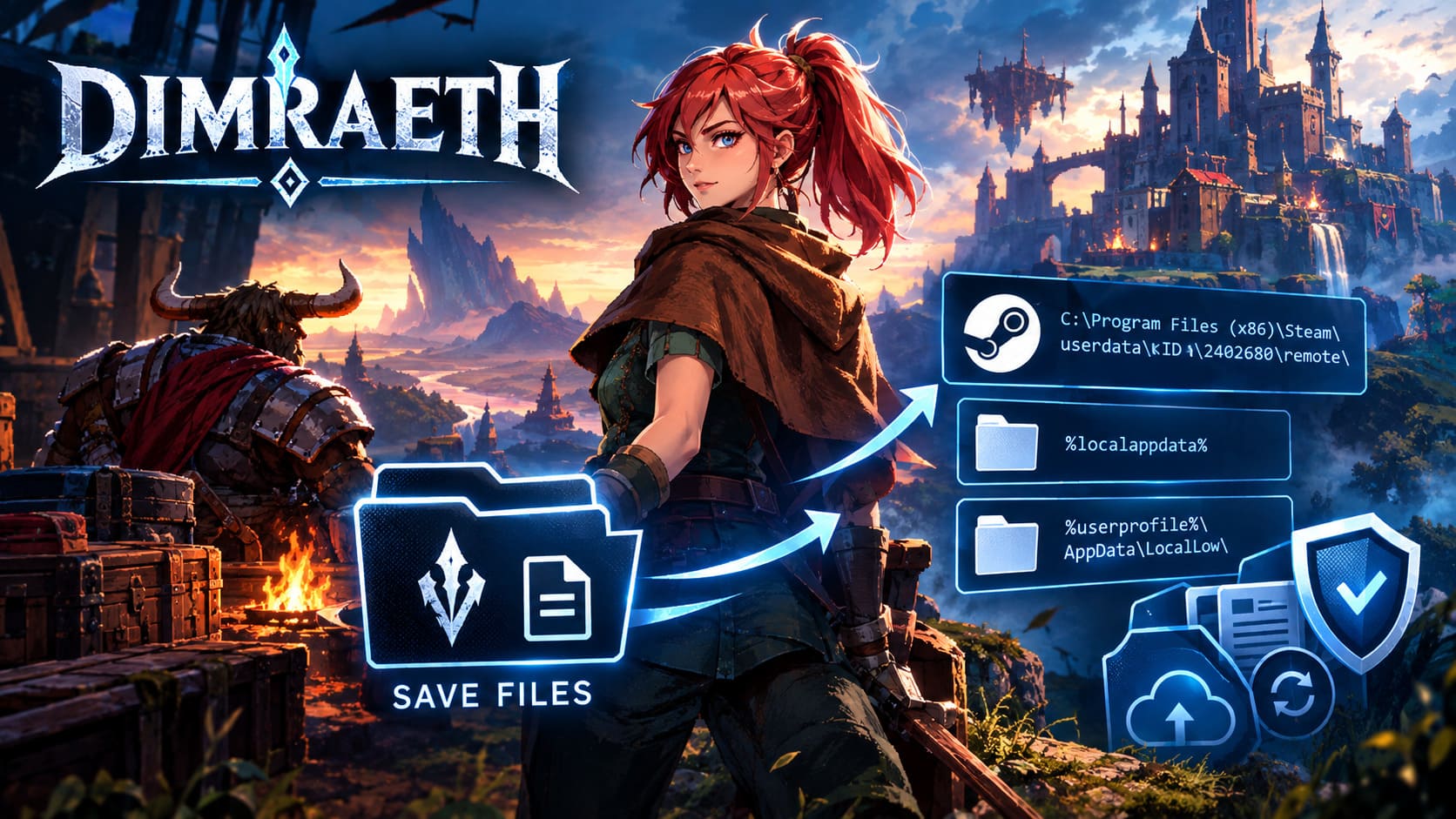
That number is extremely useful when you’re digging through Steam’s folders because it identifies Dimraeth among all the other games installed on your PC.
Depending on your installation and configuration, Dimraeth saves may be associated with Steam’s userdata structure or local Windows application folders.
| Save Location | Typical Path | When To Check It |
|---|---|---|
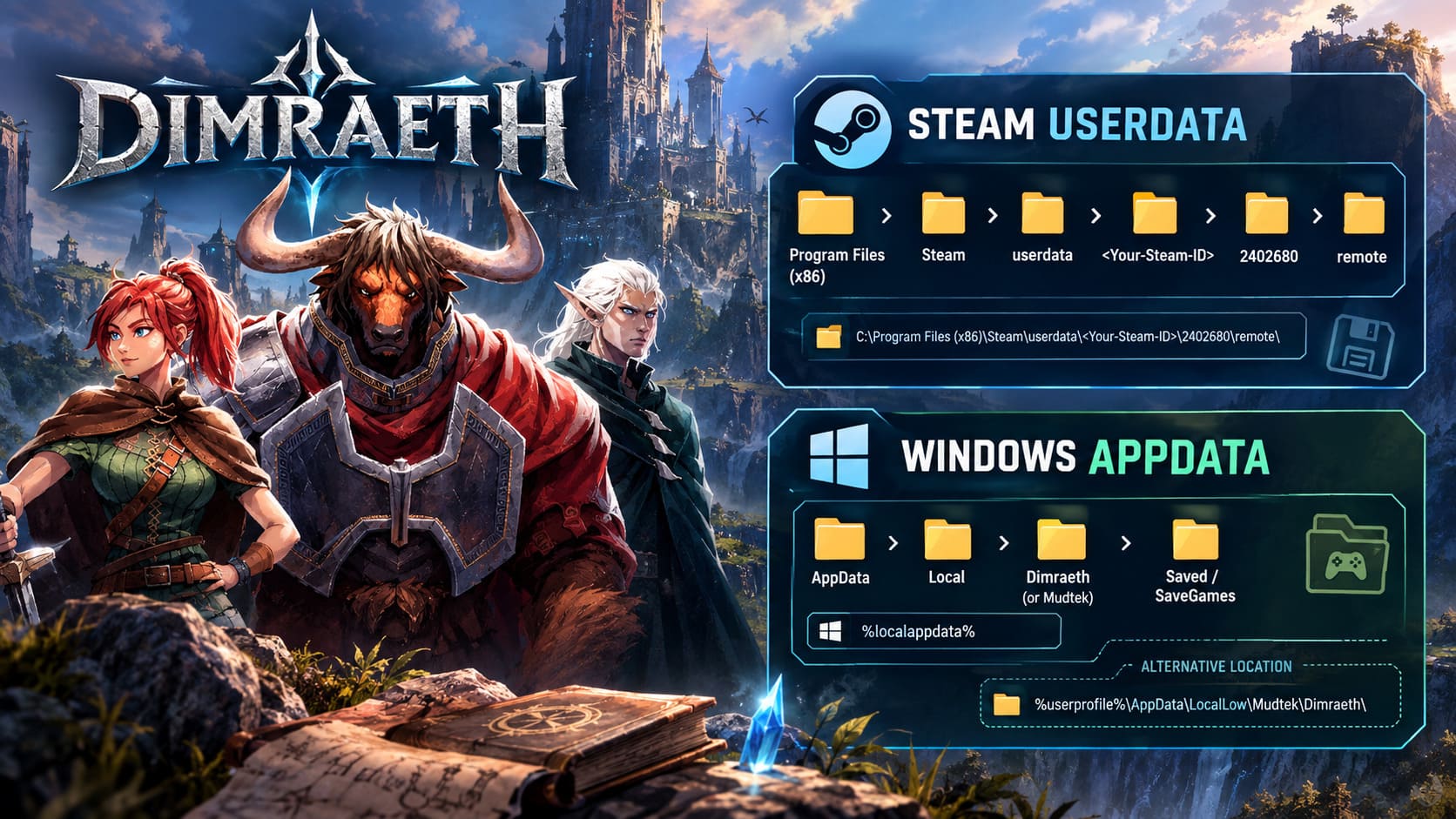
| Steam Userdata | C:\Program Files (x86)\Steam\userdata\<Steam-ID>\2402680\remote\ | Steam Cloud / Steam installation |
| Local AppData | %localappdata% | Local save troubleshooting |
| LocalLow | %userprofile%\AppData\LocalLow | Alternative local save location |
| Steam Deck Proton | /home/deck/.local/share/Steam/steamapps/compatdata/2402680/ | Steam Deck / Linux |
| Steam Deck Userdata | /home/deck/.local/share/Steam/userdata/ | Steam-based save checking |
Important: the exact location can vary depending on how Steam and the game are configured on your machine. If one directory doesn’t contain your saves, don’t assume they’re gone. Check the alternative locations.
Method 1: Finding the Dimraeth Steam Userdata Folder
For players running the Steam version, the first place I’d check is the Steam userdata directory.
You don’t need any special software for this. Windows File Explorer is enough.
Start by opening File Explorer with Windows + E.
Then navigate to your Steam installation. The most common default location is:
C:\Program Files (x86)\Steam
Inside the Steam folder, look for:
userdata
Open that folder and you’ll see one or more directories made up entirely of numbers. These represent Steam user accounts that have been used on the computer.
If you’re the only person who has used Steam on the machine, there will usually be just one obvious account folder.
Open it.
You’ll then find another collection of numbered directories representing individual Steam applications. This is where the Dimraeth AppID 2402680 becomes useful.
Look for:
2402680
Open it and then enter:
remote
The resulting path should look similar to:
C:\Program Files (x86)\Steam\userdata\<Your-Steam-ID>\2402680\remote\
That’s the directory I’d check first when investigating a Steam save issue.
Depending on the game’s current save implementation, individual character and world data may use different filenames. You may see files associated with heroes, characters, worlds, or other progression data.
Don’t randomly delete files just because the filenames look unfamiliar. Save systems can contain multiple files that work together, and removing one without understanding what it does can turn a small problem into a much bigger one.
Method 2: Check Windows AppData
If the Steam userdata directory doesn’t contain what you’re looking for, the next stop is Windows AppData.
This folder is hidden by default, but there’s an incredibly easy shortcut.
Press:
Windows + R
Then enter:
%localappdata%
Press Enter.
Windows should open your Local AppData directory, normally somewhere under:
C:\Users\<YourUsername>\AppData\Local
Now look for folders associated with Dimraeth or Mudtek.
If you find a Dimraeth directory, check for folders such as:
SavedSaveGames- Other folders containing obvious game-save data
The exact structure can differ, so don’t expect every installation to look identical.
What If Dimraeth Isn’t in Local AppData?
There’s another Windows location worth checking: LocalLow.
Press Windows + R again and enter:
%userprofile%\AppData\LocalLow
Press Enter.
From there, look for a developer or game folder associated with Mudtek and Dimraeth.
A possible structure is:
C:\Users\<Your-Windows-Username>\AppData\LocalLow\Mudtek\Dimraeth\
Again, treat this as an alternative location rather than assuming every PC will have the exact same directory.
This is one of those annoying PC gaming situations where knowing the general architecture is more useful than memorizing a single path.
How Dimraeth Save Progression Works
Understanding what you’re backing up is just as important as knowing where the files are.
Dimraeth essentially separates progression into character-related data and world-related data.
Your character progression can include things such as:
- Character level and attributes
- Equipped weapons and gear
- Inventory
- Spells and abilities
- Personal progression
- Other hero-specific unlocks
World progression, meanwhile, can include:
- Main story progress
- Side quests
- Recruited allies
- Crafting facilities
- Farming or agricultural areas
- Stronghold construction
- Other changes made to the world
That’s a pretty important distinction for multiplayer.
Your hero isn’t necessarily tied permanently to one world. The character can move between different multiplayer situations, while the world itself retains its own progression.
For anyone playing Dimraeth primarily in co-op, this is exactly why blindly copying one random save file isn’t necessarily the right backup strategy.
Back up the complete relevant save directory whenever possible.
How to Back Up Your Dimraeth Saves
This is the part I strongly recommend doing before major updates.
It takes a few minutes. Losing a character you’ve spent 30, 50, or 100 hours building takes considerably longer to get over.
First, completely exit Dimraeth.
I’d also make sure Steam has finished synchronizing your saves before touching anything. If Steam still appears to be processing cloud data, give it a moment.
Once everything is closed:
- Navigate to your Dimraeth save directory.
- Locate the folder containing the save data.
- Copy the entire relevant folder, rather than cherry-picking individual files.
- Create a dedicated backup directory somewhere outside the active Steam save location.
- Give the backup a useful name containing the date.
For example:
Dimraeth_Backup_2026_09_15
You can keep these backups in your Documents folder, on another drive, or in a trusted cloud-storage location.
I’d personally keep at least a couple of historical backups rather than constantly replacing one single copy.
That’s because corruption isn’t always immediately obvious. You might load the game, play for an hour, and only later realize that something important was already broken.
A few older backup points give you options.
When Should You Back Up Dimraeth?
You don’t need to become obsessive about it and make a new archive every time you pick up a sword.
But there are several situations where creating a backup makes a lot of sense:
- Before a major game update
- Before switching PCs
- Before experimenting with save files
- Before participating in risky multiplayer sessions
- Before changing Steam Cloud settings
- Before reinstalling Windows or Steam
- Before moving the game between storage drives
Early-access games deserve a little extra caution. Updates can introduce bugs that have nothing to do with your hardware, and a backup gives you a safety net when things go sideways.
How to Restore a Dimraeth Backup
Let’s say your save is corrupted, your progression rolled back, or something went wrong during synchronization.
Don’t immediately start copying files around while Steam Cloud is active.
That can create an even bigger headache.
The safer approach is to temporarily disable Steam Cloud for Dimraeth.
Open Steam and go to your Library.
Right-click Dimraeth, then choose Properties.
Under the General section, locate the Steam Cloud option and temporarily turn it off.
Now find the active Dimraeth save directory.
If you’re using the Steam userdata structure, this could be:
C:\Program Files (x86)\Steam\userdata\<Your-ID>\2402680\remote
Before replacing anything, I’d move the current files somewhere safe instead of immediately deleting them. Even a corrupted save can be useful for troubleshooting later.
Then:
- Open your backup folder.
- Copy the healthy Dimraeth save data.
- Paste it into the active save directory.
- Launch Dimraeth with Steam Cloud still disabled.
- Check your character, equipment, inventory, and world progression.
- Load into the game and make sure everything looks correct.
- Exit normally after verifying the restored save.
Only after you’re confident the backup is working should you turn Steam Cloud back on.
Dealing With Steam Cloud Conflicts
This is where things can get messy.
If Steam detects that the local save and cloud save don’t match, it may present a synchronization conflict.
That’s actually a good thing in this situation. It gives you a chance to choose which version should survive.
If your local restored save is the healthy version, you want Steam to upload that version rather than replacing it with an older or corrupted cloud copy.
Read the conflict dialog carefully before selecting an option.
Do not blindly click the first button just to get into the game.
Steam Cloud is convenient, but it doesn’t automatically know which save is the one you personally consider correct.
That’s why the manual backup matters in the first place.
Dimraeth Steam Deck Best Settings Guide: Max Performance and Battery Life
Dimraeth Save Location on Steam Deck
Steam Deck users have another layer of complexity because Windows-style game environments can exist inside Proton prefixes.
Switch your Steam Deck into Desktop Mode, then open the Dolphin file manager.
Enable Show Hidden Files so folders beginning with a dot become visible.
A Proton-based Dimraeth installation may use a path resembling:
/home/deck/.local/share/Steam/steamapps/compatdata/2402680/pfx/drive_c/users/steamuser/AppData/LocalLow/Mudtek/Dimraeth/
You can also investigate the Steam userdata structure:
/home/deck/.local/share/Steam/userdata/2402680/remote/
The exact structure can depend on the game’s configuration and Steam setup, so don’t panic if the first location is empty.
For Steam Deck owners who regularly move between desktop PCs and handheld play, Steam Cloud is particularly useful, but I would still maintain a manual backup if your Dimraeth character has become a serious long-term project.
Dimraeth Crafting Recipes Guide: Cooking, Alchemy, and Gear Lists (2026)
Final Thoughts: Don’t Let a Save File Kill Your Dimraeth Run
Dimraeth is the kind of game where progression can become personal. You build a character, develop a stronghold, gather gear, complete quests, recruit allies, and gradually turn a dangerous corner of Mirkea into something that actually feels like yours.
Watching that disappear because of a corrupted file would be brutal.
The most important number to remember is 2402680, the Steam AppID associated with Dimraeth. From there, the Steam userdata directory is the first place I’d investigate, followed by Windows AppData and LocalLow if the expected files aren’t there.
My biggest recommendation is simple: don’t wait for something to go wrong before making your first backup.
Keep a dated copy of your save data, especially before large updates or technical troubleshooting. If Steam Cloud ever gives you a conflict, stop and figure out which version is correct instead of clicking through the warning on autopilot.
Five minutes spent copying a folder is nothing compared with rebuilding a character and stronghold you’ve spent weeks developing.
For a game built around long-term character progression, multiplayer worlds, and player-created strongholds, that’s a trade I’m happy to make every time.