How to Fix Call of Duty: Modern Warfare II Stuck on Loading Screen After Update (PC Guide)
There are few things more frustrating in modern PC gaming than launching Call of Duty: Modern Warfare II after a fresh update only to be trapped in an endless loading screen. No crash, no error message, just an infinite loop on screens like “Checking for Update,” “Loading Assets,” or “Fetching Online Profile.”
This guide is written from a real player perspective, not just theory. It compiles fixes that actually worked across Steam communities, Reddit discussions, and personal testing after multiple MWII updates. The goal is simple: get you back into the game as fast as possible without reinstalling everything immediately.
The truth is that this issue is not caused by one single bug. It is usually a combination of cache corruption, shader conflicts, network authentication issues, and launcher inconsistencies between Steam and Battle.net versions of Call of Duty.
Why MWII Gets Stuck on Loading After Updates
Modern Warfare II uses a heavily integrated system with Call of Duty HQ, online profile verification, and real-time asset streaming. When an update changes core files, even slightly, the game can fail to sync properly.
Here are the most common causes behind the infinite loading screen issue:

- Corrupted update files caused by interrupted downloads or unstable internet connections
- Broken shader cache that conflicts with new rendering updates
- Online profile verification loop when Activision servers delay or fail authentication
- Graphics driver mismatch after Windows or GPU updates
- Conflicting launcher settings between Steam and Battle.net installations
In most cases, the issue is local, not server-side. That means you can fix it without waiting for Activision patches.
Fix 1: Clear Cache and Reset Local Configuration
This is the most effective fix and should always be your first step. MWII stores a large amount of temporary cache data that often breaks after updates.
Follow these steps carefully:
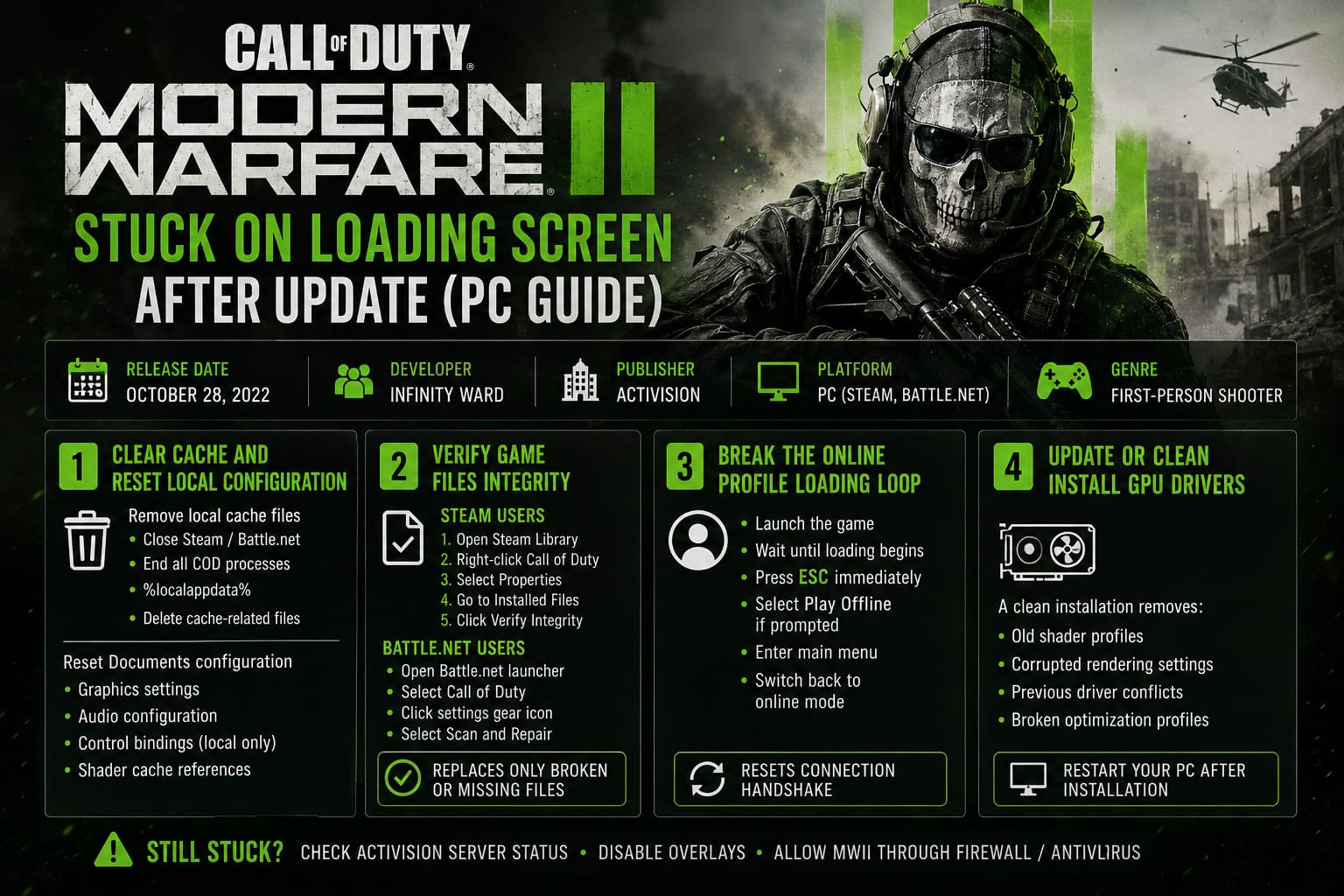
Step 1: Remove Local Cache Files
- Close Steam or Battle.net completely
- Open Task Manager and end all Call of Duty processes
- Press Windows + R and type %localappdata%
- Find the Activision or Call of Duty folder
- Locate cache or main temporary folders
- Delete cache-related files
This forces the game to rebuild fresh configuration data on next launch.
Step 2: Reset Documents Configuration
Navigate to your Documents folder and locate the Call of Duty directory. Delete it entirely.
This resets:
- Graphics settings
- Audio configuration
- Control bindings (local only)
- Shader cache references
Your multiplayer progress, skins, and unlocks are safe because they are stored online.
Fix 2: Verify Game Files Integrity
If an update was interrupted even briefly, missing or corrupted files can break the loading process completely.
Steam Users
| Step | Action |
|---|---|
| 1 | Open Steam Library |
| 2 | Right-click Call of Duty |
| 3 | Select Properties |
| 4 | Go to Installed Files |
| 5 | Click Verify Integrity |
Battle.net Users
- Open Battle.net launcher
- Select Call of Duty
- Click settings gear icon
- Select Scan and Repair
- Wait for completion
This process replaces only broken or missing files, not the entire game.
Fix 3: Break the Online Profile Loading Loop
One of the most annoying issues is getting stuck on “Fetching Online Profile.” This usually means the game cannot complete authentication with Activision servers.
A known workaround is forcing offline mode temporarily:
- Launch the game
- Wait until loading begins
- Press Escape immediately
- Select Play Offline if prompted
- Enter main menu
- Switch back to online mode
This resets the connection handshake and often allows the game to continue loading normally.
Fix 4: Update or Clean Install GPU Drivers
Graphics driver conflicts are a silent cause of loading freezes after updates.
A simple update is often not enough. A clean installation is recommended.
What a clean install removes:
- Old shader profiles
- Corrupted rendering settings
- Previous driver conflicts
- Broken game optimization profiles
After installation, restart your PC before launching MWII again.
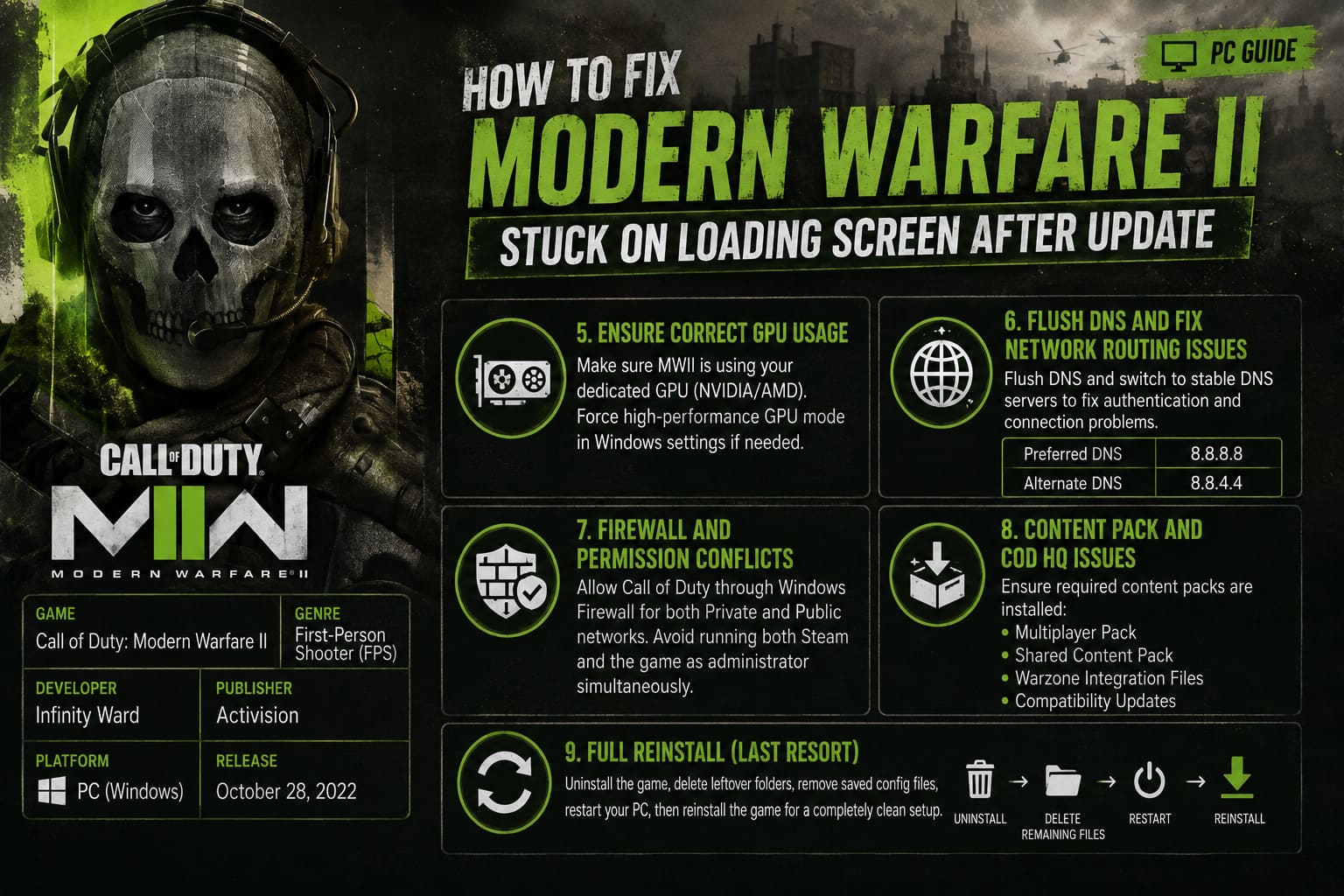
Fix 5: Ensure Correct GPU Usage
On gaming laptops especially, Windows may accidentally launch MWII using integrated graphics instead of your dedicated GPU.
This can cause infinite loading, black screens, or extreme lag.
Check Device Manager and confirm that your dedicated GPU (NVIDIA or AMD) is active. If necessary, disable integrated graphics temporarily or force high-performance GPU mode in Windows settings.
Fix 6: Flush DNS and Fix Network Routing Issues
Sometimes the infinite loading screen is not caused by the game files at all, but by network authentication failures. MWII needs to constantly verify your Activision profile during startup, and even small DNS or routing issues can break this process.
One of the simplest fixes is flushing your DNS cache and switching to a more stable DNS provider.
Step 1: Flush DNS
- Open Start menu
- Type Command Prompt
- Run as Administrator
- Enter the command: ipconfig /flushdns
- Press Enter and wait for confirmation
Step 2: Change DNS Servers
| Setting | Value |
|---|---|
| Preferred DNS | 8.8.8.8 |
| Alternate DNS | 8.8.4.4 |
This helps reduce routing issues that can block profile verification or cause infinite “Connecting to Online Services” loops.
Fix 7: Firewall and Permission Conflicts
Windows Firewall can sometimes block MWII after updates because it treats the updated executable as a new or modified application.
To fix this, you need to manually verify permissions:
- Open Windows Security settings
- Go to Firewall & Network Protection
- Click “Allow an app through firewall”
- Find Call of Duty executable
- Enable both Private and Public access
Also, avoid forcing both Steam and the game itself to run as administrator at the same time. This can sometimes create authentication conflicts with online services.
Fix 8: Content Pack and COD HQ Issues
Since Call of Duty moved into the unified COD HQ system, missing or partially installed content packs can trigger loading failures.
Even if you don’t play Campaign or Special Ops, missing shared assets can still break multiplayer initialization.
Make sure the following are properly installed:
- Multiplayer Pack
- Shared Content Pack
- Warzone Integration Files (if applicable)
- Compatibility Updates
If anything looks suspicious or incomplete, reinstall only the missing packs before doing a full reinstall.
Fix 9: Full Reinstall (Last Resort Option)
If nothing else works, a clean reinstall becomes necessary. However, the key is not just uninstalling the game, but removing leftover files manually.
Steps for a true clean reinstall:
- Uninstall Call of Duty from Steam or Battle.net
- Manually delete remaining folders in steamapps/common or Program Files
- Remove leftover Call of Duty folders in Documents
- Restart your PC
- Download and install the game again
This ensures that no corrupted configuration or cache data survives the reinstall process.
How to Fix Call of Duty: Modern Warfare II “Disconnected from Host” Error (2026 Guide)
Quick Troubleshooting Summary
| Problem | Best Fix |
|---|---|
| Infinite loading after update | Clear cache + Documents reset |
| Fetching Online Profile loop | Offline mode workaround |
| Game stuck after GPU update | Clean GPU driver install |
| No server connection | DNS flush + DNS change |
| Game freezes on startup | Verify files integrity |
| Launcher issues after patch | Content pack check |
How to Fix Call of Duty: Modern Warfare II Data Packs Not Downloaded on PS5 (2026 Guide)
Final Thoughts
The Modern Warfare II infinite loading screen issue is frustrating, especially after a big update when you just want to jump straight into matches. In most cases, it is not a serious problem and can be fixed without reinstalling the entire game right away.
From my experience, the most reliable order of fixes is: clear cache, verify game files, reset network settings, and only then move to driver updates or reinstalling. One of these steps usually resolves the issue.
MWII is a complex, constantly evolving game, and occasional instability after updates is almost expected. The good news is that once the correct fix is applied, the game usually runs perfectly again without further issues.
Hopefully this guide saves you from staring at that endless loading screen and gets you back into the action where you actually belong.