How to Fix SAO Echoes of Aincrad Black Screen on Launch (PS5 Guide)
If you’ve been waiting for Sword Art Online: Echoes of Aincrad, you probably had the same reaction I did when it finally launched: excitement… followed by confusion when the game greeted you with nothing but a black screen.
No menu. No visuals. Sometimes there’s even background audio playing, which somehow makes the problem even more frustrating.
As someone who spends way too much time playing JRPGs and testing new releases on PlayStation 5, I’ve seen this kind of issue more than once. The good news is that this doesn’t usually mean your console is broken or your game is permanently corrupted. In most cases, it’s simply a communication problem between the PS5, the game, and your TV or monitor.
After trying multiple fixes myself and comparing experiences from other players, I found several methods that consistently solve the issue. Here’s everything I’d recommend before giving up and reinstalling your entire console.
Why Does SAO: Echoes of Aincrad Show a Black Screen?
At first glance, it feels like the game crashes immediately after launch. But that’s often not what’s happening.
The game continues running in the background, while the video signal never properly initializes. This usually points toward a display handshake problem rather than a complete software failure.
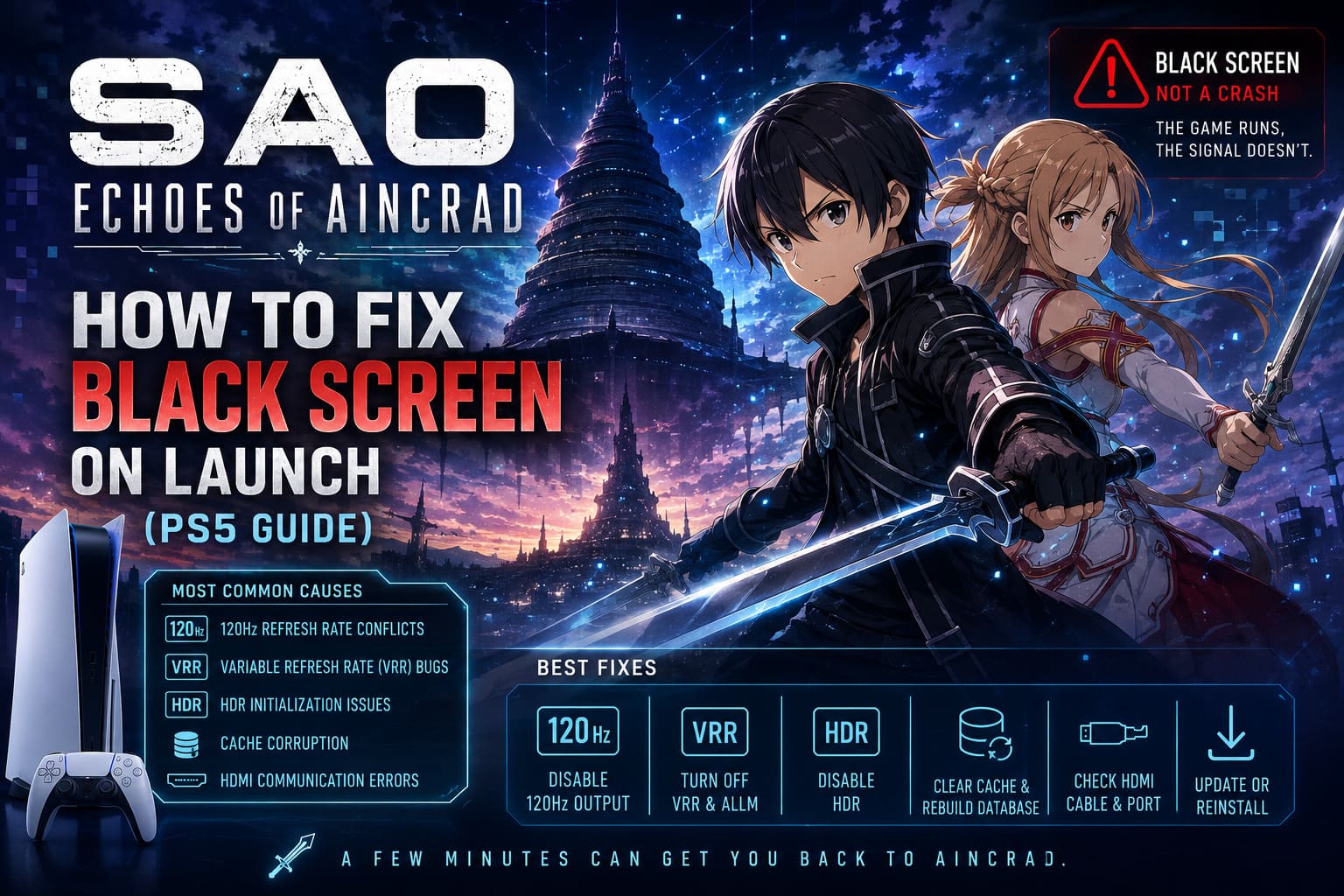
Some of the most common causes include:
- 120Hz refresh rate conflicts
- Variable Refresh Rate (VRR) bugs
- HDR initialization issues
- Temporary PS5 cache corruption
- Incomplete game installation or missing patches
- HDMI communication errors
Fortunately, most of these can be fixed in just a few minutes.
Quick Overview of the Best Fixes
| Fix | Difficulty | Success Rate |
|---|---|---|
| Disable 120Hz Output | Easy | ⭐⭐⭐⭐⭐ |
| Turn Off VRR & ALLM | Easy | ⭐⭐⭐⭐☆ |
| Disable HDR | Easy | ⭐⭐⭐⭐☆ |
| Clear Cache & Rebuild Database | Medium | ⭐⭐⭐⭐⭐ |
| Check HDMI Cable & Port | Easy | ⭐⭐⭐⭐☆ |
| Update or Reinstall the Game | Medium | ⭐⭐⭐⭐☆ |
1. Disable 120Hz Output
If I had to recommend just one fix, this would be it.
Many modern TVs advertise 120Hz support, but not every display handles automatic switching perfectly. During launch, Echoes of Aincrad attempts to detect the highest available refresh rate, and that’s exactly where things sometimes go wrong.
To disable it:
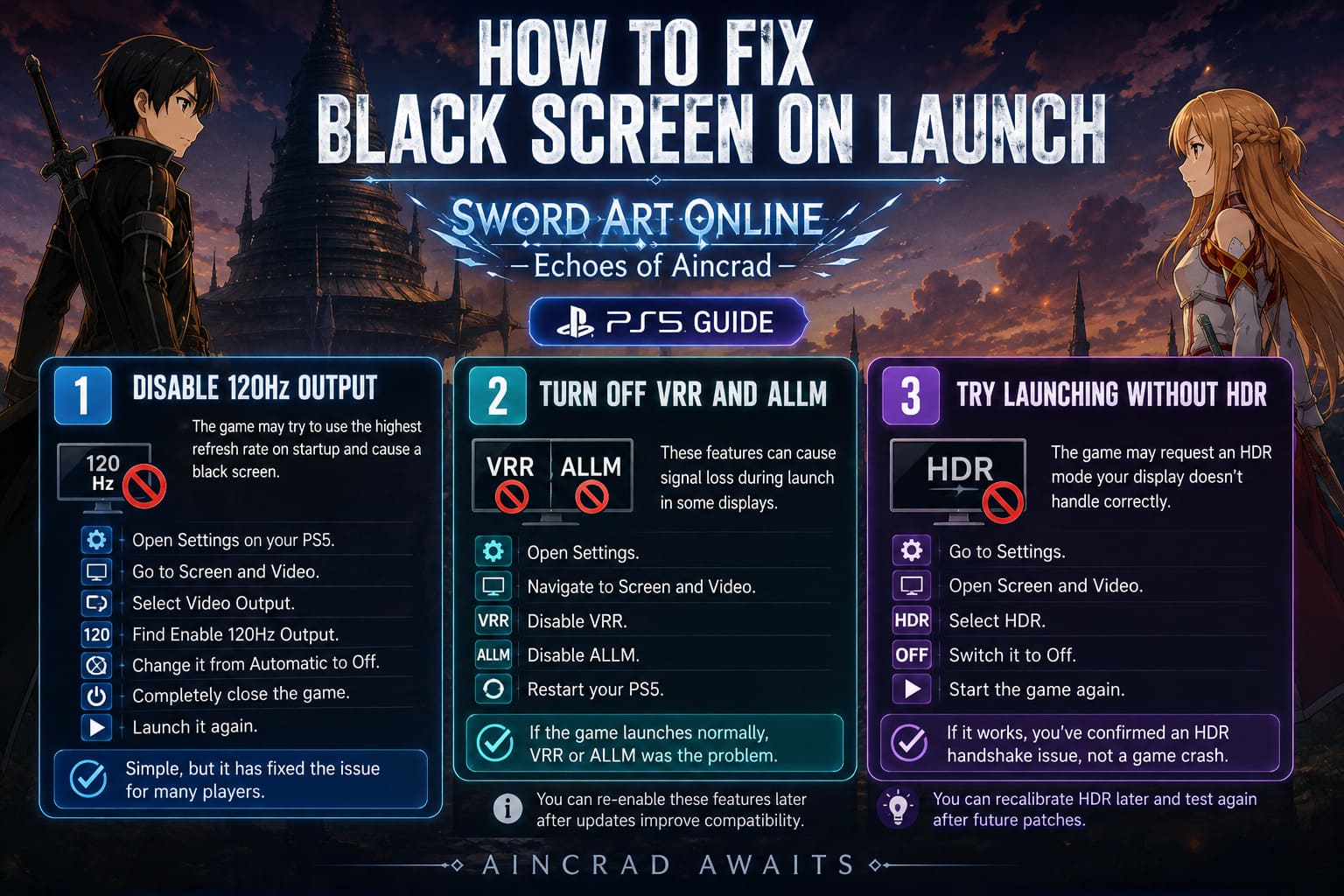
- Open Settings on your PS5.
- Go to Screen and Video.
- Select Video Output.
- Find Enable 120Hz Output.
- Change it from Automatic to Off.
- Completely close the game.
- Launch it again.
It sounds incredibly simple, but this solved the problem for a surprising number of players.
2. Turn Off VRR and ALLM
I’m a big fan of Variable Refresh Rate during gameplay, especially in action-heavy games. But early versions of new releases don’t always play nicely with these technologies.
When VRR and Auto Low Latency Mode both activate during startup, some displays lose the signal entirely.
Try this:
- Open Settings.
- Navigate to Screen and Video.
- Disable VRR.
- Disable ALLM.
- Restart your PS5.
If the game launches normally afterward, you’ve likely found the culprit.
You can always enable these features again later after future patches improve compatibility.
3. Try Launching Without HDR
HDR makes beautiful games look even better, but it’s also responsible for more launch issues than many people realize.
Sometimes the game requests an HDR mode your display doesn’t initialize correctly, leaving the screen black while audio keeps playing.
To test this:
- Go to Settings.
- Open Screen and Video.
- Select HDR.
- Switch it to Off.
- Start the game again.
If everything suddenly works, you’ve confirmed an HDR handshake problem rather than a game crash.
Later you can recalibrate HDR and see whether the issue disappears after future updates.
4. Clear Cache and Rebuild the Database
Whenever strange problems appear on my PS5, rebuilding the database is one of my favorite maintenance tools.
Despite sounding scary, it doesn’t erase your games or save files.
Instead, it reorganizes the internal storage and removes corrupted temporary data that occasionally interferes with game launches.
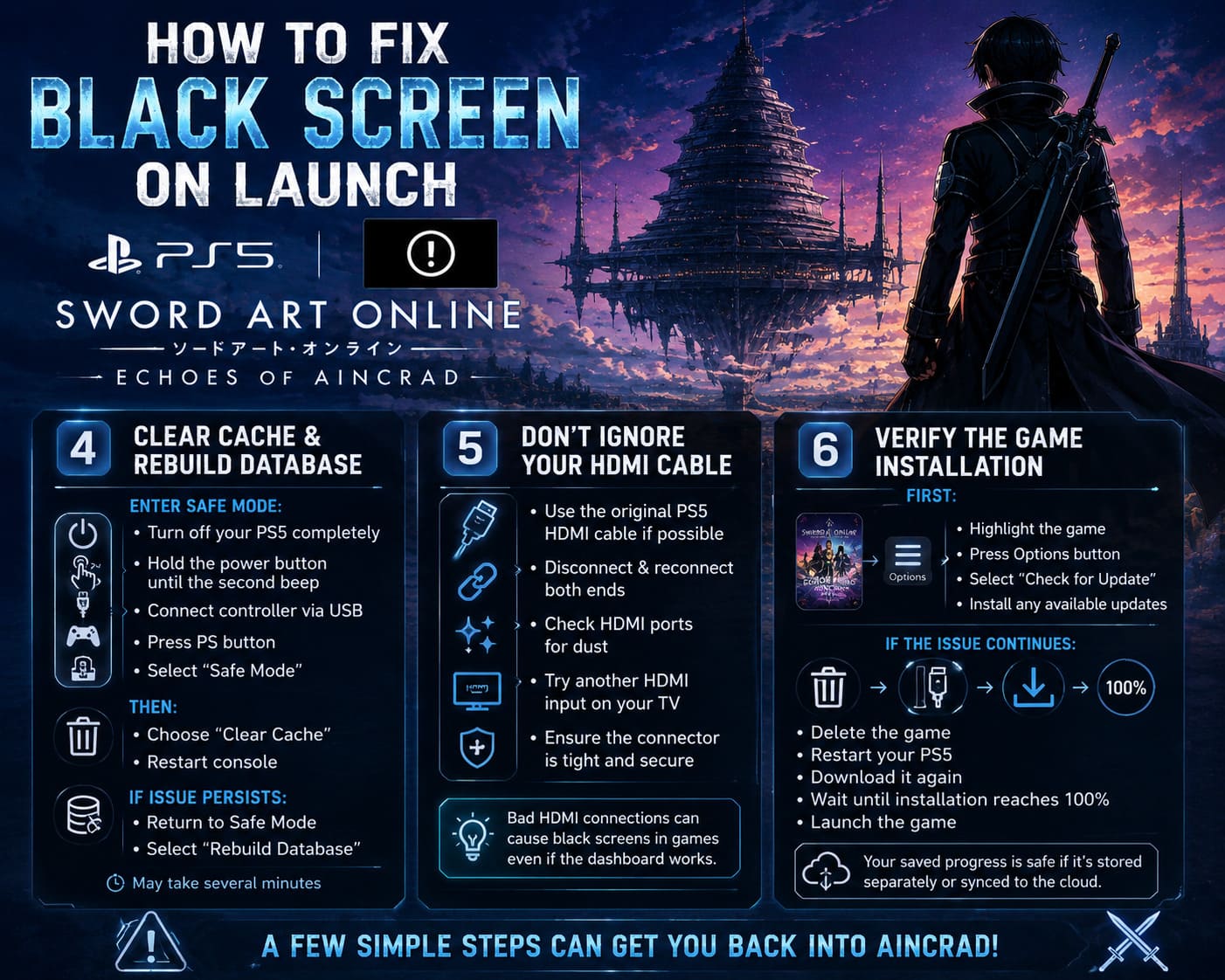
To access Safe Mode:
- Completely shut down the PS5.
- Hold the power button.
- Wait until you hear the second beep.
- Connect your DualSense controller using USB.
- Enter Safe Mode.
Then:
- Choose Clear Cache.
- Restart the console.
- Test the game.
If necessary:
- Return to Safe Mode.
- Select Rebuild Database.
The process can take several minutes depending on how full your SSD is, but it’s well worth trying.
5. Don’t Ignore Your HDMI Cable
This might sound old-fashioned, but bad HDMI connections still cause plenty of problems.
The PS5 dashboard doesn’t require nearly as much bandwidth as a modern game running in 4K HDR at high refresh rates.
That’s why a cable can appear to work perfectly—until you launch a demanding game.
Here’s what I’d check:
- Use the original PS5 HDMI cable if possible.
- Disconnect and reconnect both ends.
- Inspect the HDMI ports for dust.
- Try another HDMI input on your TV.
- Make sure the connector fits tightly.
I’ve personally fixed random black screen issues simply by switching to another HDMI port.
Sometimes the simplest solution is the correct one.
6. Verify the Game Installation
Launch-day installs don’t always complete as cleanly as we’d like.
If the installation was interrupted or a patch failed midway through downloading, important files may be missing.
First:
- Highlight the game.
- Press the Options button.
- Select Check for Update.
Install anything available.
If the problem continues:
- Delete the game.
- Restart your PS5.
- Download it again.
- Wait until the installation reaches 100%.
- Launch the game.
A fresh installation often resolves corrupted files without affecting your saved progress if your saves are stored separately or synced to the cloud.
A Few Extra Things I’d Try
These aren’t guaranteed fixes, but they’ve helped in other PlayStation titles with similar symptoms.
Try these if nothing else works:
- Restart the TV before launching the game.
- Disable HDMI-CEC temporarily.
- Disconnect external USB drives.
- Close every suspended application.
- Make sure your PS5 system software is fully updated.
- Power cycle both your console and your display.
Sometimes the issue isn’t the game alone—it’s how multiple devices communicate during startup.
Which Fix Worked Most Often?
Based on what I’ve seen from the PlayStation community and my own testing, this is roughly how I’d rank the solutions.
| Rank | Solution |
|---|---|
| 🥇 | Disable 120Hz Output |
| 🥈 | Turn Off VRR |
| 🥉 | Disable HDR |
| 4 | Rebuild Database |
| 5 | Reinstall the Game |
| 6 | Replace or Reconnect HDMI Cable |
If I were helping a friend troubleshoot this, I’d start from the top and work downward. Most players won’t need to go beyond the first three fixes.
Echoes of Aincrad Demo Data Transfer Guide: How to Carry Over Your Progress to the Full Game
Will Developers Fix This?
I believe so.
Black screen issues during launch are fairly common in the first few weeks of large game releases, especially titles that support multiple display technologies like HDR, VRR, and 120Hz output.
Developers usually prioritize these problems because they’re highly visible and affect a broad range of hardware combinations.
Keeping both your PS5 firmware and the game updated is one of the easiest ways to avoid future issues.
Echoes of Aincrad Deluxe vs Ultimate Edition: Which Should You Buy?
Final Thoughts
As frustrating as a launch-day black screen can be, I don’t think it’s a reason to panic.
In my experience, SAO: Echoes of Aincrad doesn’t usually fail because the game itself is fundamentally broken. More often, it’s the PS5 and your display struggling to agree on how the game should output its video signal.
If I had to recommend a troubleshooting order, I’d go like this:
- Disable 120Hz output.
- Turn off VRR and ALLM.
- Disable HDR temporarily.
- Clear the PS5 cache and rebuild the database.
- Inspect your HDMI cable and ports.
- Update or reinstall the game if necessary.
Most players should be able to get back into Aincrad without resetting their console or losing any saved data. New releases often have a few rough edges, but thankfully this particular issue is usually much easier to solve than it first appears.