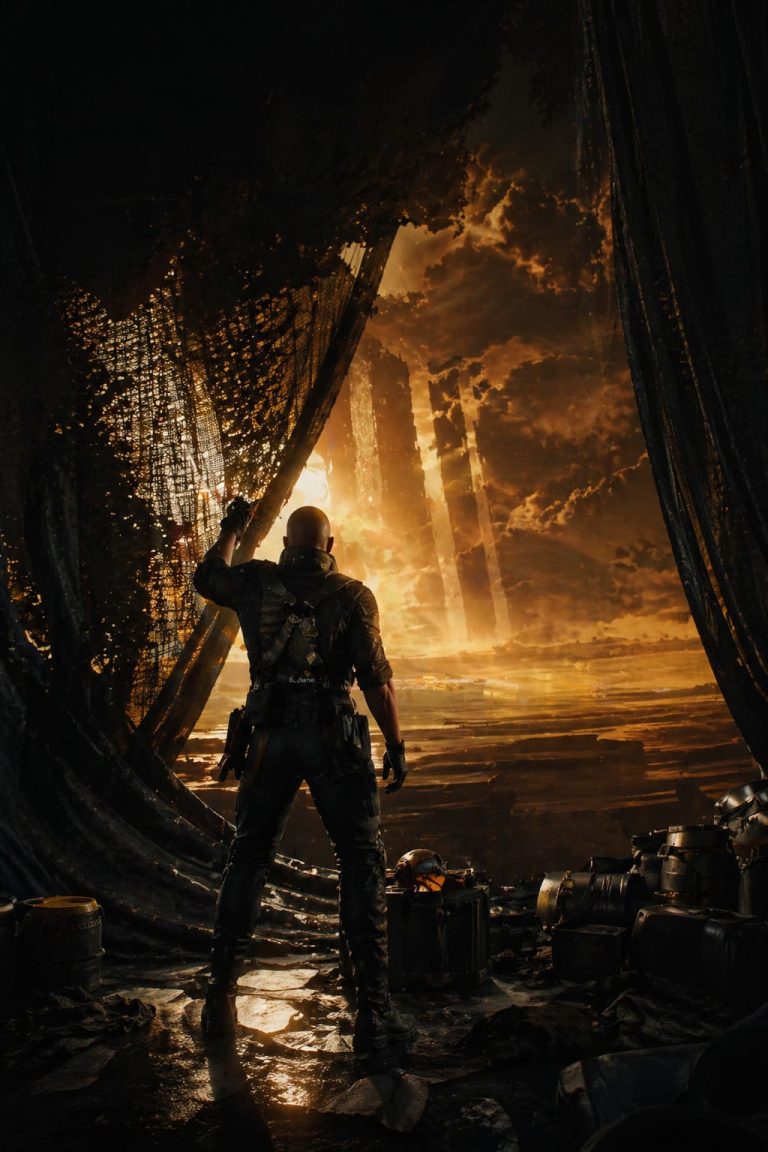
Koshmar Optimization Guide: How to Fix Low FPS, Stutter & Input Lag
If you’ve spent any time with Koshmar: The Last Reverie, you probably already know the feeling: the game looks incredible, the atmosphere pulls you in… and then your frame rate tanks right when things get intense.
I’ve been there. What starts as a beautiful psychological action-adventure can quickly turn into a stuttery mess if your settings aren’t dialed in properly.

After experimenting (and honestly, a bit of frustration), I’ve put together a practical, real-player guide to getting smooth performance without completely ruining the visuals. This isn’t just about max FPS—it’s about finding that sweet spot where the game still looks great and actually plays the way it should.
Super Meat Boy 3D Secret Characters List: How to Unlock Every Hero (2026 Guide)
🎮 First Things First: The Settings That Actually Matter
Not every graphics option impacts performance equally. Some settings are absolute FPS killers, while others barely make a difference. If you’re short on time, focus on these first:
High-Impact Changes
- Resolution
Dropping from 1440p to 1080p gave me an immediate boost (around 20–30%). If you’re desperate, even scaling resolution slightly down helps. - Shadows
This one is brutal on performance. Set to Low if you want smoother gameplay instantly. - Post-Processing
Turning this down removes heavy effects like bloom and blur. Helps reduce stutter during combat sequences. - Anti-Aliasing
TAA looks decent but can feel blurry and heavy. Switching to FXAA or turning it off gave me a cleaner and faster experience.
⚙️ My Personal “Balanced Performance” Setup
After testing different combinations, this is what I’d call the “sweet spot” for most mid-range systems:
| Setting | Recommended Value |
|---|---|
| Resolution | 1080p |
| Display Mode | Fullscreen |
| Shadows | Low |
| Textures | Medium |
| Effects / VFX | Low |
| Anti-Aliasing | FXAA |
| Anisotropic Filtering | 2x or 4x |
| Motion Blur | Off |
| VSync | Off |
🚀 Upscaling Is a Game-Changer (Seriously)
If your GPU supports it, don’t ignore upscaling. It’s honestly one of the biggest improvements you can make.
What I recommend:
- DLSS (NVIDIA users)
Use Quality for 1080p and Balanced for higher resolutions. - FSR (AMD / older GPUs)
Quality looks best overall. Use Performance if you really need more frames.
I was skeptical at first, but enabling upscaling made the game feel noticeably smoother without making it look like a blurry mess.
🧠 The Hidden Problem: Frame Timing & Stutters
Here’s something I didn’t expect: even with decent FPS, the game can feel choppy. That’s usually frame pacing, not raw performance.
What helped me:
- Turn VSync OFF in-game
- Use an external FPS cap (via GPU software or tools like RivaTuner)
- Match FPS to your monitor (60, 120, 144, etc.)
This alone made gameplay feel way more consistent.
🧩 Small Tweaks That Made a Big Difference
These aren’t as obvious, but they helped eliminate micro-stutters:
Disable Overlays
- Steam Overlay → off
- Any third-party overlays (especially performance boosters)
I noticed fewer random stutters after turning these off, especially in busy scenes.
Background Apps
- Close anything unnecessary
- Some “game boosters” actually make things worse
Anisotropic Filtering
- Set it to 2x or 4x
- Improves texture clarity with almost no performance cost
💻 Don’t Ignore Your System Settings
Sometimes the issue isn’t the game—it’s how your system is handling it.
Make sure you:
- Update GPU drivers – This sounds obvious, but it matters more than people think
- Enable Windows Game Mode – Helps prioritize the game over background processes
- Switch to High Performance Power Plan – Prevents your CPU from throttling mid-game
🎯 What Actually Worked Best for Me
After tweaking everything, here’s what made the biggest difference in real gameplay:
- Lowering Shadows → instant FPS gain
- Enabling DLSS/FSR → smoother performance without ugly visuals
- Disabling VSync + using FPS cap → fixed stuttering
- Turning off overlays → reduced random spikes
Everything else helped, but these were the real heavy hitters.
⚠️ Common Mistakes to Avoid
From experience, here are a few things that don’t help as much as you’d expect:
- Maxing out textures while lowering everything else (can still hurt VRAM)
- Leaving VSync on and wondering why input feels laggy
- Using aggressive upscaling modes that make the game look terrible
- Trusting “boost” software blindly
How I Finally Fixed Stutter & Input Lag in Koshmar: The Last Reverie (Nvidia Settings Guide That Actually Works)
If you’ve spent any real time in Koshmar: The Last Reverie, you already know this isn’t the kind of game where performance issues are just “annoying.” They actively ruin the experience. The atmosphere, the tension, the combat timing — all of it depends on smooth frame delivery. And yet, out of the box, things can feel… off. Micro-stutters, inconsistent frame pacing, weird input delay — I ran into all of it.
After a lot of trial and error (and way too much time in the Nvidia Control Panel), I finally landed on a setup that made the game feel right. Not just higher FPS, but smoother, more responsive, more immersive.

This isn’t just a copy-paste settings list — it’s what actually worked for me, explained like a real player would.
Why Nvidia Control Panel Tweaks Matter More Than You Think
A lot of players rely only on in-game settings. That’s fine for most titles, but Koshmar seems particularly sensitive to how frames are queued and delivered by your GPU.
The Nvidia Control Panel (NVCP) lets you control behavior at the driver level — which often overrides or stabilizes what the game itself is trying to do.
In short:
👉 In-game settings = visuals
👉 NVCP settings = how smoothly those visuals are delivered
My Core Nvidia Settings for Koshmar
Here’s the setup that made the biggest difference. You don’t need to tweak everything — just focus on these key options.
Essential Tweaks
- Low Latency Mode → Ultra (or On)
This is huge for responsiveness. Reduces the number of frames queued by the CPU. Result: combat feels tighter and more immediate. - Power Management Mode → Prefer Maximum Performance
Prevents GPU downclocking mid-game. Especially important in darker, less demanding scenes where GPUs tend to relax too much. - Texture Filtering – Quality → High Performance
Small FPS gain, almost zero visual loss (honestly, I couldn’t tell the difference). Helps stabilize frame times. - Threaded Optimization → On
Lets the driver better utilize multi-core CPUs. Particularly useful in CPU-heavy scenes. - Shader Cache Size → 10GB or Unlimited
This one reduced my stutters noticeably. Especially during first-time area loading or effects-heavy scenes.
V-Sync, G-Sync & Frame Limits (The Smoothness Combo)
This part is where most people mess up.
If You Use G-Sync / FreeSync
- Turn V-Sync ON in NVCP
- Turn V-Sync OFF in-game
- Set Max Frame Rate = Refresh Rate – 3 FPS
Example:
| Monitor Refresh Rate | Recommended Cap |
|---|---|
| 144Hz | 141 FPS |
| 120Hz | 117 FPS |
| 60Hz | 57 FPS |
Why this works: Keeps FPS inside the adaptive sync range, prevents tearing, and reduces input lag spikes.
If You Don’t Use G-Sync
- Turn V-Sync OFF in NVCP
- Use an in-game limiter or RTSS
- Accept some tearing for lower latency
Image Scaling (NIS) — Underrated for Performance
If you’re playing on 1440p or 4K and struggling to maintain stable FPS, Nvidia Image Scaling can help a lot.
When to use it: Mid-range GPU, high resolution monitor, you want more FPS without dropping settings too much.
My experience: I tested this on a 1440p setup: rendered at slightly lower resolution and upscaled with sharpening. Result: +10–20 FPS boost, image still looked sharp enough during gameplay.
Windows Graphics Settings (Don’t Skip This)
This is one of those “hidden” tweaks that actually matters. Make sure Windows is forcing your dedicated GPU:
- Go to Settings → System → Display → Graphics
- Add Koshmar: The Last Reverie
- Click Options
- Select High Performance
This prevents the system from doing anything weird with GPU switching.
What Actually Changed After These Tweaks
I didn’t just see higher FPS — I felt the difference:
- ✔ No more random stutter when entering new areas
- ✔ Combat timing became consistent
- ✔ Camera movement felt smoother
- ✔ Input lag noticeably reduced
And most importantly: The game stopped fighting me.
Quick Setup Checklist
If you just want the essentials, here’s the short version:
- Low Latency Mode → Ultra
- Power Mode → Maximum Performance
- Shader Cache → 10GB+
- Threaded Optimization → On
- Texture Filtering → High Performance
- Frame Cap → Refresh Rate – 3
- G-Sync Setup (if available)
- Windows Graphics → High Performance
Final Thoughts (From One Player to Another)
I’ve tweaked settings for a lot of games over the years, but Koshmar: The Last Reverie is one of those titles where small adjustments make a big difference. It’s not just about chasing higher FPS numbers — it’s about frame consistency and responsiveness. Once you dial that in, the whole experience changes. The game becomes more immersive, more fair, and honestly… more enjoyable.
If you’re still getting stutters after this, the issue might be deeper (CPU bottleneck, RAM, or background apps). But for most setups, these Nvidia tweaks should get you 90% of the way there.