How to Fix Onimusha Way of the Sword Black Screen on PC: Ultimate Troubleshooting Guide
There are few things more annoying than getting excited to play a brand-new samurai game, launching it on your PC, and being greeted by… absolutely nothing. That is exactly what some players are experiencing with Onimusha: Way of the Sword. The music starts, the game appears to be running in the background, and yet the monitor stubbornly stays black.
After waiting years for Capcom to bring Onimusha back, getting stuck before you can even swing Musashi’s sword is a pretty rough introduction. The good news is that a black screen does not necessarily mean your hardware is incapable of running the game. In many cases, the problem comes down to display settings, graphics drivers, overlays, corrupted files, or the way Windows and the game communicate during startup.
I’ve dealt with plenty of PC games that refuse to cooperate on launch, and the frustrating part is that the solution is rarely the same for everyone. One person’s problem might disappear after verifying the files, while another player may need to change the rendering API or force windowed mode. So rather than jumping straight to reinstalling everything, I’d work through these fixes from the easiest ones first.
Onimusha Way of the Sword Audio Out of Sync Cutscenes Fix 7 Ways to Fix Cinematic Lag
What Causes the Onimusha: Way of the Sword Black Screen?
Before changing a dozen Windows settings, it helps to understand what can actually cause the problem. A black screen can happen during the initial launch, after the Capcom logo, when a cinematic begins, or even after loading into the game.
The most common suspects are:
- Corrupted or incomplete game files
- A fullscreen resolution or refresh-rate conflict
- Graphics driver problems
- DirectX compatibility issues
- Steam, Discord, or GPU overlays
- Windows fullscreen optimization conflicts
- The game launching on the wrong GPU
- Missing Microsoft system components
- Slow storage causing problems during asset loading
If you can still hear music or menu sounds while the screen is black, that’s actually useful information. It usually means the game itself has launched, but something is going wrong with rendering or the display output.
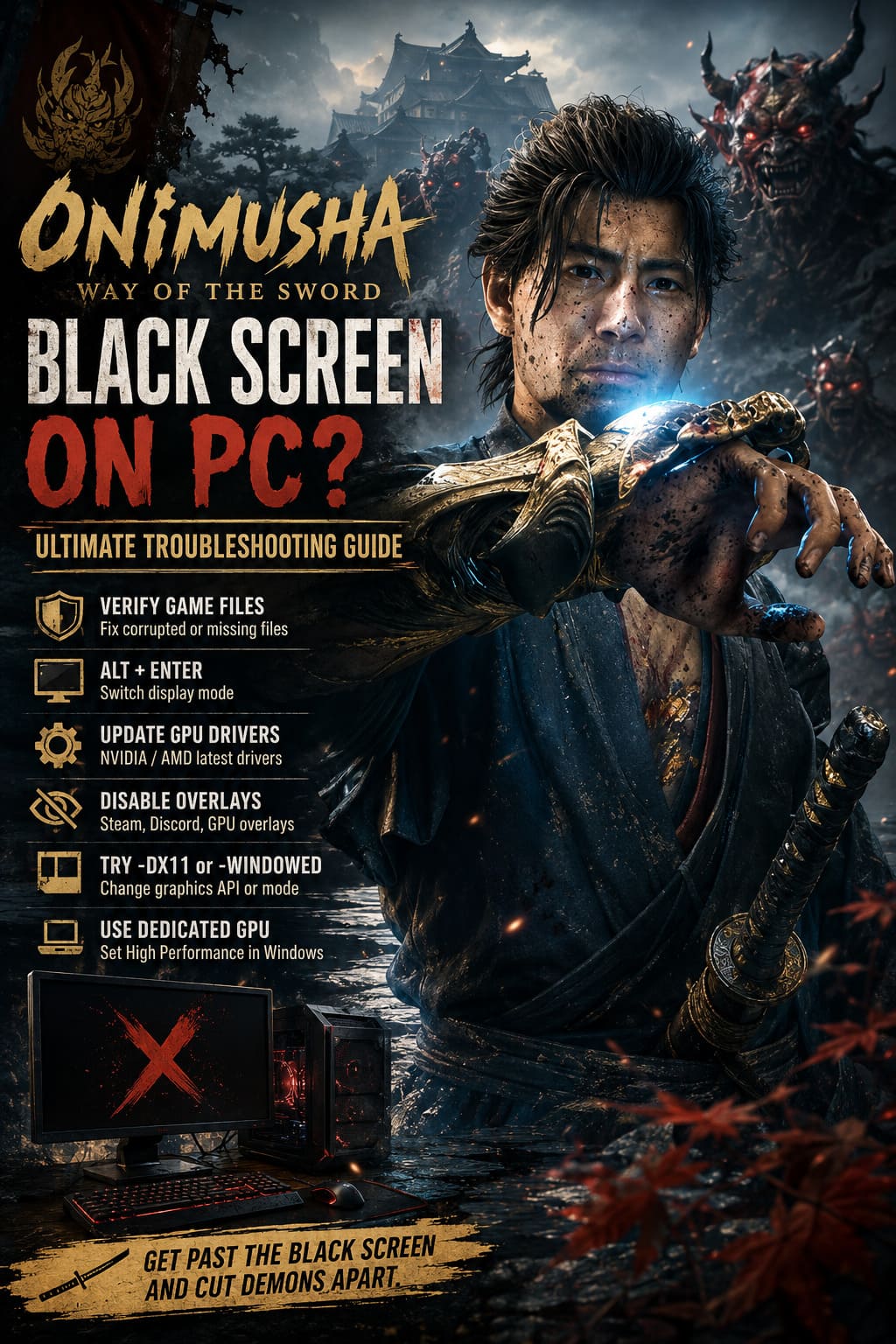
1. Verify the Game Files First
This is the boring fix, but honestly, it’s one of the first things I’d try. A damaged file can happen during installation, an update, or even after an interrupted download, and you don’t necessarily get an obvious error telling you that something is wrong.
On Steam, open your Library, right-click Onimusha: Way of the Sword, and select Properties. Open Installed Files and choose Verify integrity of game files.
Steam will compare your installation against the expected files and replace anything missing or corrupted. It can take a little while depending on your SSD and connection, but it’s much easier than immediately reinstalling the entire game.
If you’re playing through the Epic Games Store, open your Library, find Onimusha, click the three-dot menu, select Manage, and then choose Verify.
Once the process finishes, restart the launcher and try the game again.
2. Try Alt + Enter When the Screen Goes Black
This is one of those classic PC gaming tricks that has saved me from more broken fullscreen modes than I’d like to admit.
Start Onimusha normally and wait until you reach the black screen. Then press Alt + Enter.
The shortcut tells Windows to switch the game between fullscreen and windowed display modes. If the black screen is being caused by an incompatible resolution, refresh rate, HDR configuration, or fullscreen handshake, the image may suddenly appear.
If it works, don’t immediately switch back to fullscreen. Go into the game’s graphics settings first and check your:
- Screen mode
- Resolution
- Refresh rate
- VSync
- HDR settings
- Monitor selection
I’d start with your monitor’s native resolution and a standard refresh rate. Once the game is stable, you can experiment with the more demanding settings.
3. Force a Different Graphics API
Modern PC releases increasingly rely on DirectX 12, and while that is great for newer hardware, compatibility isn’t always perfect on every configuration.
If Onimusha: Way of the Sword is refusing to display anything, you can experiment with a DirectX 11 launch parameter.
In Steam, right-click the game, select Properties, stay on the General tab, and locate the Launch Options field. Enter:
-dx11
Then close the properties window and launch the game.
You can also try:
-windowed
if the problem appears to be specifically related to fullscreen rendering.
I wouldn’t add a pile of launch commands at once. Try one option, test the game, and then remove it if it doesn’t help. Otherwise, you’ll have no idea which change actually made the difference.
4. Update Your NVIDIA or AMD Driver
A brand-new game and an old graphics driver are not always a great combination. Even if your GPU is technically supported, the driver installed on your PC might not contain the optimizations or compatibility fixes needed by the latest Capcom release.
For NVIDIA cards, check for the newest Game Ready driver through the NVIDIA app or the official NVIDIA driver page. AMD users should check AMD Software: Adrenalin Edition for the latest compatible driver package.
If you updated recently and the black screen started immediately afterward, there’s another possibility: the new driver itself could be causing the problem. In that situation, a clean installation or rolling back to a known-good driver can be worth trying.
For stubborn driver conflicts, advanced users can use Display Driver Uninstaller (DDU) in Windows Safe Mode before installing the driver again. I wouldn’t recommend doing this casually if you’ve never used DDU, but it can be useful when a normal driver update clearly isn’t fixing anything.
5. Turn Off Steam, Discord, and GPU Overlays
Overlays are convenient until they aren’t.
Steam’s overlay, Discord’s overlay, NVIDIA’s overlay, AMD’s overlay, Xbox Game Bar, MSI Afterburner/RivaTuner and similar utilities can all hook into a game’s rendering process. Most of the time they work perfectly. Sometimes, however, a new game and an overlay don’t get along.
For troubleshooting, I’d temporarily disable them all.
For Steam, go into the game’s Properties and disable the Steam Overlay option.
For Discord, open User Settings and find the Game Overlay section, then switch the in-game overlay off.
If you’re using NVIDIA or AMD recording and performance overlays, disable those as well.
You don’t have to live without these features forever. The point is simply to eliminate another variable while you’re trying to figure out why Onimusha is displaying a black screen.
6. Disable Windows Fullscreen Optimizations
Windows has several gaming-related compatibility features that can occasionally make things worse instead of better.
Find the game’s executable in the installation folder. On Steam, the easiest route is usually to right-click the game in your Library, select Manage, and choose Browse local files.
Locate the main .exe file, right-click it, select Properties, and open the Compatibility tab.
From there, try enabling Disable fullscreen optimizations.
You can also test Run this program as an administrator. I wouldn’t automatically recommend administrator mode as a permanent solution, but it’s useful as a troubleshooting step if Windows permissions or another background process are interfering with startup.
Launch the game again and see whether anything changes.
7. Make Sure the Game Uses Your Dedicated GPU
This one is especially important for gaming laptops.
Modern laptops often have both an integrated graphics processor and a dedicated NVIDIA or AMD GPU. Windows normally chooses the appropriate hardware automatically, but occasionally a demanding game can end up being assigned to the wrong GPU.
Open Windows Settings and search for Graphics Settings. Add the Onimusha executable if it isn’t already listed, select it, choose Options, and set it to High Performance.
On a laptop with a dedicated GPU, this should point the game toward the NVIDIA or AMD graphics card rather than the integrated processor graphics.
After changing the setting, completely close the game and launcher before trying again.
8. Update Windows and Repair Required Components
Sometimes the game isn’t the only thing that needs an update.
Make sure Windows Update is current, particularly if you’ve recently reinstalled Windows or haven’t updated your system for a while. Older Windows components can cause strange behavior with modern games, especially when graphics APIs and system libraries are involved.
It’s also worth checking your Microsoft Visual C++ Redistributable installations. Games frequently depend on these runtime components, and damaged or missing files can lead to crashes, launch failures, or other strange behavior.
DirectX components can be another piece of the puzzle. Even if Windows reports that DirectX 12 is installed, some games may still rely on additional legacy components.
I’d avoid downloading random DLL files from third-party websites. If Windows reports a missing component, use Microsoft’s official installers rather than grabbing individual files from an unknown source.
9. Check Your Monitor and Multi-Display Setup
This sounds simple, but multiple monitors can create some surprisingly weird launch problems.
If you have two or three displays connected, temporarily disconnect the secondary monitors and launch Onimusha using only your primary display. You can also try disabling unusual resolutions, ultrawide modes, custom refresh rates, or aggressive HDR configurations until the game starts correctly.
If the game suddenly works with one monitor, you’ve learned something important: the problem probably isn’t the installation itself.
Once you’re back in the game, restore your displays one at a time and test again.
10. Consider Where the Game Is Installed
This isn’t the first thing I’d blame for a black screen, but storage can matter in modern games.
New releases rely heavily on fast asset streaming, and games are increasingly designed around SSD storage rather than traditional mechanical hard drives. If you’ve installed Onimusha on an older HDD, moving it to a fast SSD can be worth trying, especially if you’re experiencing black screens during loading rather than immediately after clicking Play.
An NVMe SSD is ideal if your system supports one, although a decent SATA SSD is still dramatically better suited to modern gaming than an aging mechanical drive.
If you’re going to reinstall the game anyway, this is a good opportunity to put it on your fastest drive.
My Recommended Order for Fixing the Black Screen
I wouldn’t perform every fix simultaneously. That makes troubleshooting unnecessarily confusing. Instead, I’d go through the following sequence:
- Verify the game files.
- Try Alt + Enter.
- Disable overlays.
- Test -windowed.
- Try -dx11.
- Update or clean-install your GPU driver.
- Disable fullscreen optimizations.
- Force the dedicated GPU on laptops.
- Update Windows and repair Visual C++/DirectX components.
- Move or reinstall the game onto an SSD.
This approach starts with the least invasive solutions and only gets more involved if the simpler fixes fail.
Don’t Panic and Reinstall Everything Immediately
The temptation with a black screen is to uninstall the game and start from scratch. I’ve done it myself, and sometimes it works, but it’s a pretty drastic first move.
If the game produces sound while the screen remains black, I’d pay particular attention to display mode, resolution, GPU selection, drivers, overlays, and DirectX settings. Those symptoms often point toward a rendering problem rather than a completely broken installation.
On the other hand, if the game crashes immediately, produces an error message, or refuses to launch at all, I’d investigate corrupted files and missing system components more aggressively.
The nice thing about PC troubleshooting is that once you identify the troublesome layer, the solution is usually straightforward.
Final Thoughts
Onimusha: Way of the Sword deserves better than a black screen greeting players at startup. After such a long wait for the series to return, the last thing anyone wants is to spend their evening digging through Windows settings instead of cutting through Genma demons.
Thankfully, most of the fixes above are relatively painless. Start with file verification and Alt + Enter, then move through the graphics driver, overlay, DirectX, GPU-selection, and Windows troubleshooting steps. In my experience with PC gaming, the simplest solution is surprisingly often the one that finally gets the image back.
And once Musashi finally appears on screen, the troubleshooting headache becomes a lot easier to forget. At that point, you can stop fighting Windows and get back to what you actually installed the game for: drawing the sword, learning the combat system, and cutting demons apart.