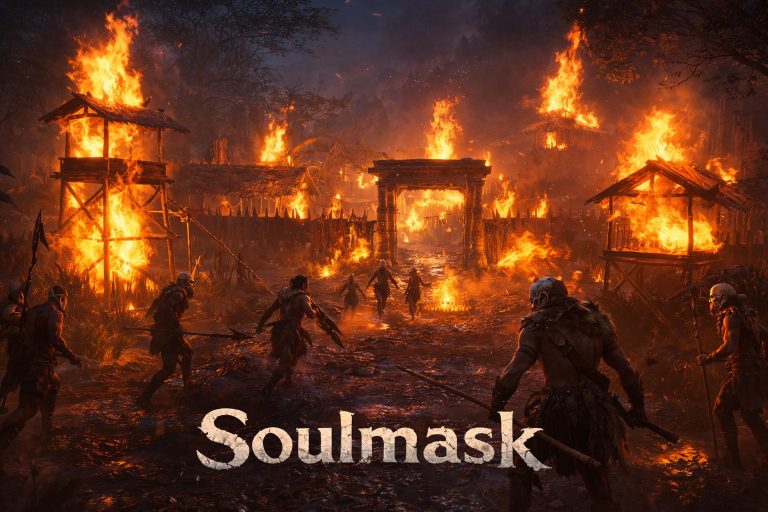
How to Fix Koshmar: The Last Reverie Crashing on Startup (Easy Fix Guide)
There’s something undeniably captivating about Koshmar: The Last Reverie. The neon-gothic aesthetic, the eerie atmosphere, the promise of a dark, immersive journey—it’s exactly the kind of indie title that pulls you in instantly… until it crashes before you even reach the main menu.
If you’ve been stuck staring at a frozen screen or a dreaded “Not Responding” message, trust me—you’re not alone. I’ve been there too, tinkering, retrying, and honestly getting a little frustrated.

But after digging through forums, testing fixes myself, and understanding how the game behaves on modern systems, I’ve put together a cleaner, more practical guide that actually works.
Super Meat Boy 3D Dr. Fetus Boss Guide: Strategies, Patterns, and Tips to Win
Let’s get into it.
First Things First: Why This Happens
Indie games—especially visually ambitious ones—don’t always play nicely with every PC setup right at launch. Koshmar: The Last Reverie seems particularly sensitive to:
- Graphics API conflicts
- Corrupted installation files
- Windows optimization quirks
- Outdated drivers
- Hardware limitations
The good news? Most of these are fixable in minutes.
Fix #1: Repair Your Game Files (This Solves More Than You Think)
This might sound basic, but it’s honestly the fix that worked for me first. Sometimes Steam installs aren’t perfect—one missing file can crash the entire game instantly.
What to do:
- Open Steam Library
- Right-click the game → Properties
- Go to Installed Files
- Click Verify integrity of game files
Why it matters: Even a tiny corrupted texture or shader file can prevent the game from launching at all. Steam will automatically replace anything broken.
Fix #2: Force DirectX 11 (Stability Over Flashiness)
Modern games often try to run on newer APIs like DirectX 12—but not all indie engines handle that well. In my case, forcing DirectX 11 made the difference between constant crashes and a stable launch.
Steps:
- Right-click the game in Steam
- Open Properties
- In Launch Options, type:
-dx11
Result: More stable rendering, fewer crashes, smoother startup.
Fix #3: Disable Full-Screen Optimizations (Underrated Fix)
Windows 10 and 11 try to “help” games run better—but sometimes they do the opposite, especially with indie titles. This fix is surprisingly effective for black screens, startup freezes, and Alt-tab issues.
How to do it:
- Go to the game’s install folder
- Find the main .exe file
- Right-click → Properties
- Open Compatibility tab
- Enable:
- Disable full-screen optimizations
- Run as administrator
Fix #4: Clear Steam Cache (Quick but Powerful)
This one feels unrelated—but it works more often than expected. Steam’s cached data can interfere with launching newly installed or updated games.
Steps:
- Open Steam → Settings
- Go to Downloads
- Click Clear Download Cache
Yes, you’ll need to log in again—but it’s worth it.
Fix #5: Check If Your PC Can Actually Handle It
Let’s be real for a second: Koshmar: The Last Reverie looks stylish, but it’s not lightweight.
Here’s a quick breakdown:
| Component | Minimum Requirement |
|---|---|
| OS | Windows 10 (64-bit) |
| CPU | Intel i3-2100 or equivalent |
| RAM | 8 GB |
| GPU | GTX 650 Ti (1GB VRAM) |
| Storage | 26 GB |
My take: 8 GB RAM is the real minimum wall; if you’re below that, crashes before launch are very likely. Older GPUs may struggle with the game’s lighting effects.
Fix #6: Update Your Graphics Drivers (Don’t Skip This)
I know—everyone says this. But with new indie releases, it actually matters more than usual. New games often rely on recently updated rendering features, even if they don’t advertise it.
Update depending on your GPU:
- NVIDIA → GeForce Experience
- AMD → Adrenalin Software
- Intel → Driver Support Assistant
What I noticed: After updating drivers, random crashes stopped completely.
Bonus Fix: Black Screen but You Hear Sound?
This one is oddly specific—but pretty common. If the game launches but the screen stays black while audio plays, it’s probably trying to use an unsupported resolution.
Solution: Add this to launch options: -windowed. This forces the game into windowed mode so you can manually adjust settings.
What Actually Worked for Me (Real Experience)
After trying everything, here’s what fixed the game for me personally: Verify files, forced -dx11, and disabled fullscreen optimizations. That combo turned a completely unplayable launch into a smooth experience.
Final Thoughts: Is It Worth the Trouble?
Honestly? Yes. Despite the rough edges at launch, Koshmar: The Last Reverie has that rare indie charm—stylish, strange, and memorable. Once it runs properly, the atmosphere alone makes it worth the effort. But it does need a bit of patience—and maybe a few patches from the developers down the line.
Quick Recap (If You Just Want the Fixes Fast)
- Verify game files
- Use
-dx11 - Disable fullscreen optimizations
- Clear Steam cache
- Update GPU drivers
- Try
-windowedif screen is black
Why Koshmar: The Last Reverie Keeps Crashing — And How I Actually Fixed It
There’s a certain charm to indie horror games like Koshmar: The Last Reverie. They aim high — cinematic lighting, heavy atmosphere, ambitious rendering — sometimes higher than the average PC setup (or even drivers) can comfortably handle.
And when things go wrong, they really go wrong: crashes on launch, black screens, or the infamous DXGI_ERROR_DEVICE_REMOVED.

I’ve dealt with this exact mess more than once — not just in this game, but across other Unreal Engine-based titles — and I can tell you: it’s rarely just “one bug.” It’s usually a mix of GPU timeouts, driver quirks, and overly aggressive graphical features.
Here’s a cleaner, real-world breakdown of what’s happening and what actually works.
🎮 The Real Problem Behind DXGI Errors
Let’s keep it simple:
DXGI_ERROR_DEVICE_REMOVED basically means your GPU gave up mid-task.
Not literally broke — but Windows thought it stopped responding.
This usually happens when:
- The GPU is overloaded (ray tracing is a big offender)
- Drivers don’t respond in time
- The system switches between GPUs (common on laptops)
- Power or clock speeds fluctuate during heavy load
And Koshmar pushes all the wrong buttons at once.
⚙️ Fix #1 — Tone Down the Graphics (Yes, Even If Your PC Is “Good”)
I know, it hurts. But modern indie games sometimes lack optimization passes that AAA studios spend months on.
If you can get into the settings at all:
- Disable Ray Tracing
- Set Global Illumination to Static
- Lower shadows and reflections
👉 From experience: Ray tracing is the #1 trigger for crashes in unstable builds.
If you can’t even reach the menu:
Try launching the game in windowed mode (more on that below)
🧠 Fix #2 — Extend GPU Timeout (The TDR Trick That Actually Works)
Windows has a built-in safety feature called TDR (Timeout Detection and Recovery). If your GPU takes too long, Windows resets it.
That’s great for system stability — terrible for heavy games.
What you can do:
Increase the timeout window so your GPU has more breathing room.
Steps:
1. Press Win + R
2. Type regedit
3. Navigate to:
   HKEY_LOCAL_MACHINE\SYSTEM\CurrentControlSet\Control\GraphicsDrivers
4. Create a new DWORD (32-bit):
   - Name: TdrDelay
   - Value: 60 (Decimal)
💡 This gives your GPU a full minute instead of a few seconds before Windows panics.
💻 Fix #3 — Force the Game to Use the Right GPU
If you’re on a laptop or a hybrid system, this is huge.
Sometimes the game launches on integrated graphics instead of your dedicated GPU — and that’s basically a guaranteed crash.
Options:
- Disable integrated graphics in Device Manager
- Or manually assign the GPU via:
– NVIDIA Control Panel → “High-performance NVIDIA processor”
– AMD Software equivalent
👉 This alone has fixed startup crashes for me in multiple games.
🚫 Fix #4 — Kill Overlays (They Break More Games Than You Think)
Overlays are convenient… until they hook into the wrong process.
Common troublemakers:
- Steam Overlay
- Discord Overlay
- NVIDIA ShadowPlay
- AMD Adrenalin overlay
What to do:
Turn them all off temporarily.
Seriously — I’ve seen games go from “won’t launch” to “perfectly stable” just from disabling overlays.
🪟 Fix #5 — Launch in Windowed Mode
Sometimes crashes aren’t about performance at all — they’re about resolution conflicts.
Use this launch option:
-windowed
Add it in Steam under:
Properties → Launch Options
This forces the game into a safer display mode and bypasses fullscreen issues.
🧩 Fix #6 — Clean Up GameInput Conflicts
This one surprised me the first time I ran into it.
Windows sometimes installs multiple versions of Microsoft Game Input, and they don’t always play nice together.
Quick fix:
- Go to Settings → Apps
- Search for “Microsoft Game Input”
- Remove older or duplicate versions
It sounds minor, but it can absolutely cause silent crashes.
🔄 Fix #7 — Roll Back Your GPU Drivers
New drivers aren’t always better — especially for niche or indie games.
If crashes started after a driver update:
– Use Display Driver Uninstaller (DDU) to fully wipe drivers
– Install a slightly older, stable version
👉 In my experience, “latest” drivers are optimized for big releases, not smaller titles like this.
⚡ Fix #8 — Lock GPU Performance Mode
Modern GPUs dynamically change clock speeds — great for efficiency, bad for stability under sudden load spikes.
Set:
- NVIDIA: Prefer Maximum Performance
- AMD: equivalent high-performance mode
This prevents the GPU from downclocking during loading screens — a common crash point.
🧾 Quick Troubleshooting Summary
| Problem | Most Likely Cause | Best Fix |
|---|---|---|
| DXGI_ERROR_DEVICE_REMOVED | GPU timeout | Increase TdrDelay |
| Instant crash (no error) | Overlay conflict | Disable overlays |
| Crash on launch | Wrong GPU used | Force dedicated GPU |
| Black screen or freeze | Resolution mismatch | Use -windowed |
| Random instability | Driver issues | Roll back drivers |
🎯 My Honest Take
Koshmar: The Last Reverie is one of those games where ambition slightly outpaces stability — and that’s not unusual in indie development.
The visuals are clearly pushing modern rendering features, but without the deep optimization layers you’d expect from bigger studios. That’s why even strong systems can struggle.
The good news? Once you dial in the right combination — especially disabling ray tracing + fixing TDR — the game becomes much more stable.
🏁 Final Thoughts
If you’re dealing with crashes in Koshmar, don’t assume your hardware is the problem. In most cases, it’s a mix of:
- Overly aggressive graphics settings
- Driver timing issues
- Background software conflicts
Start simple:
1. Disable ray tracing
2. Turn off overlays
3. Force your GPU
Then move into deeper fixes like TDR and driver rollback.
That layered approach saves time — and frustration.