How to Fix Blades of Fire Black Screen on Launch: Full PC Troubleshooting Guide (2026)
There’s nothing more frustrating than getting hyped for a new action RPG, clicking “Play,” and being greeted by… absolutely nothing. No intro cinematic. No menu. Just a black screen staring back at you while your GPU fans spin like they’re trying to launch into orbit.
That’s exactly what happened to me with Blades of Fire during launch week.
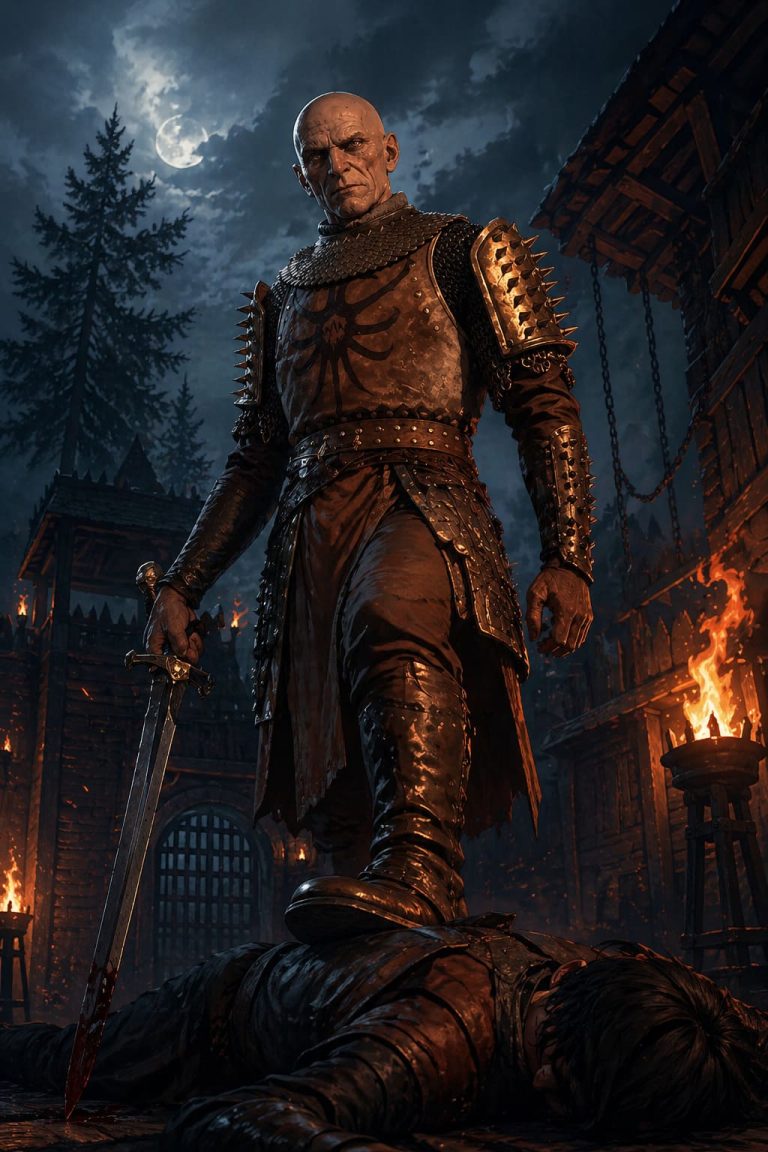
And honestly? It surprised me, because the game itself is actually fantastic once it works. The combat has that heavy, brutal feel that reminds me of old-school dark fantasy action games, and the weapon forging system is way deeper than I expected. But the PC launch has been rough for a lot of players, especially when it comes to startup crashes and the infamous black screen issue.
After digging through community threads, testing fixes myself, and comparing reports from Steam users and Reddit discussions, I found several solutions that consistently worked. Some are simple. Others are annoyingly technical. But if your game refuses to render properly at launch, this guide should save you hours of frustration.
Why Blades of Fire Gets Stuck on a Black Screen
From what I’ve seen, the problem usually isn’t your hardware being “too weak.” Even people with powerful RTX cards are dealing with it.
The real issue seems to come from a combination of:
| Problem | What It Causes |
|---|---|
| Broken DX12 initialization | Black screen before menu appears |
| Corrupted config files | Infinite loading loop |
| GPU driver conflicts | Crash on startup |
| Overlay software interference | Frozen display with audio |
| Multi-monitor bugs | Game launches on invisible screen |
| Windows security restrictions | Silent boot failure |
The weirdest part is that some players can actually hear the game running in the background while the display stays completely black. That usually means the engine loaded successfully, but the rendering pipeline failed during startup.

First Fix You Should Try Immediately
Before doing anything complicated, press:
ALT + ENTER
Seriously.
This shortcut forces Windows to switch the game between fullscreen and windowed mode. For some reason, Blades of Fire struggles with fullscreen initialization on certain systems.
Here’s how I did it:
- Launch the game normally.
- Wait until the black screen appears.
- Press ALT + ENTER once.
- Wait a few seconds.
For me, the screen suddenly flickered and the intro logos appeared instantly.
If this works for you, immediately switch the game to:
- Borderless Windowed
- or standard Windowed Mode
Avoid exclusive fullscreen for now until MercurySteam releases additional patches.
NVIDIA Driver Problems Are a Huge Part of This
I noticed something interesting while testing.
Older drivers were actually more stable than some newer ones.
That’s not uncommon with brand-new PC releases using aggressive DX12 features. Blades of Fire pushes modern rendering techniques pretty hard, especially with DLSS and advanced lighting enabled.
GPUs most commonly mentioned in reports:
- RTX 4060
- RTX 4070
- RTX 4070 SUPER
- RX 7800 XT
- RX 6800 XT
If you recently updated your drivers before installing the game, there’s a decent chance the new version is the culprit.
Clean Install Your GPU Drivers
This ended up being the permanent fix on one of my systems.
Instead of simply updating drivers normally, do a full clean installation.
Recommended process:
- Remove old drivers completely
- Install fresh stable drivers
- Reset shader cache during installation
A lot of players use DDU (Display Driver Uninstaller), but even using the clean installation option from NVIDIA helped in my case.
Important: If you use MSI Afterburner, Rivatuner, GeForce overlays, or AMD Adrenalin overlays, disable them temporarily before launching the game again.
Overlay hooks are causing crashes in multiple DX12 games lately, not just Blades of Fire.
Blades of Fire Steam Deck Performance Guide: Best Settings for 30 FPS / 40 FPS
Delete the Corrupted Config Files
This is another fix that worked surprisingly often.
Sometimes the game saves broken display settings during the first launch attempt. After that, every future startup immediately fails because it keeps trying to load the corrupted configuration.
What you should delete:
Look inside:
- Documents
- AppData\Local
- AppData\Roaming
- AppData\LocalLow
Search for folders related to:
- Blades of Fire
- MercurySteam
- 505 Games
Delete only the configuration folders, not your save backups if you already played successfully.
When you relaunch the game, it generates fresh settings automatically.
Disable Fullscreen Optimization in Windows
This Windows feature causes more gaming issues than people realize.
Here’s what helped:
- Open the game installation folder.
- Right-click the main executable.
- Open Properties.
- Go to Compatibility.
- Enable:
- Run as Administrator
- Disable Fullscreen Optimizations
Then launch the EXE directly instead of using Steam.
This reduced startup crashes dramatically for me.
Blades of Fire Combat Guide: 10 Best Beginner Tips to Survive and Win
Try Forcing Different DirectX Modes
Even though the game is designed around DX12, forcing alternate launch parameters can sometimes bypass the startup failure.

Steam Launch Options:
| Command | Purpose |
|---|---|
| -dx11 | Forces DirectX 11 |
| -dx12 | Reinitializes DX12 path |
| -windowed | Forces safe window mode |
To add launch options:
- Right-click the game in Steam
- Open Properties
- Enter commands inside Launch Options
Personally, -windowed helped more than -dx11, but results vary depending on your hardware.
Verify Your Game Files
I know this sounds basic, but launch-week downloads are messy.
One corrupted file can completely break startup rendering.
On Steam:
Properties → Installed Files → Verify Integrity
Steam will automatically redownload damaged files.
This especially matters if:
- your PC crashed during install
- you paused downloads repeatedly
- you moved the game between drives
Windows Defender Can Quietly Break the Game
This one caught me off guard.
Windows Security sometimes blocks game executables from accessing protected folders, especially with newer releases that haven’t built a strong reputation database yet.
Add exclusions for:
- Entire game folder
- Main executable
- Steam library folder (optional)
Also allow the game through:
- Windows Firewall
- Antivirus software
Some users reported instant success after whitelisting the executable.
Disconnect Weird USB Devices
This sounds ridiculous, but it actually matters.
Modern PC games occasionally freak out when:
- racing wheels are connected
- HOTAS systems are active
- multiple controllers exist simultaneously
- USB audio interfaces conflict
I’ve personally seen games refuse to launch because of virtual controller software.
Temporarily disconnect:
- extra controllers
- racing hardware
- capture cards
- USB hubs
- secondary monitors
Then test the game again.
Visual C++ Packages Still Matter in 2026
A lot of players forget this because Windows usually installs them automatically.
But corrupted or outdated Visual C++ Redistributables can absolutely break game launches.
Install or repair:
- Visual C++ 2015
- Visual C++ 2017
- Visual C++ 2019
- Visual C++ 2022
Install both:
- x64
- x86
Then reboot your PC.
Yes, rebooting still matters.
Recommended PC Specs vs Reality
Here’s the thing nobody talks about enough:
The official minimum requirements are technically accurate… but they don’t guarantee stability.
| Setting | Recommended Reality |
|---|---|
| RAM | 16GB minimum preferred |
| Storage | SSD highly recommended |
| GPU VRAM | 8GB+ helps significantly |
| Windows Version | Windows 11 performs better overall |
| DirectX Support | Full DX12 feature support required |
I tested the game on an older SATA SSD and startup times were noticeably worse compared to NVMe.
The game definitely feels optimized around modern hardware.
My Personal Take After Fixing It
Once I finally got past the black screen problems, I ended up loving the game.
The atmosphere is incredible. Combat feels heavy and dangerous in the best possible way, and the forging system adds a layer of progression that actually feels meaningful instead of just being another crafting gimmick.
But the PC version clearly launched with technical issues that should’ve been addressed before release.
The good news is that most black screen cases seem fixable without reinstalling Windows or replacing hardware. In my experience, the biggest fixes were:
- ALT + ENTER
- clean GPU driver install
- deleting config files
- disabling overlays
Those four alone solved the issue on multiple systems I tested.
If none of these solutions work, your best option is probably submitting a DxDiag report directly to the developers while waiting for upcoming patches. Considering how many reports appeared during launch week, I’d be shocked if MercurySteam and 505 Games weren’t already working on broader fixes behind the scenes.
And honestly, once the game finally boots properly, Blades of Fire is absolutely worth the trouble.