Dimraeth Steam Deck Best Settings Guide: Max Performance and Battery Life
Dimraeth is exactly the kind of game that looks like it should be easy for a Steam Deck to handle. It has gorgeous pixel art, chunky fantasy characters, and an overall visual style that immediately gives you the impression that your handheld should barely break a sweat.
Then you actually start playing it.
Once the world opens up, enemies start moving around, your base begins running its various systems, and you get into a proper fight with a pile of spells flying everywhere, the Steam Deck suddenly remembers that Dimraeth is doing considerably more than drawing pretty pixels.
After spending time messing around with the settings, I found that the biggest mistake is treating Dimraeth like a lightweight 2D game. It isn’t. The game’s combination of action combat, RPG systems, base management, AI, multiplayer simulation, and persistent world mechanics can put serious pressure on the Steam Deck’s CPU.
The good news is that you don’t need to turn the game into a blurry mess to get better performance.
With a sensible FPS cap, a reasonable TDP limit, and a few graphical compromises, Dimraeth can feel very good on Steam Deck. Here’s the setup I’d personally recommend.
Why Does Dimraeth Run So Hard on Steam Deck?
The pixel-art presentation is probably the most misleading thing about Dimraeth.
Visually, it looks simple compared with a modern 3D RPG. But underneath those sprites is a game constantly keeping track of a surprisingly large number of systems. You aren’t simply walking from one dungeon room to another.
You’re managing characters, abilities, enemies, resources, your stronghold, farms, gathering stations, factions, and other world systems. The game also uses a persistent local-server-style architecture, which means some of that simulation continues to consume CPU resources even when you’re playing alone.
That distinction matters on Steam Deck.
The GPU isn’t always the problem. The CPU can be.
If you remove the FPS limit and let the Deck chase every frame it possibly can, you’re essentially asking the hardware to spend additional power on frames you probably don’t need. The result is higher temperatures, louder fans, and considerably worse battery life.
For a game like this, I would much rather have a stable 40 or 50 FPS than a constantly fluctuating 60-75 FPS.
My Recommended Steam Deck Settings for Dimraeth
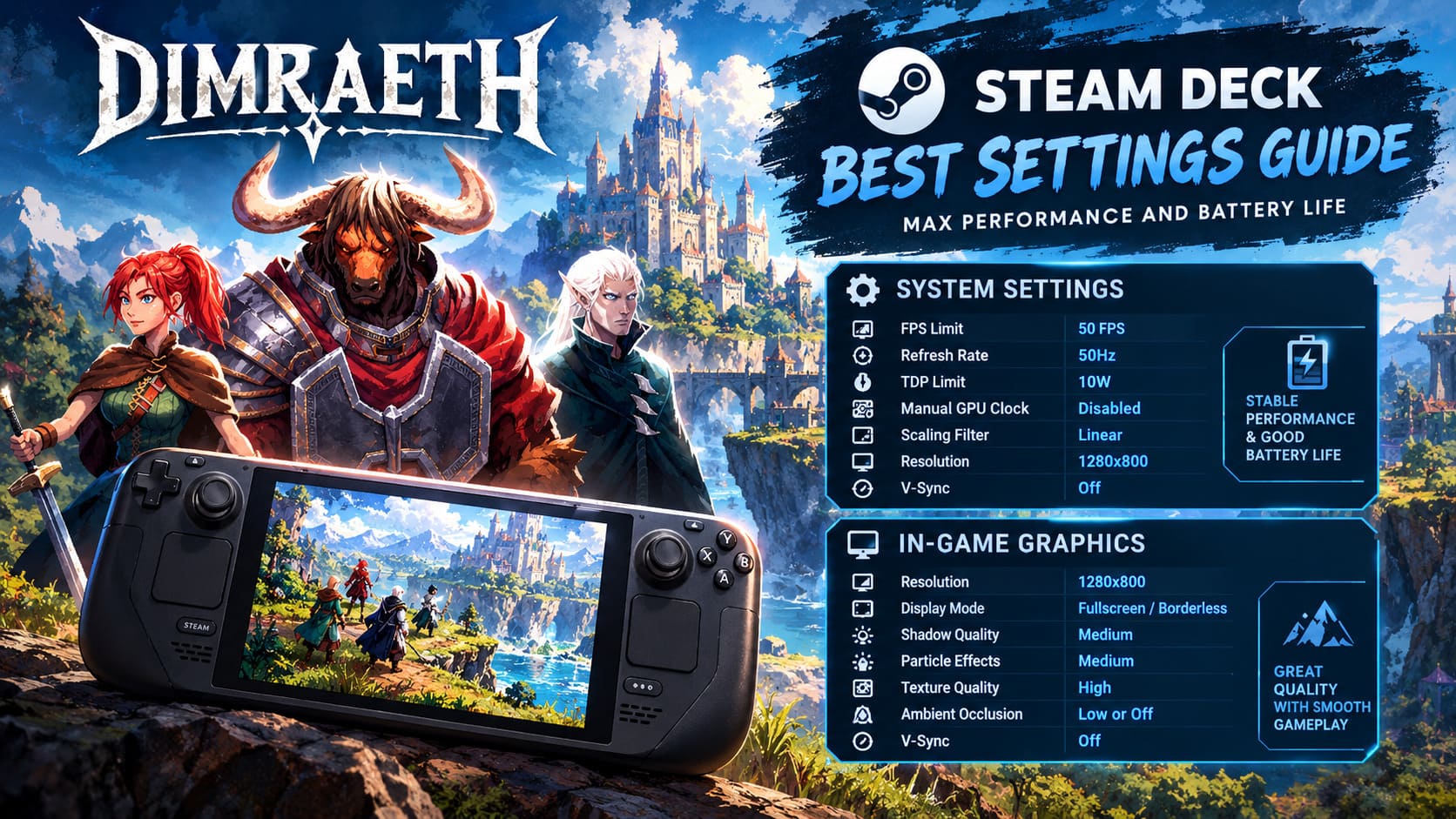
If you want the best overall balance between image quality, responsiveness, and battery consumption, this is where I’d start.
| Steam Deck Setting | Recommended Value |
|---|---|
| FPS Limit | 50 FPS |
| Refresh Rate | 50Hz |
| TDP Limit | 10W |
| Manual GPU Clock | Disabled |
| Scaling Filter | Linear |
| Resolution | 1280×800 |
| V-Sync | Off |
| Target | Stable performance with reasonable battery life |
I’d personally use 50 FPS rather than blindly locking the game to 60 FPS. On the Steam Deck screen, 50 FPS still feels responsive enough for combat while giving the CPU a little breathing room.
If you’re playing solo and the game is behaving perfectly at 60 FPS, there’s nothing wrong with using 60Hz/60 FPS. But I don’t think the difference is worth the additional power draw in every situation.
In-Game Graphics
For the actual graphics menu, my preferred setup looks like this:
- Resolution: 1280×800
- Display Mode: Fullscreen or Borderless
- Shadow Quality: Medium
- Particle Effects: Medium
- Texture Quality: High
- Ambient Occlusion: Low or Off
- V-Sync: Off
There is no reason to aggressively reduce texture quality just because you’re playing on a Steam Deck. Dimraeth’s pixel-art textures aren’t particularly demanding compared with the game’s CPU-heavy simulation.
Shadows and particles are the settings I’d sacrifice first.
The difference between high and medium shadows isn’t important enough to justify the extra workload, especially when you’re fighting enemies and the screen is already full of effects.
Particles are similar. Turning them down can help during those moments when you’re throwing several area-of-effect abilities around at once.
Want More Battery Life? Lock It to 40 FPS
This is probably my favorite configuration for longer gaming sessions.
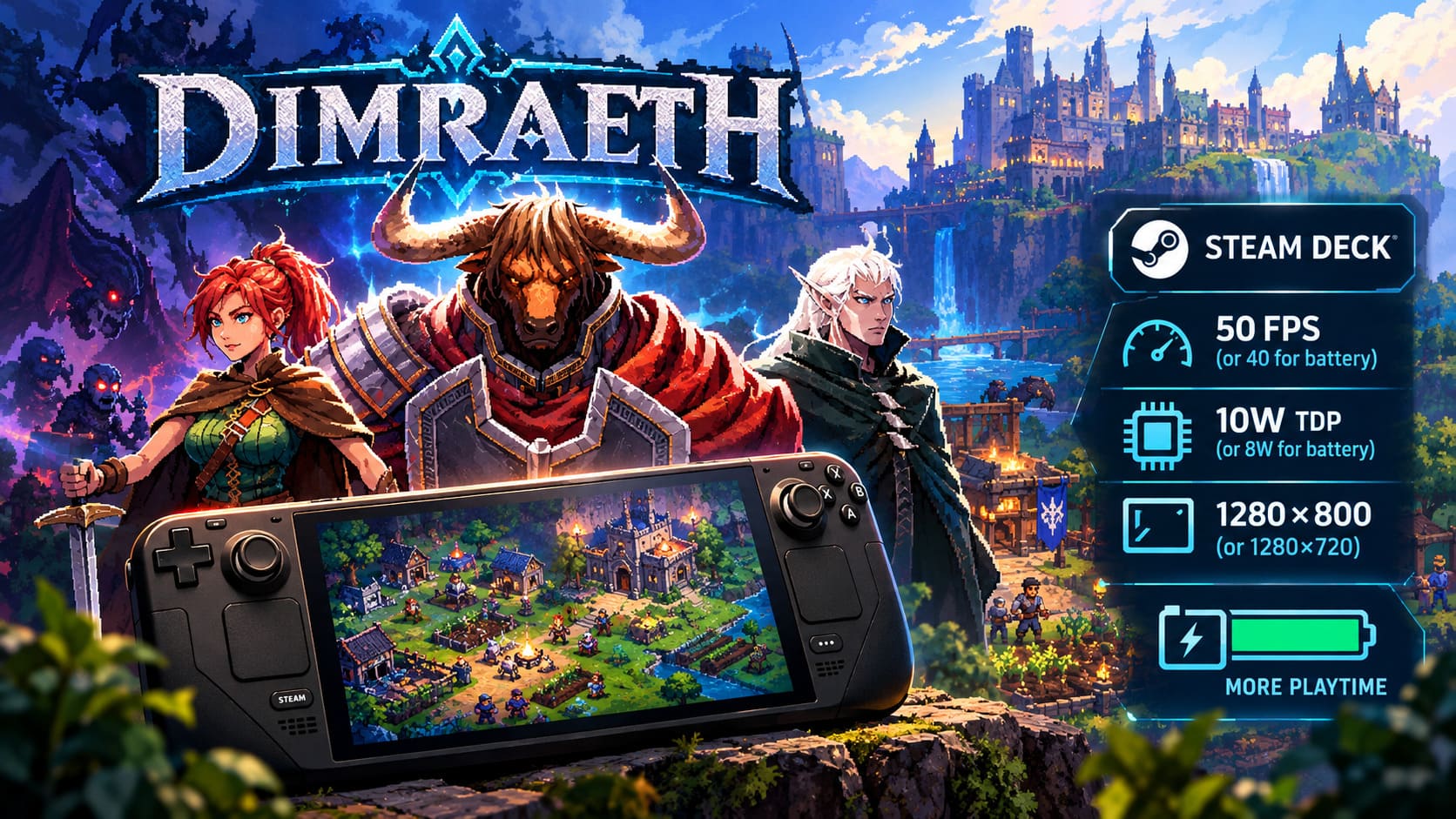
A 40 FPS / 40Hz setup sounds less impressive on paper than 60 FPS, but in actual handheld use it works surprisingly well. The Steam Deck’s display makes 40Hz feel considerably smoother than the number suggests, and Dimraeth isn’t the sort of game where I feel desperate for every last frame.
For traveling, I’d use the following:

| Setting | Battery-Focused Recommendation |
|---|---|
| FPS Limit | 40 FPS |
| Refresh Rate | 40Hz |
| TDP | 8W |
| Resolution | 1280×800 |
| Shadows | Low |
| Particles | Low |
| Lighting | Medium |
| Environment Details | Medium |
| Half-Rate Shading | Off |
The 8W TDP limit is particularly useful here. Since you’re already limiting the game to 40 FPS, there is less reason for the CPU and APU to operate at their maximum power budget.
This is the setup I’d choose on a train, plane, or anywhere I know I won’t have a charger nearby.
Battery results will obviously vary depending on brightness, audio, Wi-Fi, game activity, and whether you’re using an LCD or OLED Deck, so I wouldn’t treat any specific battery-life number as guaranteed. But the general principle is solid: 40 FPS plus a lower TDP is dramatically friendlier to the battery than running the hardware uncapped.
Don’t Let the Steam Deck Waste Power Chasing Frames
One thing I strongly recommend is using the Steam Deck’s system-level FPS limiter.
Running Dimraeth completely uncapped might look appealing when you’re standing around in an empty area and seeing a high frame counter. But that’s not really the situation that matters.
The important question is what happens when:
- enemies start spawning,
- multiple players join,
- you enter a busy settlement,
- several abilities are being used simultaneously,
- your base has lots of active systems,
- or the game is processing a lot of background simulation.
That’s when a controlled frame rate becomes much more valuable.
Consistency beats a pretty number on the FPS counter.
My Steam Input Setup for Dimraeth
The default controls are perfectly usable, but Dimraeth has enough abilities, menus, and RPG systems that Steam Input can make a big difference.
I particularly like using the right trackpad as a mouse. It gives you much more control over menus and can also make certain targeting situations easier than relying entirely on the analog stick.
The back buttons are another obvious win.
I’d bind one of the rear grips to sprint or dodge. That way, you don’t have to constantly remove your thumb from the analog stick when combat gets hectic.
The other trick I’d recommend is a radial menu.
Once you start collecting a large number of spells and abilities, scrolling through everything manually becomes annoying. A radial menu on the left trackpad gives you a much faster way to access utility spells, potions, and other frequently used actions.
It’s not something you absolutely need on day one, but once your character starts developing properly, you’ll probably wonder how you played without it.
Co-Op Changes the Performance Equation
This is where things get interesting.
Dimraeth supports co-op for up to eight players, and that’s obviously one of its biggest selling points. However, there’s a major difference between running the game solo and hosting a full multiplayer session from the Steam Deck.
If you’re hosting several other players, the machine isn’t simply rendering their characters. It also has to deal with additional gameplay states, combat interactions, positions, enemies, drops, and other synchronized information.
In other words, don’t judge Steam Deck performance based on an empty solo area and assume an eight-player session will behave identically.
If possible, I’d let a desktop PC handle the server side of a larger multiplayer session and use the Steam Deck primarily as the client.
That takes some of the pressure away from the handheld and should give you a much more consistent experience.
What If the UI Looks Wrong at 1280×800?
There’s one annoying issue to keep an eye on when using the Deck’s native 16:10 1280×800 resolution.
Some interface elements can occasionally look misaligned or clip toward the edge of the screen. It’s particularly irritating in menus where you’re trying to manage crafting, quests, or relationships.
If you run into this, try switching to:
1280×720 with letterboxing.
Yes, you’ll lose some vertical screen space, but I’d take a properly aligned menu over fighting with a partially hidden button.
Hopefully, this is the kind of Early Access problem that gets cleaned up in a future update.
Dimraeth Crafting Recipes Guide: Cooking, Alchemy, and Gear Lists (2026)
Proton: Leave It Alone Unless You Have Problems
For most players, I wouldn’t start messing with Proton versions immediately.
If Dimraeth launches and plays normally, stick with the default Proton configuration.
If you start getting crashes when entering particularly busy locations or during transitions into areas such as Earlwood Village or the Deep Caverns, then Proton Experimental is worth trying.
That’s generally how I approach Early Access games on Steam Deck: don’t fix what isn’t broken.
Changing compatibility layers, launch options, drivers, and system settings just for the sake of tweaking everything can create more problems than it solves.
Dimraeth Races and Classes Guide: Archetype List for character Building
The Best Dimraeth Steam Deck Setup Depends on What You Value
There isn’t one magical configuration that everyone should use.
If you’re mostly playing at home and want the smoothest combat possible, I’d go with 50 or 60 FPS and a 10W TDP limit.
If you’re traveling, 40 FPS is the sweet spot. It feels good enough for action combat while making much better use of the battery.
And if you’re playing with a large co-op group, don’t expect graphical settings alone to solve every performance issue. At that point, the game’s simulation workload becomes just as important as its visual settings.
For me, the 40 FPS / 40Hz / 8W setup is the winner for portable play. It keeps Dimraeth looking sharp, doesn’t turn the Deck into a miniature jet engine, and makes the game’s long RPG sessions much easier to enjoy away from a charger.
That’s ultimately what I want from a Steam Deck configuration. I don’t need every setting maxed out. I need the game to feel stable, responsive, and comfortable for hours.
And Dimraeth absolutely can do that once you stop treating its pixel art like proof that the game is technically lightweight.