Onimusha Way of the Sword Save File Location: PC, Steam Cloud & Config Guide
If there is one thing I have learned from playing demanding action games on PC, it is this: knowing where your save files are can save you from a lot of unnecessary frustration. That is especially true with Onimusha: Way of the Sword, a game where losing hours of progress is the last thing you want after surviving a brutal encounter or finally getting through an area you have been struggling with.
Capcom’s return to the Onimusha series in 2026 is a fantastic excuse to dive back into samurai action. The game puts Miyamoto Musashi into a dark fantasy version of Edo-period Kyoto, mixing fast sword combat, parries, counters, exploration, and supernatural enemies. I really like how aggressive the combat feels compared with slower soulslike games. You are encouraged to stay in the fight rather than constantly backing away to manage stamina.
But the PC version has another side that is worth understanding: where the game actually stores your saves, configuration files, and Steam Cloud data.
Whether you are trying to back up a save, move your progress to a Steam Deck, troubleshoot Steam Cloud, or recover from a configuration problem, this guide covers the important locations and the safest way to handle them.
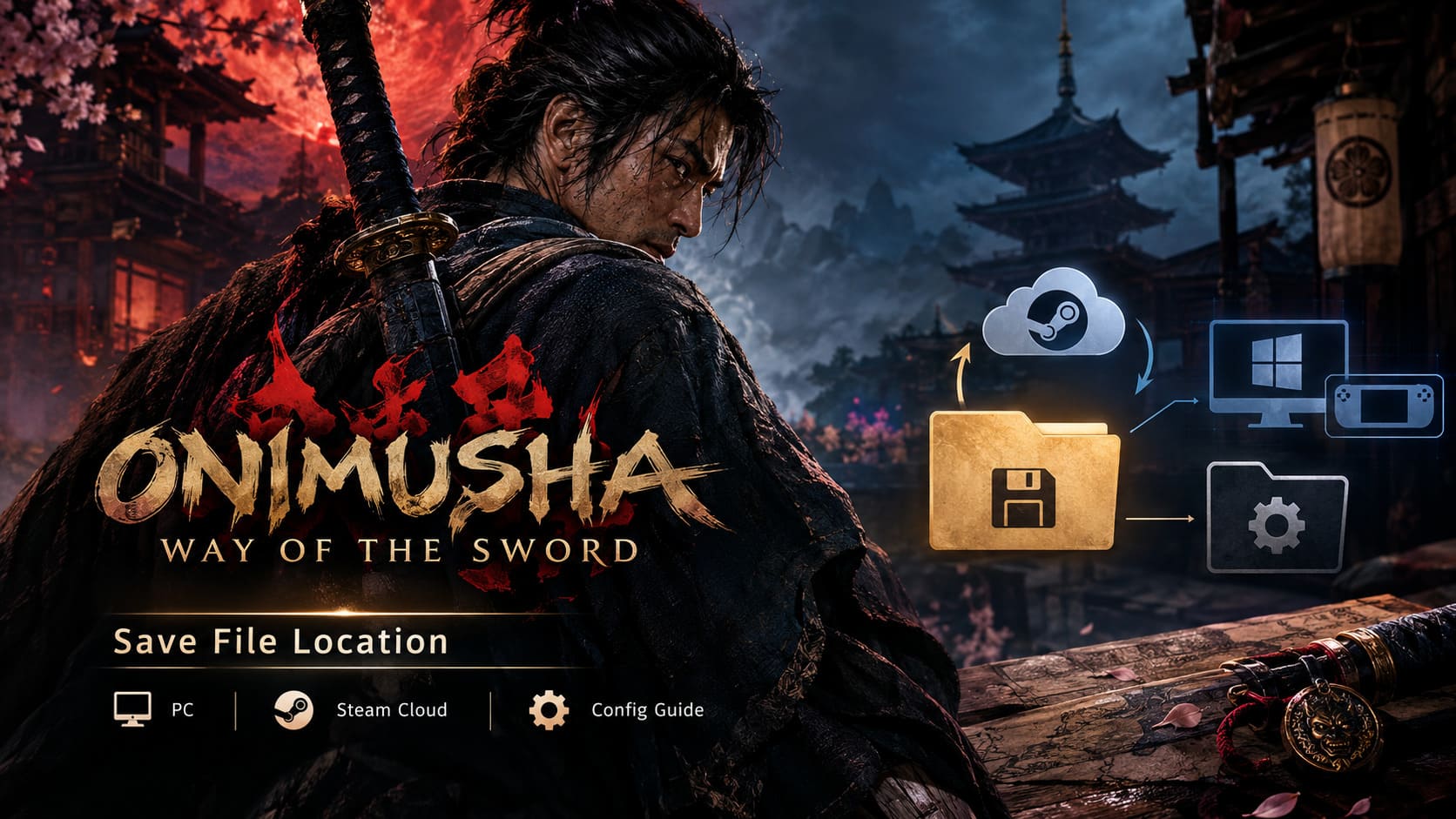
Onimusha: Way of the Sword Save File Location on PC
On Windows, Onimusha: Way of the Sword does not simply put your saves in the usual Documents or Saved Games folder. Instead, the important files are located inside the Steam userdata directory.
The primary Windows save location is:
C:\Program Files (x86)\Steam\userdata\[Your Steam ID]\2638890\remote\win64_save\The [Your Steam ID] portion will be different for every Steam account.
The folder you are looking for is generally associated with Steam AppID 2638890. If you are checking your installation and cannot immediately find the expected directory, don’t panic. Steam’s folder structure can look surprisingly messy, especially if you have multiple games, accounts, or installations.
Quick Save Location Reference
| Platform | Main Save Location |
|---|---|
| Windows PC | Steam\userdata\[Steam ID]\2638890\remote\win64_save\ |
| Steam Deck | ~/.local/share/Steam/steamapps/compatdata/2638890/pfx/ |
| Steam Cloud | Synchronizes the game’s Steam save data |
| Game Config | Steam\steamapps\common\OnimushaWotS\ |
I strongly recommend making a backup of the entire win64_save folder rather than copying individual files. It is much easier to restore everything when the complete directory is preserved.
How to Find the Save Folder on Windows
Finding Steam’s userdata directory is easier than it sounds.
Open File Explorer with Windows + E, then go to the drive where Steam is installed. The default installation usually looks like this:
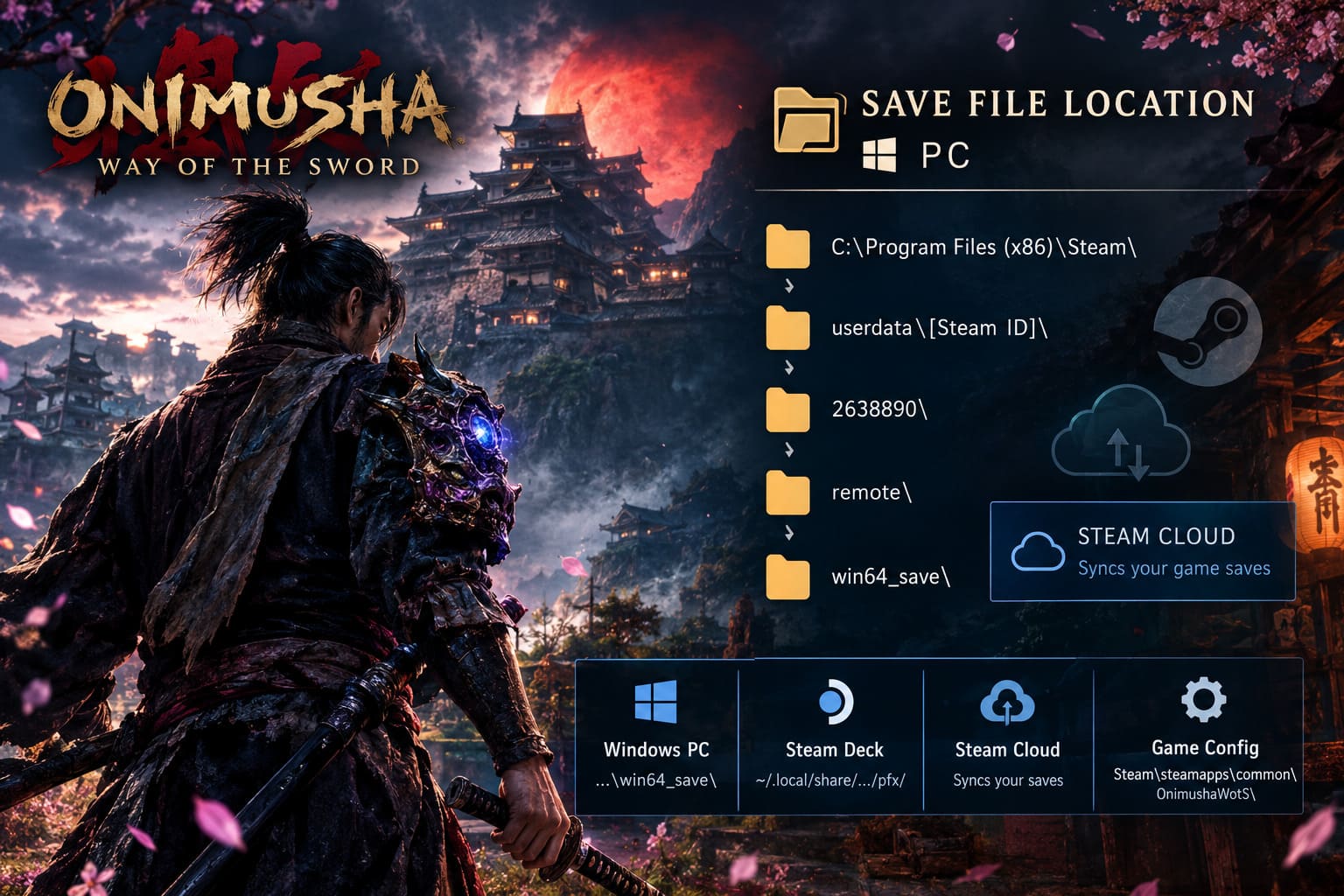
C:\Program Files (x86)\Steam\From there, open:
userdataYou will see folders containing numbers. These are Steam account IDs.
Open the folder belonging to the account you use for Onimusha: Way of the Sword, then look for:
2638890Inside it, continue through:
remote
win64_save
That final folder contains the game’s local save data.
One practical tip: if you have several Steam accounts on the same computer, check the modification dates on the folders. The account that has recently been playing the game should normally have the most recently updated files.
And before deleting or replacing anything, make a backup. Seriously. There is almost never a good reason to skip this step.
Where Are the Saves on Steam Deck and Linux?
This is where things become a little more confusing.
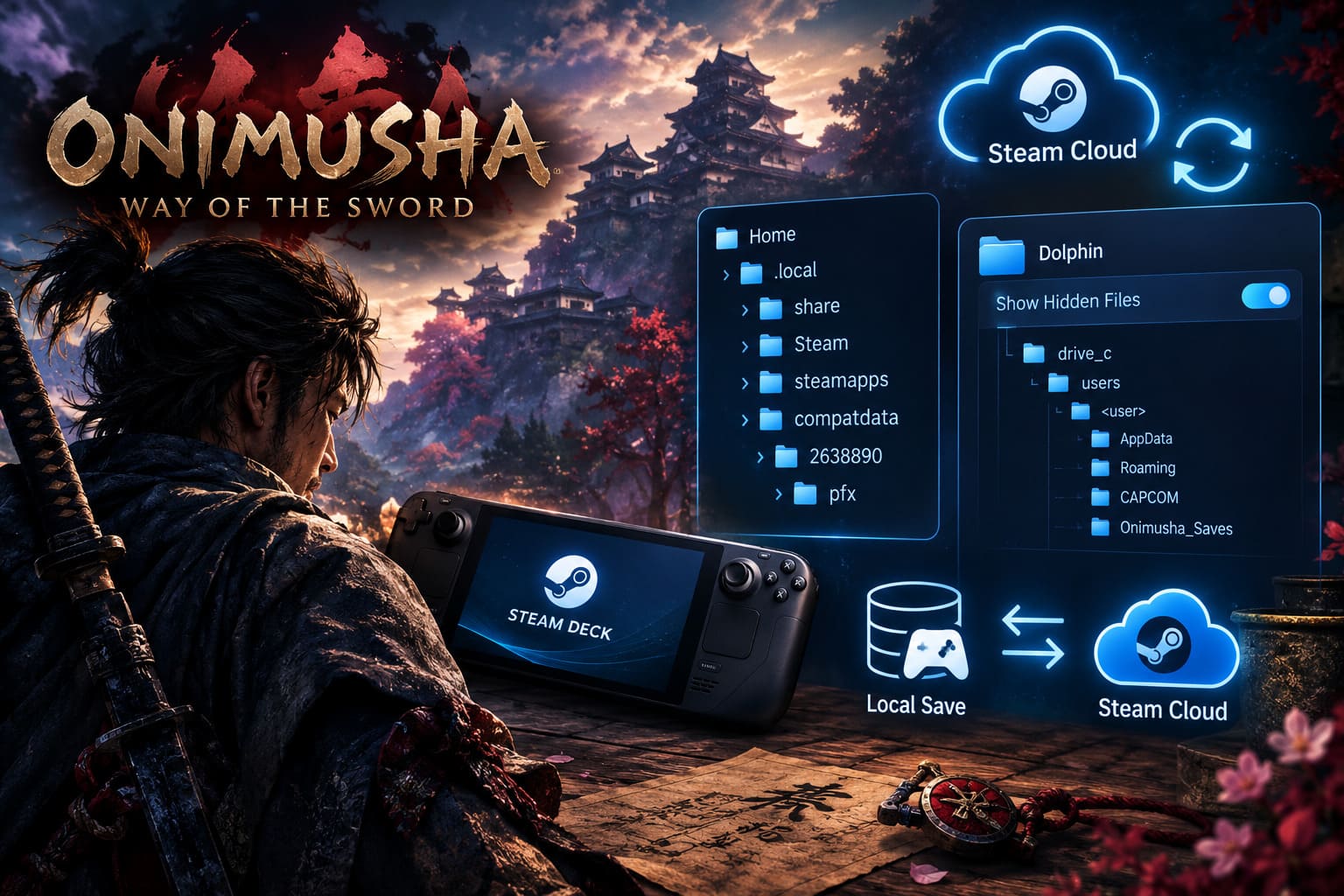
The Steam Deck runs Onimusha: Way of the Sword through Proton rather than running the Windows version of the executable directly. Proton creates a virtual Windows environment for the game, commonly referred to as a compatibility prefix.
The corresponding Steam Deck location begins here:
~/.local/share/Steam/steamapps/compatdata/2638890/pfx/From there, the Windows-style directory structure continues inside the Proton prefix.
On a Steam Deck, the easiest way to investigate the files is to switch to Desktop Mode and open Dolphin.
Then enable Show Hidden Files. This is important because .local is a hidden directory.
The basic route is:
Home
→ .local
→ share
→ Steam
→ steamapps
→ compatdata
→ 2638890
→ pfx
From there, you can follow the virtual drive_c structure to reach the Windows-side user directories and eventually the game’s save files.
Personally, I would avoid manually changing Proton files unless there is a specific reason to do it. The Steam Deck’s compatibility structure is not nearly as friendly as the normal Windows Steam folder, and it is very easy to end up looking in the wrong location.
Moving an Onimusha Save Between PC and Steam Deck
One of the most useful reasons to know the save location is manual save transfer.
Steam Cloud should normally handle synchronization for you, but there are situations where you may want a physical backup. For example, perhaps you are testing a mod, experimenting with files, or simply want an emergency copy before attempting something risky.
My preferred approach is simple:
- Save your game normally.
- Exit Onimusha: Way of the Sword completely.
- Wait for Steam to finish synchronizing.
- Copy the local save folder somewhere safe.
- Transfer the backup to the other machine only when necessary.
- Keep the original backup untouched until you know the transferred save works.
The important part is not to casually mix local saves and cloud saves at the same time. If Steam detects conflicting versions, you can end up wondering which copy is actually the newest one.
Steam Cloud: Should You Keep It Enabled?
For most players, yes.
Steam Cloud is one of those features I usually recommend leaving alone until there is a specific reason to disable it. It is particularly useful for Onimusha: Way of the Sword if you play on more than one PC or regularly switch between a desktop and Steam Deck.
To check it, open Steam and go to:
Library → Onimusha: Way of the Sword → Properties → General
Look for the Steam Cloud synchronization option and make sure it is enabled.
Once everything is working correctly, Steam should synchronize your supported save data automatically.
The important thing to remember is that Steam Cloud is not the same thing as a personal backup. I would never treat cloud synchronization as my only copy of an important save.
A local backup takes almost no time and can save you a headache later.
What If Steam Cloud Causes a Save Conflict?
This can happen when you manually replace files, restore an older backup, or move a save between machines.
If you are intentionally swapping save files, the safest approach is to temporarily disable Steam Cloud first.
- Back up your current
win64_savefolder. - Replace the files with your desired backup.
- Launch the game and check that everything loads correctly.
- Save the game normally.
- Re-enable Steam Cloud only after confirming the local files are correct.
When Steam presents a conflict between Local Files and Cloud Files, pay attention to the timestamps and choose the version you actually intend to keep.
Don’t click through the conflict screen automatically. That tiny decision can determine whether your new save survives.
Onimusha Demo Save and Bonus Reward Issues
Another reason players may need to understand Steam’s save structure is the demo-to-full-game transfer.
Players who completed the Onimusha: Way of the Sword demo can receive the Kubi Akari Charm in the full game. Normally, the game should recognize the relevant demo data, but if the detection process fails, you may see a message indicating that no demo save data was found.
If you run into this problem, I would not immediately start overwriting random files.
First, make a backup of your current full-game save.
Then check whether the demo’s save data still exists under your Steam userdata folders. The demo can use a different directory from the full release, so simply looking inside the main game’s 2638890 folder may not be enough.
A safer troubleshooting approach is to reinstall the demo if necessary, launch it once, allow Steam to synchronize its data, then close it and start the full game again.
Do not blindly replace your main save files with demo files unless you have a verified backup.
That distinction matters because a save transfer problem is annoying; accidentally destroying your main progress is much worse.
Finding the Onimusha Configuration File
Save data isn’t the only useful file to know about.
If you are troubleshooting graphical problems, resolution issues, or unusual PC behavior, you may also come across the game’s configuration files.
The installation directory is normally:
C:\Program Files (x86)\Steam\steamapps\common\OnimushaWotS\If you find a config.ini file there, make a copy before editing it.
Configuration files can be useful when the game refuses to start with a particular display setup or when a setting becomes difficult to change normally. However, I would not recommend changing random values just because they look interesting.
If the game is working properly, leave the configuration alone.
If you are troubleshooting a problem, change one thing at a time and test the game after each change.
That makes it much easier to identify what actually fixed the issue.
The Best Way to Protect Your Onimusha Save
After spending hours mastering Musashi’s combat, collecting equipment, and progressing through Kyoto, losing a save because of a careless file operation would be incredibly frustrating.
My personal rule for PC games is simple: before modifying anything, make a backup.
For Onimusha: Way of the Sword, that means keeping a copy of your win64_save folder somewhere outside the Steam installation directory.
You can even create several backups with dates in their names:
Onimusha_Save_Backup_2026-09-01
Onimusha_Save_Backup_2026-09-05
Onimusha_Save_Backup_Before_Mod
This costs almost nothing in storage space and gives you a way back if something goes wrong.
Onimusha Way of the Sword VRAM Optimization Guide: Fix Stuttering & Maximize FPS
Onimusha: Way of the Sword File Locations at a Glance
| File Type | Location / Purpose |
|---|---|
| Windows Saves | Steam\userdata\[Steam ID]\2638890\remote\win64_save\ |
| Steam Deck / Linux | Proton compatdata\2638890\pfx\ structure |
| Game Installation | Steam\steamapps\common\OnimushaWotS\ |
| Configuration | config.ini inside the game installation directory |
| Steam Cloud | Synchronizes supported save data through Steam |
| AppID | 2638890 |
How to Fix Onimusha: Way of the Sword Frame Rate Drops and Stuttering on Nintendo Switch 2
Final Thoughts
Onimusha: Way of the Sword is the kind of game where I would rather spend my time learning enemy patterns and getting better with the sword than fighting with corrupted files or Steam synchronization problems.
Fortunately, once you know where the Onimusha save files are located, most of the scary-looking PC file management becomes fairly straightforward.
For Windows players, the key location to remember is the userdata directory and the game’s win64_save folder. Steam Deck users need to account for Proton’s compatdata structure, while anyone experimenting with manual saves should temporarily think of Steam Cloud as something that can potentially overwrite their changes rather than automatically protect them.
The most important advice is also the simplest: back up your saves before modifying, transferring, or replacing anything. Keep Steam Cloud enabled for everyday play, but don’t rely on it as your only safety net.
And if you are troubleshooting the demo reward, a missing save, or a configuration problem, take things slowly. With a backup in place, you can experiment without putting dozens of hours of samurai progress at risk.
After all, there is nothing honorable about losing an entire save because you forgot to copy one folder.