How to Fix Allumeria (Infinimelon) Crashing on Startup in Windows 11 (2026 Guide)
If you’re reading this, chances are you’ve hit the same wall I did. You install Allumeria, click Play on Steam, see a black screen for a second… and then you’re back on the desktop. No loading screen. No error message. Sometimes it’s a Fatal Error window, sometimes the process disappears without saying anything.
After spending way too much time digging through Steam discussions, Reddit troubleshooting threads, and Windows settings, I managed to get the game running consistently. The good news is that most startup crashes have the same handful of causes, and you don’t need to reinstall Windows or wipe your PC to fix them.
This guide walks through the solutions that worked best for me and for many other players on Windows 11 in 2026.
Why Allumeria Crashes Before It Even Launches
The frustrating part is that startup crashes don’t always come from the game itself. Windows 11 introduced several security and graphics features that can interfere with newer indie titles, especially after recent game updates.
The most common reasons include:
| Problem | What Happens |
|---|---|
| Missing or damaged .NET runtime | The game closes immediately after launching or shows a Fatal Error message. |
| Corrupted shader or asset cache | Black screen appears, then the game crashes back to desktop. |
| Windows 11 security conflicts | The executable is terminated during startup without any warning. |
| Broken Steam game files | Launch loop or missing DLL/runtime files. |
| GPU driver or DirectX issue | The engine crashes before rendering the first frame. |
| Overlay or overclock conflicts | The game hangs during initialization. |
The fixes below go from the simplest to the more advanced ones.
1. Update Allumeria First (This Solved It for a Lot of Players)
Before changing Windows settings, make sure you’re actually running the newest version of the game.
The 2026 hotfix released by Infinimelon specifically addressed startup crashes affecting Windows 11 users on both Intel and AMD systems.
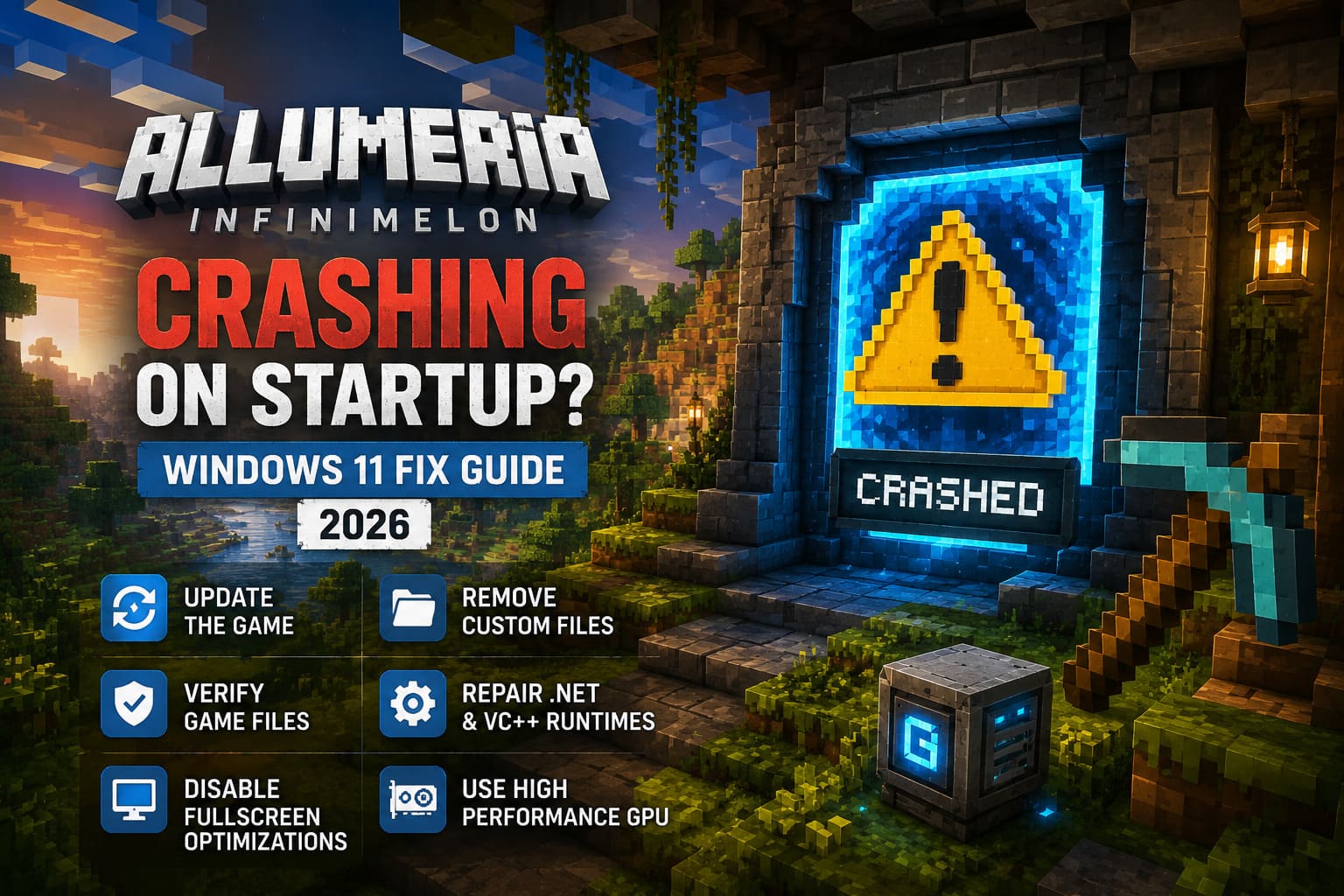
What to Do
- Open Steam.
- Go to your Library.
- Right-click Allumeria.
- Select Properties → Updates.
- Set updates to Always keep this game updated.
- Download any pending update.
Even if Steam says the game is installed, check for queued downloads. Mine had a small patch waiting in the background that didn’t install automatically.
Why it matters: Older builds were compiled with runtime issues that caused immediate crashes on some Windows 11 configurations.
2. Remove Broken Custom Textures or Skins
This one surprised me.
I wasn’t even actively using mods anymore, but leftover custom files inside the game’s local folder prevented Allumeria from loading.
Delete the Local Asset Cache
- Press Windows + R.
- Type
%localappdata%. - Open the Allumeria or Infinimelon folder.
- Find folders containing custom textures, custom skins, or user asset packs.
- Move them somewhere safe as a backup.
- Launch the game again.
If corrupted assets are detected during startup, the engine can crash before reaching the main menu.
Tip: Don’t permanently delete anything until you’ve confirmed the game launches correctly.
3. Verify Steam Files the Right Way
Steam verification works better after clearing its download cache.
I skipped this step initially, and Steam kept telling me everything was fine even though corrupted files were still cached locally.
Clear Steam’s Download Cache
- Open Steam Settings.
- Select Downloads.
- Click Clear Download Cache.
- Restart Steam and log in again.
Then Verify Game Integrity
- Right-click Allumeria.
- Choose Properties.
- Open Installed Files.
- Click Verify Integrity of Game Files.
Steam will compare your installation against the latest online build and replace damaged files.
4. Repair .NET Framework and Visual C++ Runtimes
This is probably the biggest Windows-side fix.
If Allumeria throws a runtime error or crashes instantly without loading, you may have damaged Microsoft runtime libraries.
Install Both Visual C++ Packages
Download and repair the following Microsoft packages:
- Microsoft Visual C++ Redistributable x64.
- Microsoft Visual C++ Redistributable x86.
Choose Repair if they’re already installed.
Enable Windows .NET Features
- Open Control Panel.
- Go to Programs and Features.
- Select Turn Windows features on or off.
- Enable .NET Framework 3.5 and .NET Framework 4.8 Advanced Services.
- Restart Windows.
Why This Helps
Allumeria depends on Microsoft runtime components during startup. Missing or corrupted installations often cause silent crashes before the launcher appears.
5. Disable Fullscreen Optimizations
Windows 11 introduced fullscreen optimizations that improve some games, but break others.
For me, disabling them stopped the black screen freeze immediately.
Compatibility Settings
- Browse to the game’s installation folder.
- Right-click
Allumeria.exe. - Select Properties.
- Open the Compatibility tab.
Enable Disable fullscreen optimizations.
Then open High DPI Settings, enable Override high DPI scaling behavior, and set scaling to Application.
Apply the changes and launch the game again.
Result
Instead of freezing during display initialization, the game launched normally.
6. Force Windows to Use Your Dedicated GPU
Some laptops and dual-GPU desktops launch Allumeria on integrated graphics first.
That usually ends with an instant crash.
Set High Performance Graphics
- Open Settings → System → Display.
- Go to Graphics.
- Add
Allumeria.exeif it isn’t listed. - Click Options.
- Select High Performance.
Windows will prioritize your NVIDIA or AMD GPU instead of integrated graphics.
This Is Especially Useful If You Have
- RTX laptops.
- AMD hybrid graphics.
- Intel Arc plus integrated graphics.
- Multiple GPU setups.
7. Force DirectX 11 Instead of DirectX 12
If the renderer crashes before loading the first frame, DirectX 11 is worth trying.
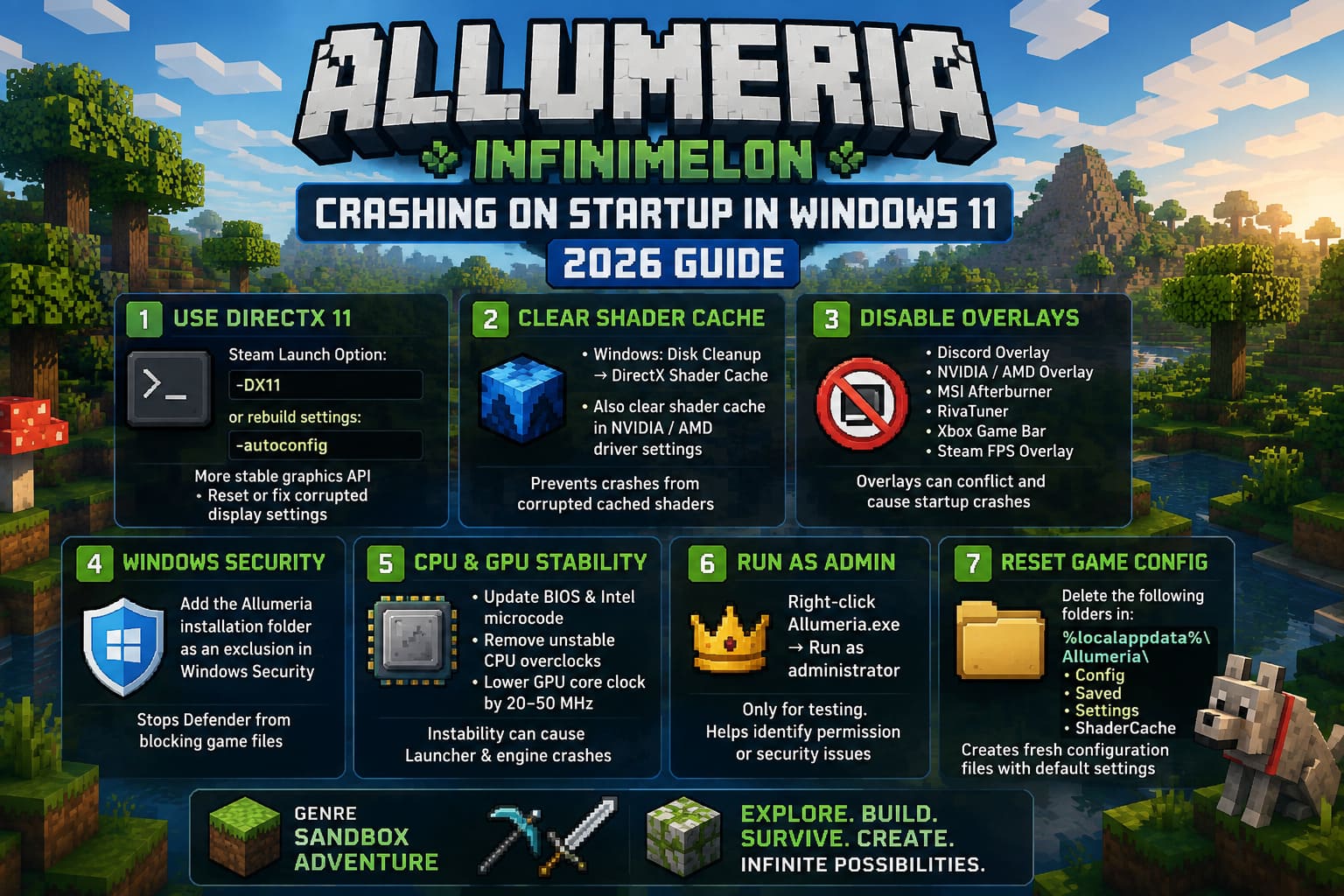
Steam Launch Option
Open Steam → Allumeria → Properties → General.
Add this launch option:
-DX11If display settings are corrupted, try this instead:
-autoconfigThis rebuilds graphics configuration files.
What Changes?
| Launch Option | Purpose |
|---|---|
-DX11 | Uses a more stable graphics API. |
-autoconfig | Resets video configuration files. |
-windowed | Starts the game in windowed mode if fullscreen crashes. |
You lose a few advanced rendering features, but startup stability is much better.
8. Delete the Shader Cache
Shader cache corruption became much more common after GPU driver updates.
Instead of rebuilding correctly, Windows sometimes loads incompatible cached shaders.
Clear DirectX Shader Cache
- Open Disk Cleanup.
- Select your Windows drive.
- Check DirectX Shader Cache.
- Remove it.
Also Delete NVIDIA or AMD Shader Cache
Inside your GPU driver settings, clear the shader cache manually if the option is available.
The next launch will take a little longer while shaders compile again.
9. Turn Off Overlays Before Launching
This was another easy fix.
Multiple overlay applications can hook into DirectX during startup and crash the engine.
Close These Applications Completely
- Discord Overlay.
- NVIDIA App or GeForce Experience Overlay.
- AMD Radeon Overlay.
- MSI Afterburner.
- RivaTuner Statistics Server.
- Xbox Game Bar.
- Steam FPS Overlay (temporarily).
Why?
Each overlay injects into the game’s rendering process. If several do it simultaneously, startup crashes become much more likely.
10. Check Windows Security Features
Windows Defender occasionally blocks game initialization files.
Instead of disabling Defender entirely, create an exclusion.
Add the Game Folder as an Exclusion
- Open Windows Security.
- Go to Virus & Threat Protection.
- Select Manage Settings.
- Scroll to Exclusions.
- Add the entire Allumeria installation folder.
This prevents Defender from quarantining temporary files generated during launch.
11. Intel 13th and 14th Generation CPU Stability Fix
This issue isn’t exclusive to Allumeria.
Several Unreal Engine and indie games crash on unstable Intel systems with outdated motherboard BIOS versions.
What Helped Players
- Update the motherboard BIOS.
- Install the latest Intel microcode update.
- Remove aggressive CPU overclocks.
- Disable unstable automatic motherboard overclock profiles.
GPU Overclock?
If you’re using MSI Afterburner, reduce the GPU Core Clock by around 20–50 MHz and test the game again.
A tiny reduction is often enough if factory overclocks are unstable.
12. Run Allumeria as Administrator (Only for Testing)
Normally I don’t recommend this permanently, but it’s useful for diagnosing permission issues.
- Right-click
Allumeria.exe. - Select Run as administrator.
If the game launches this way but not normally, Windows permissions or security software are likely interfering.
Don’t leave administrator mode enabled unless necessary.
13. Reset the Game Configuration Completely
Sometimes configuration files survive reinstalls.
Remove Saved Configuration
Navigate to:
%localappdata%\AllumeriaDelete or rename folders containing:
- Config.
- Saved.
- Settings.
- ShaderCache.
Launching the game creates fresh configuration files with default settings.
Quick Fix Checklist
If you don’t want to try every solution individually, here’s the order I’d recommend.
| Fix | Difficulty |
|---|---|
| Update to the latest game version. | Easy |
| Verify Steam files after clearing the download cache. | Easy |
| Delete local custom texture folders. | Easy |
| Repair Visual C++ and .NET Framework. | Medium |
| Force DirectX 11 launch option. | Medium |
| Disable overlays. | Medium |
| Disable fullscreen optimization. | Medium |
| Assign a dedicated GPU. | Medium |
| Clear shader cache. | Advanced |
| Update BIOS and remove unstable overclocks. | Advanced |
Best Windows 11 Settings for Allumeria Stability
These are the settings I’ve ended up keeping enabled after testing different combinations.
| Setting | Recommendation |
|---|---|
| Graphics API | Use DirectX 11 if startup crashes continue. |
| GPU Preference | Set High Performance dedicated GPU. |
| Fullscreen Optimizations | Disabled. |
| High DPI Scaling | Application. |
| Discord Overlay | Disabled. |
| NVIDIA / AMD Overlay | Disabled while troubleshooting. |
| Shader Cache | Rebuild after major driver updates. |
These settings don’t increase FPS dramatically, but they reduce launch-related issues on Windows 11.
How to Fix Darkest Dungeon Low FPS and Stuttering on Modern GPUs (NVIDIA/AMD)
Final Thoughts
After testing nearly every workaround, I found that updating to the latest Allumeria build, repairing Windows runtimes, deleting corrupted local asset folders, and forcing DirectX 11 solved the startup crash completely on my Windows 11 machine.
The important thing is not to jump straight into reinstalling the game or Windows. Most launch failures come from corrupted cache files, runtime mismatches, or Windows 11 compatibility features rather than a broken installation.
If Allumeria still crashes after trying every method above, the next step is checking the game’s crash logs inside the local AppData folder and comparing them with the latest developer hotfix notes. But for the majority of players in 2026, the fixes in this guide have been enough to get the game past the startup screen and back into gameplay.