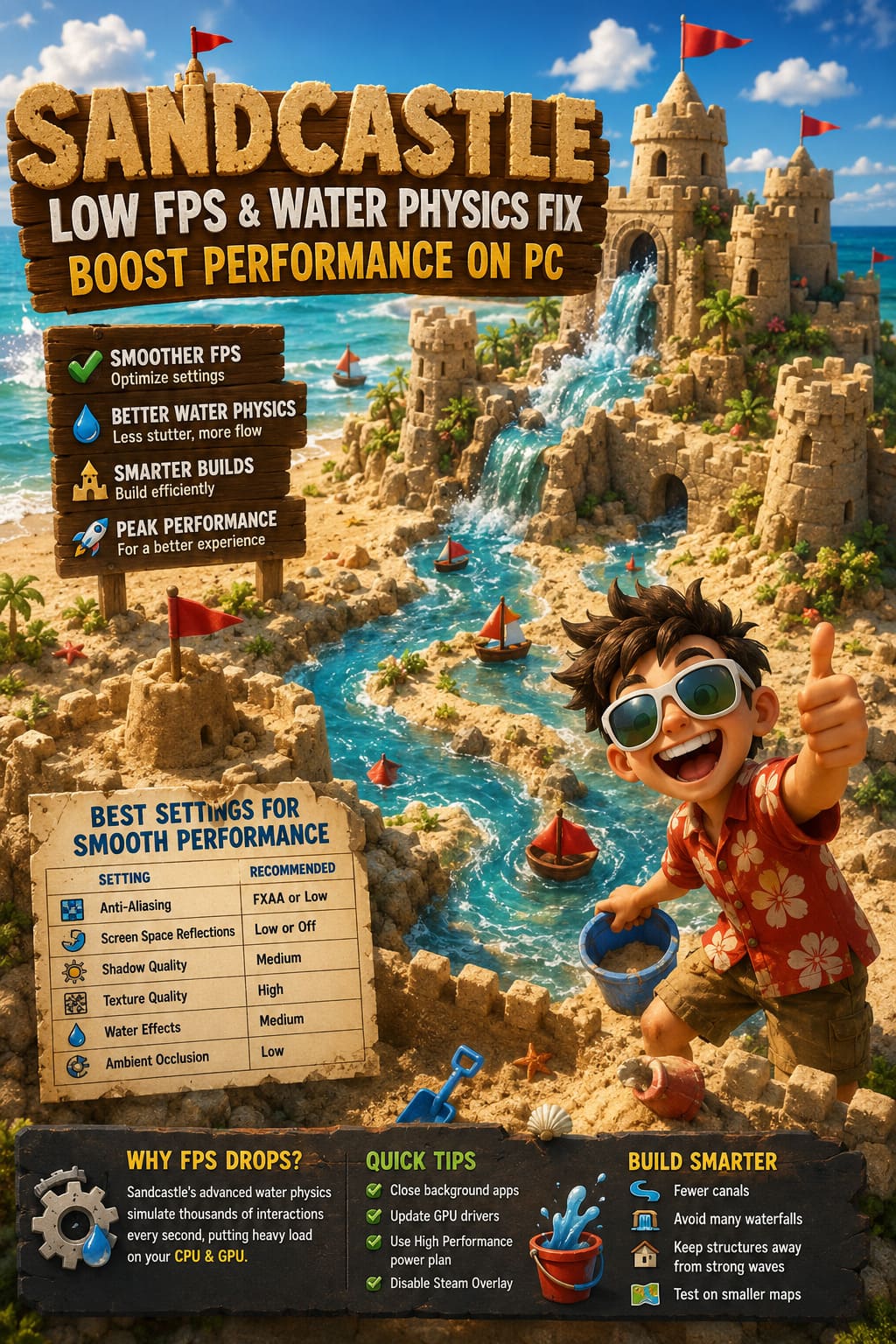
Sandcastle Game Low FPS & Water Physics Fix: Boost Performance on PC
There are plenty of relaxing sandbox games out there, but every now and then one comes along that completely steals my attention. Sandcastle did exactly that. At first, I expected a simple beach-building simulator where I’d spend a few hours making castles before moving on. Instead, I found myself experimenting with moats, defensive walls, flowing rivers, and ridiculously complicated designs just to see how the tide would destroy—or sometimes surprisingly preserve—everything I had built.
The biggest reason the game feels so satisfying is its impressive physics system. Water doesn’t simply follow pre-made animations. It reacts to the environment, fills empty spaces, pushes against walls, and slowly changes the landscape. Watching your own creation survive wave after wave is genuinely rewarding.
Unfortunately, that same feature can become the game’s biggest technical weakness. After spending quite a bit of time with Sandcastle and reading what other players were experiencing, I noticed a pattern. The moment water starts interacting with larger constructions, performance can fall apart. FPS suddenly drops, frame pacing becomes inconsistent, and even powerful PCs may experience annoying micro-stutters. The good news is that most of these problems can be improved without making the game look terrible.
ReStory Chill Electronics Repairs Guide: Beginner Tips, Tricks, and Walkthrough
Why Sandcastle Uses So Much Hardware
Unlike many building games that rely on static objects, Sandcastle performs a large number of calculations every second. Instead of simply displaying moving water, the engine constantly evaluates how water pressure, sand moisture, terrain deformation, and wave direction affect your creations. Every interaction between water and sand has to be processed in real time, which quickly adds up.
The larger your castle becomes, the more difficult those calculations get. Add several channels, pools, tunnels, or complicated moat systems, and suddenly the engine has thousands of additional interactions to simulate simultaneously. From my experience, the processor usually becomes the first bottleneck, although graphics cards also take a noticeable hit once reflections and advanced lighting are enabled.
The Graphics Settings That Actually Help
One mistake many players make is lowering every graphical option to its minimum. Surprisingly, that doesn’t always solve the issue because Sandcastle is limited by physics almost as much as visual rendering. Instead, it’s much more effective to target the settings that place the biggest load on your system while leaving the rest at reasonable quality levels.
| Setting | Recommended Value | Performance Impact |
|---|---|---|
| Anti-Aliasing | FXAA or Low | High FPS Gain |
| Screen Space Reflections | Low or Off | Very High FPS Gain |
| Shadow Quality | Medium | Moderate |
| Texture Quality | High | Minimal FPS Loss |
| Water Effects | Medium | High FPS Gain |
| Ambient Occlusion | Low | Moderate |
The biggest surprise for me was Screen Space Reflections. They certainly make the ocean look fantastic during sunrise and sunset, but they also force your GPU to constantly calculate reflections on moving water. Once I lowered this option, gameplay immediately became smoother during high tide, and I honestly didn’t feel like I had sacrificed much visual quality.
Build Smarter Instead of Bigger
This isn’t exactly a graphics tweak, but it absolutely affects performance. I enjoy creating massive castles connected by complicated waterways, yet every additional stream or moat increases the amount of water that the engine has to simulate. Eventually, those calculations begin to overwhelm even decent gaming hardware.
If you’re struggling with frame drops, try simplifying your designs a little. It doesn’t mean making boring castles—it simply means avoiding unnecessary complexity until performance improves.
- Reduce the number of interconnected canals.
- Avoid building dozens of waterfalls.
- Keep major structures farther from constant ocean waves.
- Experiment on smaller maps before creating giant projects.
You’ll often notice that FPS remains considerably more stable once the game has fewer water interactions to process at the same time.
Configure Your Graphics Card Properly
Windows doesn’t always allow your graphics card to perform at full speed. In some cases it lowers clock speeds whenever it thinks the workload isn’t demanding enough, which can lead to sudden performance dips once complex physics calculations suddenly begin.
Open the NVIDIA Control Panel or AMD Radeon Software and create a profile specifically for Sandcastle. I personally recommend enabling maximum performance mode instead of the default balanced option.
- Power Management: Prefer Maximum Performance
- Texture Filtering: High Performance
- Vertical Sync: Off or controlled by the application if using G-Sync or FreeSync
These settings won’t magically double your frame rate, but they help eliminate sudden GPU downclocking that often causes stuttering during demanding scenes.
Close Background Applications
I used to think this advice was outdated because modern PCs come with plenty of memory. Then I opened Task Manager while Sandcastle was running and realized how many applications were quietly consuming CPU resources. Browsers, Discord, RGB utilities, cloud storage, launchers, and media players all compete for processing power.
Because Sandcastle performs heavy CPU calculations every second, even a small amount of freed processor time can noticeably improve frame pacing. Before launching the game, I usually close anything that isn’t absolutely necessary.
- Web browsers with dozens of tabs
- Video streaming software
- Cloud synchronization applications
- Additional game launchers
- RGB management utilities
Steam Tweaks Worth Trying
Sometimes the game itself isn’t entirely responsible for performance problems. Steam features can occasionally interfere with rendering, particularly in smaller indie games that rely on unique engines or advanced simulation systems.
The first thing I always disable is the Steam Overlay. It only takes a few seconds, and quite a few players have reported smoother gameplay after turning it off. If the game suddenly begins stuttering following an update, it’s also worth verifying the integrity of the game files through Steam. While corrupted files aren’t common, repairing them can eliminate strange freezes and inconsistent performance.
Keep Graphics Drivers Updated
Driver updates are easy to ignore until a brand-new game starts acting strangely. Physics-heavy titles often receive dedicated driver optimizations shortly after launch, so using outdated software may leave performance on the table.
Whether your PC uses NVIDIA GeForce, AMD Radeon, or Intel Arc graphics, installing the newest drivers can improve shader compilation, reduce stuttering, and increase stability. Driver updates don’t always provide dramatic FPS improvements, but they frequently smooth out inconsistent frame times that are much more noticeable than average frame rate.

Your CPU Is Just as Important as Your GPU
Whenever players encounter low FPS, the graphics card usually gets blamed first. Sandcastle is a little different because its sophisticated water simulation constantly performs mathematical calculations that heavily stress the processor. If your CPU is already busy with background applications or operating in a power-saving mode, gameplay quickly becomes inconsistent.
Using Windows High Performance mode, keeping the processor cool, and making sure your CPU isn’t throttling can all improve the overall experience. If you enjoy simulation-heavy games in general, investing in processor performance often delivers better long-term results than upgrading your graphics card alone.
Final Thoughts
After experimenting with different settings over several evenings, I eventually found a balance that delivered much smoother gameplay without making Sandcastle lose its visual charm. Instead of lowering every option to its minimum, I focused on reflections, water quality, and anti-aliasing while also updating my drivers and cleaning up unnecessary background processes.
What I enjoy most about Sandcastle is how naturally it encourages experimentation. Half the fun comes from building something that looks impossible and then watching the ocean decide whether your engineering actually works. If you’re seeing major FPS drops whenever the tide arrives, don’t assume your PC simply isn’t powerful enough. In many situations, a handful of smart optimizations is enough to transform the experience into the relaxing sandbox adventure it was meant to be.