How to Fix Echoes of Aincrad Fatal Error and Crashing on Startup
Few things are more frustrating for a gamer than finally launching a highly anticipated title and watching it crash before the adventure even begins. This is exactly what some Echoes of Aincrad players have experienced on PC. Although the game delivers an exciting Sword Art Online-inspired action RPG experience, many users have reported fatal errors, startup crashes, endless loading loops, and sudden desktop crashes during gameplay.
After looking through player feedback, technical discussions, and different troubleshooting methods, it becomes clear that there is no single reason behind these crashes. Some players are dealing with corrupted save files, while others are affected by Unreal Engine problems, driver conflicts, or hardware stability issues. The positive side is that most of these problems can be fixed without waiting for a major developer patch.
This guide covers the most effective ways to fix the Echoes of Aincrad fatal error crash, improve stability, and get back into the virtual world without constantly returning to the desktop.
How to Fix Echoes of Aincrad Out of Video Memory Error on PC
Why Does Echoes of Aincrad Keep Crashing?
Unlike some games where one broken update affects every player, Echoes of Aincrad crashes for different reasons depending on your PC configuration. One player might experience a crash immediately after clicking the launch button, while another might reach the Town of Beginnings before the game suddenly closes.
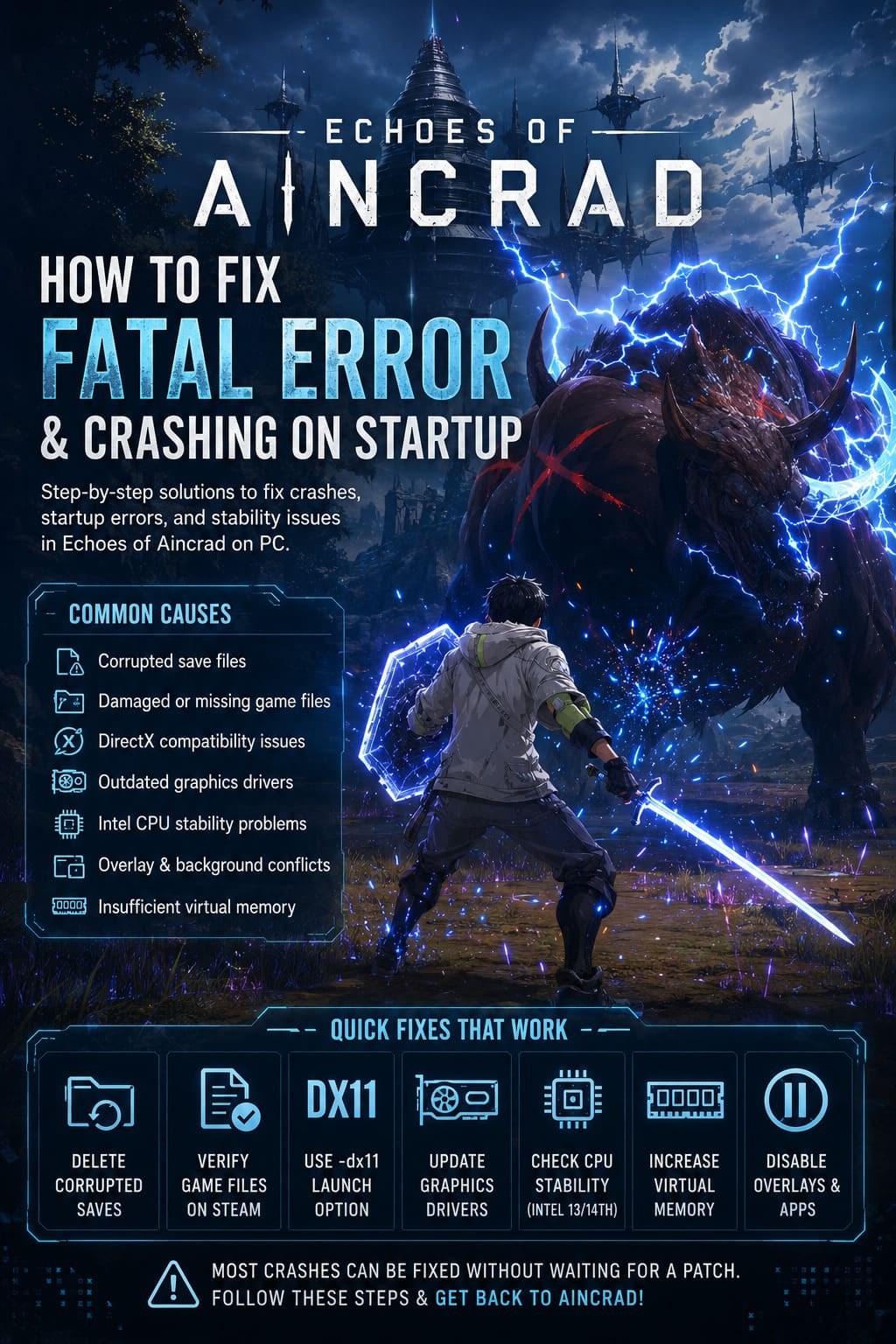
The most common causes behind these crashes include:
- Corrupted local save files
- Damaged or missing game installation files
- DirectX compatibility problems
- Outdated graphics drivers
- Intel CPU stability issues
- Conflicts with background overlays
- Insufficient Windows virtual memory allocation
Because several different problems can create the same fatal error message, it is better to test multiple solutions instead of assuming there is only one cause. In many cases, combining two or three fixes completely removes the crashing problem.
Remove Corrupted Save Files and Fix Startup Loops
One of the first solutions I recommend trying is deleting corrupted local save data. This method has helped many players who were stuck in endless intro loops, crashing during the opening sequence, or unable to reach the main menu.
Sometimes Unreal Engine cannot correctly read damaged profile information. When this happens, the game attempts to load broken data and immediately fails. Removing the local save forces Echoes of Aincrad to create fresh configuration files.
Follow these steps:
- Completely close Echoes of Aincrad and exit Steam.
- Press Windows + R to open the Run window.
- Type %localappdata% and press Enter.
- Find the folder named EchoesofAincrad or SummerCamp.
- Open the Saved folder.
- Navigate to the SaveGames section.
- Delete the save files or remove the entire Saved folder.
- Open Steam and temporarily disable Steam Cloud synchronization.
- Launch the game again and allow it to create a new save profile.
- Create a manual save before enabling Steam Cloud again.
From my experience with PC games, corrupted saves are one of the most overlooked problems because players usually blame graphics settings first. However, a damaged local profile can easily prevent a game from starting correctly.
Verify Echoes of Aincrad Game Files Through Steam
Sometimes the problem is not your settings or hardware. A failed update, interrupted download, or damaged installation file can silently break the game. Steam includes a built-in verification tool that checks your files and automatically replaces anything missing.
This simple process has fixed countless crashes in modern PC releases, and it is always worth trying before more advanced troubleshooting.
How to Verify Game Files
- Open Steam Library.
- Right-click Echoes of Aincrad.
- Select Properties.
- Open the Installed Files tab.
- Click Verify Integrity of Game Files.
- Wait until Steam finishes scanning your installation.
If Steam detects damaged files, it will automatically download replacements. The process may take several minutes depending on your storage speed, but it is one of the safest fixes available.
Use Steam Launch Options to Improve Stability
Modern Unreal Engine games sometimes struggle with specific graphics configurations. If Echoes of Aincrad crashes before reaching the menu or freezes during startup, changing the rendering mode can solve the issue.
The first option worth testing is forcing DirectX 11:
-dx11
DirectX 11 may not provide every visual feature available in newer APIs, but it often offers better compatibility and stability across different PC setups.
If DirectX 11 does not solve the issue, try launching the game in borderless window mode:
-windowed -noborder
This can prevent fullscreen-related crashes caused by resolution conflicts, refresh rate problems, or display synchronization issues.
Fix Intel 13th and 14th Generation CPU Stability Problems
Some crash reports connected to Echoes of Aincrad point toward Unreal Engine decompression errors during shader compilation. These problems appear more frequently on certain high-end Intel processors, especially 13th and 14th Generation desktop CPUs.
The issue is usually not a lack of performance. In fact, powerful processors can sometimes become unstable when motherboard manufacturers apply aggressive default power settings.
| Possible Fix | Purpose |
|---|---|
| Update motherboard BIOS | Applies newer stability improvements and Intel baseline settings |
| Reduce Performance Core Ratio | Lowers extreme CPU boost behavior |
| Apply a small undervolt | Improves stability during heavy workloads |
If your game crashes after 20–30 minutes instead of immediately during launch, CPU stability should be one of the first things to investigate.
Update Graphics Drivers
Graphics drivers are one of the most common reasons behind fatal errors in new PC games. GPU manufacturers regularly release updates designed specifically for recent releases, improving shader compilation, rendering stability, and memory management.
Make sure you are running the latest drivers from your graphics manufacturer:
- NVIDIA GeForce drivers
- AMD Software Adrenalin Edition
- Intel Graphics drivers
If updating normally does not help, consider performing a clean driver installation. Old driver settings can sometimes conflict with new game updates.
Increase Windows Virtual Memory
Even gaming PCs with plenty of RAM can experience crashes if Windows does not have enough virtual memory available. Large RPGs constantly load textures, animations, and world data, which can create sudden memory spikes.
Increasing your page file size gives Windows additional space to handle heavy workloads.
Recommended Virtual Memory Settings
| Installed RAM | Suggested Maximum Size |
|---|---|
| 16 GB | 24576–32768 MB |
| 32 GB | 49152–65536 MB |
| 64 GB | 98304 MB or higher |
To change these settings, search for Advanced System Settings in Windows, open Performance options, select the Advanced tab, and manually adjust Virtual Memory.
Disable Overlays and Background Applications
One of the most underrated causes of PC game crashes is overlay software. Programs that inject additional features into games can sometimes conflict with Unreal Engine titles.
Before launching Echoes of Aincrad, try disabling:
- Steam Overlay
- Discord Overlay
- NVIDIA GeForce Experience Overlay
- AMD Overlay
- Xbox Game Bar
- MSI Afterburner overlay
- OBS Studio
If the game becomes stable afterward, enable these programs one by one to find which application caused the conflict.
Best Order to Try These Fixes
If I had to troubleshoot Echoes of Aincrad on another PC, I would start with the easiest and most effective solutions first.
| Priority | Fix |
|---|---|
| 1 | Delete corrupted save files |
| 2 | Verify Steam game files |
| 3 | Try the -dx11 launch option |
| 4 | Update graphics drivers |
| 5 | Check Intel CPU stability settings |
| 6 | Increase virtual memory |
| 7 | Disable overlays |
Most players will not need every single method. Usually, one or two adjustments are enough to eliminate the crashes completely.
Final Thoughts
Echoes of Aincrad fatal error crashes can be extremely annoying, especially when you are ready to explore a world inspired by one of the most popular anime franchises. However, most of these problems are caused by local PC configuration issues rather than permanent game-breaking bugs.
The fixes that seem to help the most are clearing corrupted save data, verifying Steam files, and forcing DirectX 11. If those methods do not work, checking drivers, CPU stability, virtual memory, and background software should be the next step.
Hopefully future updates will improve overall stability, but until then these troubleshooting methods provide the best chance to return to Aincrad without another crash interrupting your adventure.