How to Fix Echoes of Aincrad Out of Video Memory Error on PC
Few things are more frustrating than finally launching a game you’ve been waiting for, only to be greeted by an ‘Out of Video Memory’ error before you even reach the main menu. That has been the reality for plenty of players jumping into Echoes of Aincrad. The game looks fantastic, with detailed environments, impressive lighting, and a level of visual quality that immediately shows how demanding its engine can be.
What surprised me the most is that this problem isn’t limited to older gaming PCs. Players with powerful systems featuring RTX 4060 Ti, RTX 4070, RTX 4080, and other high-end graphics cards have also reported the same crashes. This clearly suggests that the issue is not simply about having insufficient VRAM, but rather how the game interacts with Windows, GPU drivers, CPU stability, and shader management.
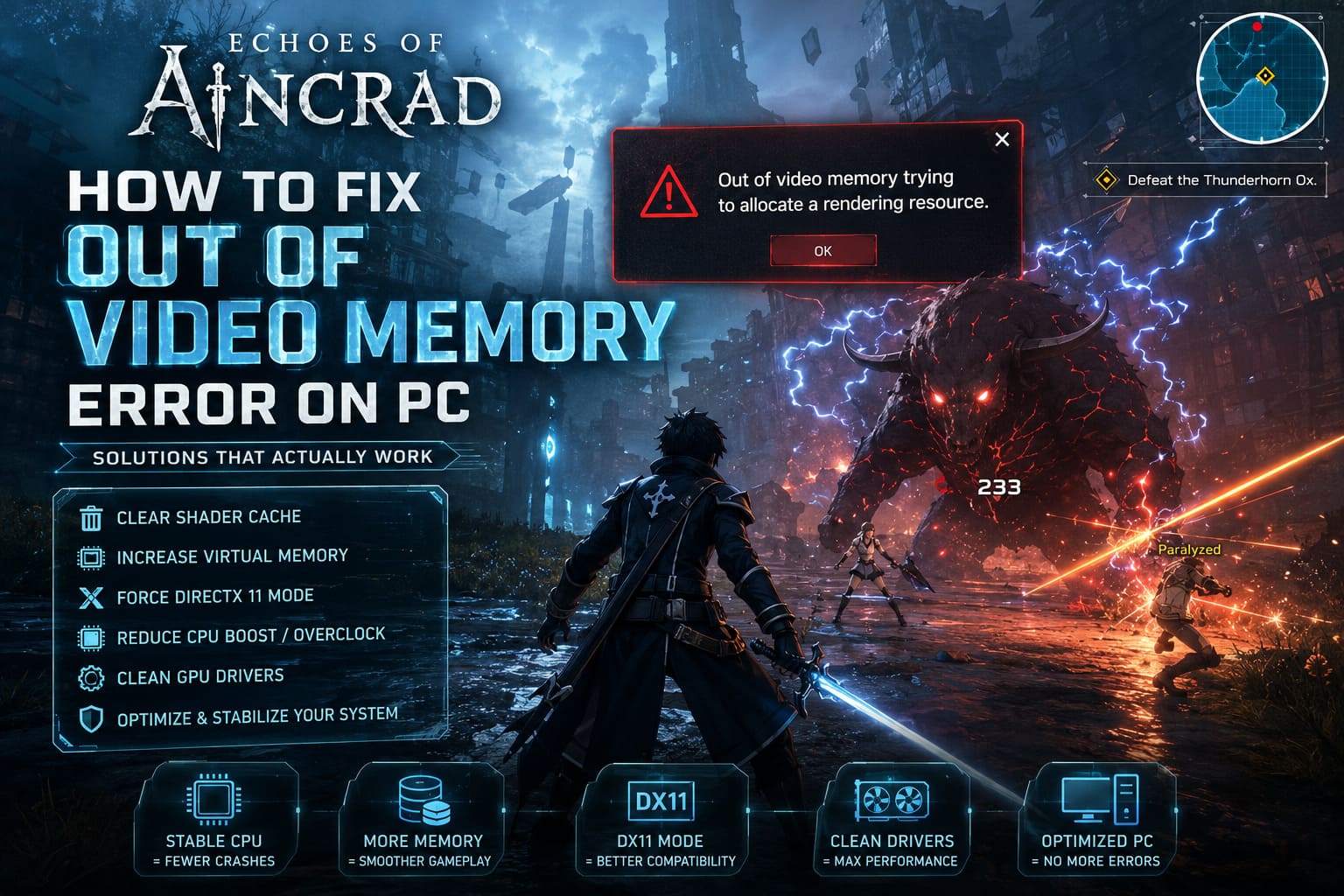
After checking community reports, testing different approaches, and comparing solutions shared by players, several fixes consistently stand out. If you are dealing with crashes, startup problems, or the message ‘Out of video memory trying to allocate a rendering resource’, these methods are the best place to start.
How to Fix Echoes of Aincrad Not Launching on Steam: Complete PC Troubleshooting Guide
Why Does the Out of Video Memory Error Happen?
Despite what the error message says, your graphics card is often not actually running out of VRAM. In many cases, Echoes of Aincrad simply fails to properly manage memory during demanding moments, especially when loading large environments, streaming textures, or compiling shaders.
The game relies heavily on Unreal Engine systems that handle asset streaming and graphical resources in real time. When something goes wrong during this process, the engine often reports a VRAM problem even though the real cause may be a driver conflict, unstable CPU behavior, or corrupted temporary files.
The most common reasons behind this crash include:
- Corrupted shader cache files
- Graphics driver conflicts
- CPU instability during shader compilation
- Incorrect Windows virtual memory settings
- DirectX 12 compatibility problems
- Damaged local configuration files
Because several different issues can create the same error message, it is better to try multiple solutions instead of immediately assuming your hardware is not powerful enough.
Solution 1: Reduce CPU Boost or Overclock Settings
This was one of the more surprising fixes discovered by the community. Many players noticed that slightly lowering CPU boost speeds completely removed the crashes, even on systems that were perfectly stable in other games.
The reason behind this appears to be related to shader compilation. When Echoes of Aincrad loads new areas or prepares graphical assets, it can create extremely heavy short bursts of CPU usage. Some modern processors, especially high-end Intel models, may become unstable under these sudden workloads when aggressive boost settings are enabled.
You do not need to dramatically reduce performance. A small adjustment is usually enough:
- Install Intel Extreme Tuning Utility (XTU) for Intel processors.
- Use AMD Ryzen Master for Ryzen CPUs.
- Lower the CPU Core Ratio by one or two multipliers.
- Apply changes and restart your computer.
You can also make the same adjustment through BIOS/UEFI settings. In most games, the performance difference is almost impossible to notice, but stability improvements can be significant.
Solution 2: Delete Echoes of Aincrad Shader Cache
Whenever I run into Unreal Engine crashes, clearing shader files is one of the first things I try. Shader caches are designed to improve loading times, but when they become corrupted after updates or driver changes, they can actually create constant crashes.
Removing these files forces the game to rebuild its graphics pipeline from a clean state.
How to Clear Shader Cache Files
- Close Steam completely.
- Press Windows + R on your keyboard.
- Enter %localappdata% and press Enter.
- Find the Echoes of Aincrad folder.
- Open the Saved directory.
- Delete the Config folder.
- Remove any shader cache or pipeline cache files if they are available.
The first launch afterward may take longer because the game needs to rebuild shaders. Let the game stay on the main menu for several minutes before loading into gameplay so the compilation process can finish properly.
Solution 3: Increase Windows Virtual Memory
Many gamers ignore Windows paging files because modern systems often have 16GB, 32GB, or even 64GB of RAM. However, modern games still use virtual memory for managing large amounts of data, especially when dealing with huge worlds and high-quality textures.
If the paging file is disabled or too small, memory allocation problems can appear even when your PC has plenty of physical RAM available.
Recommended Virtual Memory Settings
| Installed RAM | Initial Size | Maximum Size |
|---|---|---|
| 16 GB | 16384 MB | 32768 MB |
| 32 GB | 32768 MB | 65536 MB |
| 64 GB | 65536 MB | 131072 MB |
How to Change Virtual Memory
- Open Windows Search and type Advanced System Settings.
- Select the Advanced tab.
- Open Performance Settings.
- Go to the Advanced tab again.
- Select Virtual Memory and click Change.
- Disable automatic management.
- Select your SSD drive.
- Enter a custom size based on your RAM amount.
- Restart your PC.
This fix may not feel exciting, but it has solved memory-related crashes in many demanding PC games.
Solution 4: Force DirectX 11 Mode
Echoes of Aincrad uses DirectX 12 by default, which offers better performance when everything works correctly. However, DX12 can also expose compatibility problems with certain drivers, hardware configurations, and Windows setups.
Switching to DirectX 11 is one of the easiest troubleshooting steps because it only requires changing a Steam launch option.
How to Enable DirectX 11
- Open your Steam Library.
- Right-click Echoes of Aincrad.
- Select Properties.
- Find Launch Options.
- Enter:
-dx11
After that, start the game normally. You may lose a small amount of performance, but many players experience much better stability.
If crashes continue, another option worth testing is:
-windowed -noborder
This can help with display initialization issues and random startup crashes.
Solution 5: Perform a Clean Graphics Driver Installation
A normal driver update does not always remove old files and settings. Sometimes previous driver components remain installed and cause unusual VRAM detection problems.
For a completely fresh installation, many PC enthusiasts recommend using Display Driver Uninstaller (DDU).
Clean Driver Installation Steps
- Download the newest driver from Nvidia, AMD, or Intel.
- Download Display Driver Uninstaller.
- Boot Windows into Safe Mode.
- Run DDU and select Clean and Restart.
- Install the fresh graphics driver.
After reinstalling drivers, check your motherboard BIOS settings and confirm that features like Resizable BAR are enabled if your hardware supports them.
Other Fixes Worth Trying
If the major solutions above do not completely solve the issue, there are several smaller adjustments that may help reduce crashes.
- Verify game files through Steam.
- Close unnecessary background applications.
- Disable GPU overlays from Nvidia, AMD, or Discord.
- Turn off FPS monitoring tools.
- Update Windows completely.
- Install the game on an SSD instead of an HDD.
These changes may seem simple, but reducing background memory usage can make a noticeable difference in unstable games.
Is Your Graphics Card Actually the Problem?
In most cases, probably not. If your GPU runs other demanding games without crashes, it is unlikely that the hardware suddenly developed a VRAM problem specifically with Echoes of Aincrad.
The fact that this error appears on many different PC configurations suggests that optimization and software compatibility are bigger factors than hardware limitations.
Of course, if every game crashes, then checking your GPU, temperatures, and system stability is a good idea. But when the problem only happens in one title, software troubleshooting should come first.
Final Thoughts
The Out of Video Memory error in Echoes of Aincrad is annoying, especially when you have a powerful gaming PC that should easily handle the game. The good news is that this crash usually does not mean your graphics card is dying or that you need an expensive upgrade.
In many cases, the solution comes down to fixing shader problems, improving memory management, changing DirectX settings, or removing unstable performance profiles. Personally, I would start with clearing the shader cache, increasing virtual memory, and testing DirectX 11 before moving on to more advanced fixes.
Hopefully, future patches will improve optimization and remove these crashes completely. Until then, these adjustments can help you get back into Aincrad and enjoy the game without constant interruptions.