How to Fix Palworld 1.0 Infinite Loading Screen Stuck Entering World Tree Zone
When Palworld 1.0 finally launched, I expected to spend hours exploring the mysterious World Tree and discovering everything Pocketpair had hidden in the new endgame region. Instead, my first trip toward the area ended with something far less exciting—a loading screen that never finished.
Judging by the number of discussions on Reddit, Steam Community forums, Discord servers, and YouTube comments, I definitely wasn’t the only one. Players on powerful gaming PCs, Steam Decks, Xbox Series X, and Xbox Series S have all reported the exact same issue: approach the World Tree, teleport nearby, or simply fly in the wrong direction, and the game gets stuck forever on an endless loading screen.
The frustrating part is that this bug isn’t always caused by weak hardware. Even systems capable of running Palworld at Ultra settings can get trapped in the same loading loop.
After reading dozens of community discussions and testing several solutions myself, I’ve gathered the fixes that seem to work most consistently. Not every method will solve every case, but together they cover nearly every scenario players have encountered since the 1.0 release.
Why Does the World Tree Cause an Infinite Loading Screen?
The World Tree isn’t just another biome.
With version 1.0, Pocketpair dramatically expanded the world while changing how certain regions stream assets into memory. The World Tree area appears to be one of the most demanding locations in the game, making it especially vulnerable when something goes wrong during world loading.
From what players have discovered, the issue usually comes down to one (or several) of these problems:

- Old mods still modifying map or world data.
- Corrupted save coordinates after entering the new area.
- Texture streaming failures caused by shader or VRAM issues.
- Dedicated server synchronization bugs.
- Multiplayer state conflicts involving guilds and bases.
In other words, the loading screen itself usually isn’t the problem—it’s the game getting stuck trying to load corrupted or conflicting world data.
Quick Troubleshooting Overview
| Problem | Most Effective Fix |
|---|---|
| Infinite loading in single-player | Restore a recent backup save |
| Dedicated server only | Rebuild the affected player profile |
| Xbox/Game Pass version | Create a temporary new world first |
| Mods installed before 1.0 | Remove mods and verify game files |
| Loading freezes near large bases | Disable multiplayer and reset active Pals |
If you’re unsure where to begin, start with the simplest solutions before touching your save files.
Fix 1: Restore an Automatic Backup
One thing I genuinely appreciate about Palworld is that it quietly creates backup saves.
Many players don’t even realize they’re there until disaster strikes.
If the loading bug appeared immediately after entering the World Tree region, restoring a backup from a few minutes earlier is often enough to completely solve the issue.
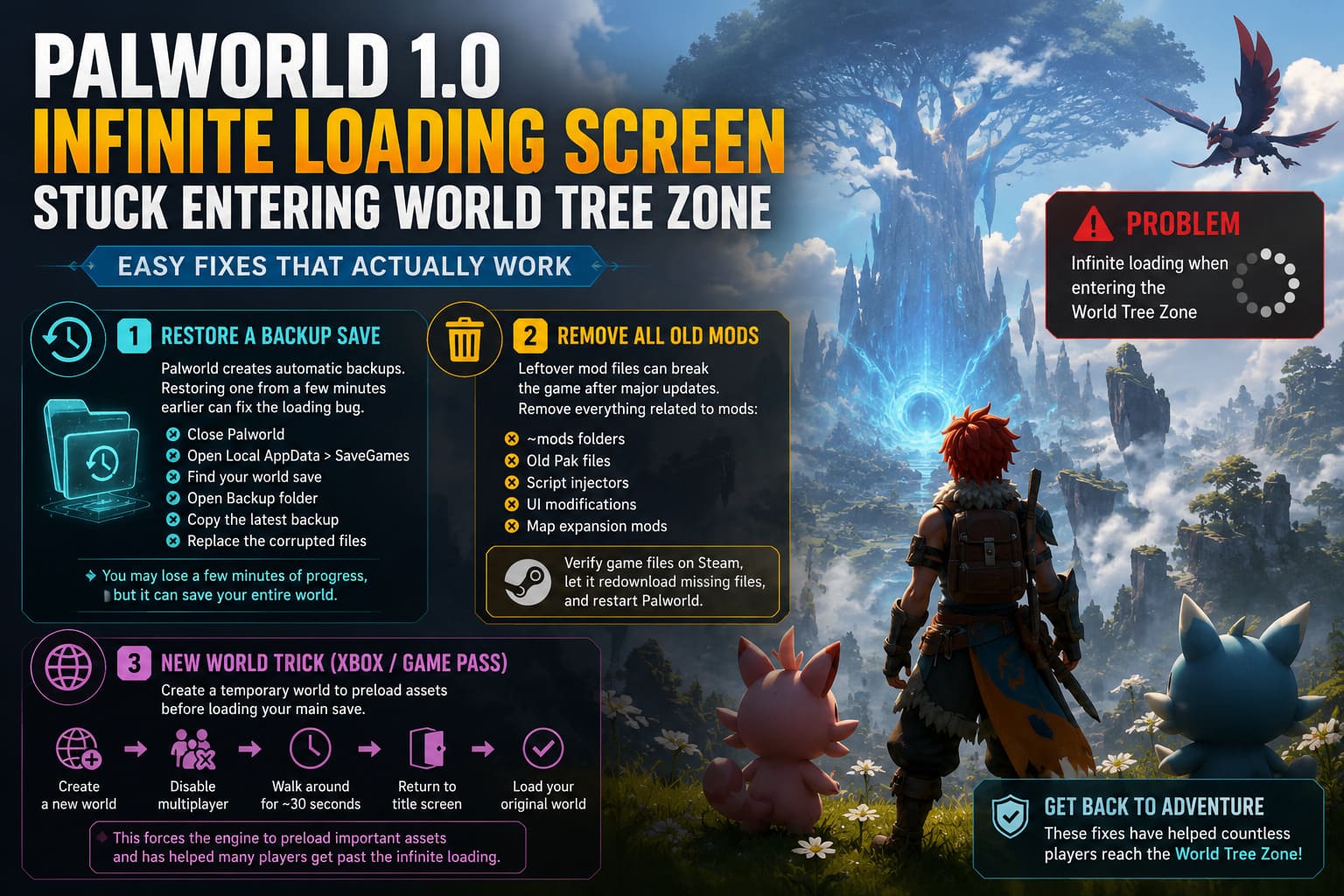
The general process looks like this:
- Completely close Palworld.
- Open the SaveGames folder inside your Local AppData directory.
- Find your world save.
- Open the Backup folder.
- Copy the most recent backup created before the loading bug started.
- Replace the corrupted save files with the backup versions.
Yes, you’ll probably lose a few minutes of progress.
Compared to losing an entire world, that’s an easy trade.
Fix 2: Remove Every Old Mod
This one surprised me because even players who thought they had removed their mods months ago were still affected.
Some leftover files remain inside the game’s installation folder and continue loading after major updates.
Look for folders such as:
- ~mods
- Old Pak files
- Script injectors
- UI modifications
- Map expansion mods
Once everything has been removed:
- Verify game files through Steam.
- Let Steam redownload anything that’s missing.
- Restart the game.
Even cosmetic mods can interfere with newly added world regions after a massive update.
Fix 3: Xbox and Game Pass Players Should Try the “New World” Trick
This workaround sounded ridiculous when I first read about it.
Then I kept seeing more and more people confirm it actually worked.
Instead of immediately loading your main save:
- Create a brand-new world.
- Disable multiplayer.
- Spawn into the starter island.
- Walk around for about half a minute.
- Return to the title screen.
- Load your original world.
The theory is that creating a temporary world forces the engine to preload essential assets before loading your actual save.
Whether that’s exactly what’s happening or not, plenty of players have reported success with this surprisingly simple trick.
Fix 4: Disable Multiplayer Temporarily
Even if you usually play solo, your world may still have multiplayer enabled.
Turning it off before loading can reduce several synchronization checks that occur during world loading.
Here’s what to do:
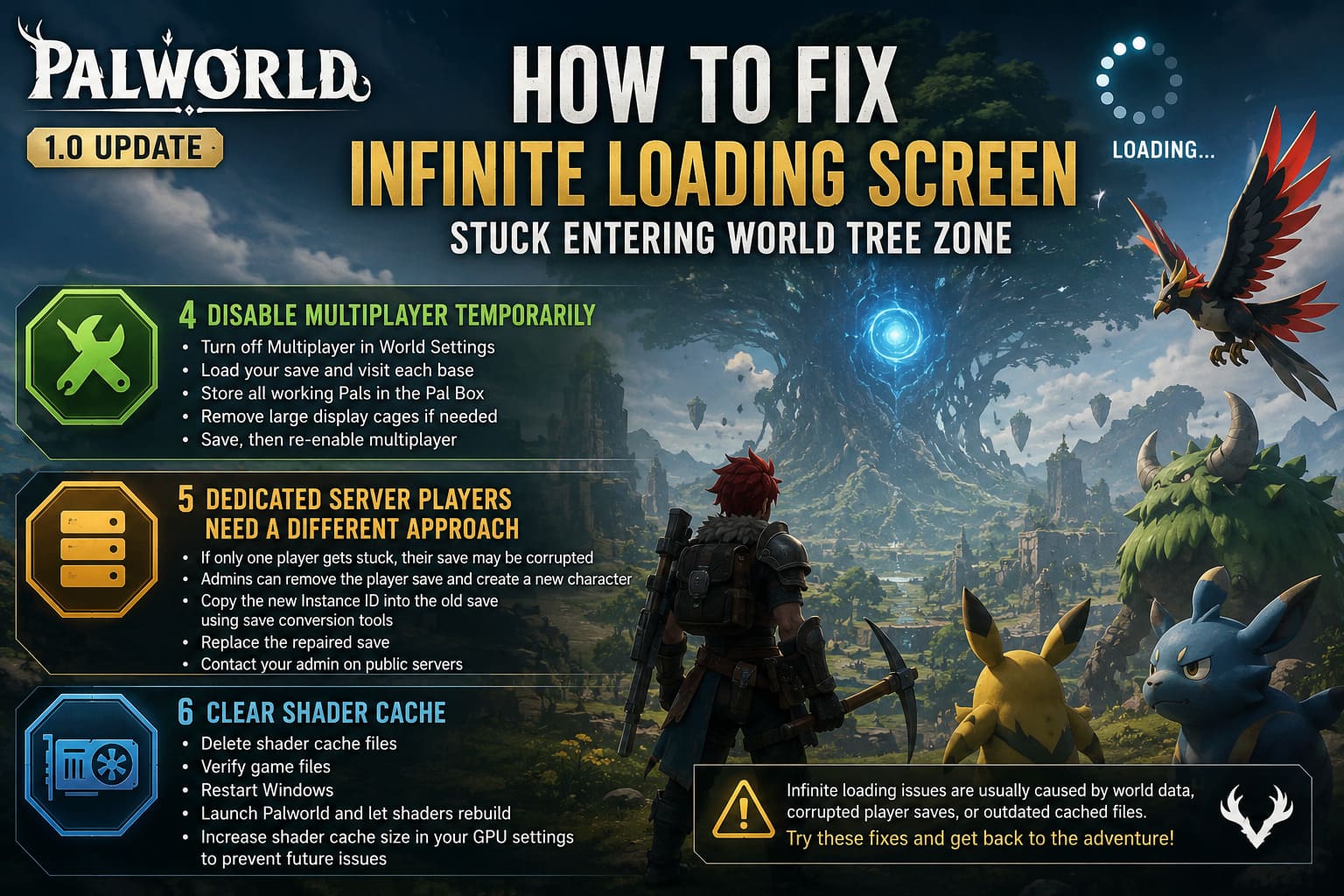
- Open World Settings.
- Disable Multiplayer.
- Load your save.
- Visit each base.
- Store every active Pal inside the Pal Box.
- Remove oversized display cages if necessary.
- Save the game.
- Re-enable multiplayer afterward.
If your bases contain dozens of working Pals, this can noticeably reduce loading pressure.
Fix 5: Dedicated Server Players Need a Different Approach
Unfortunately, dedicated servers introduce another layer of complexity.
If only one specific player gets stuck loading while everyone else joins normally, the player’s profile is probably corrupted—not the world itself.
Server administrators usually fix this by:
- Backing up the server.
- Removing the affected player save.
- Letting the player generate a fresh character.
- Copying the new Instance ID into the old save using community save conversion tools.
- Replacing the repaired save.
While it sounds intimidating, experienced server owners have successfully recovered fully progressed characters without wiping inventories or levels.
If you’re playing on a public community server, contact the administrator before trying anything yourself.
Fix 6: Clear Shader Cache
After every large Unreal Engine update, shader cache problems seem almost inevitable.
Palworld is no exception.
Deleting old shader cache files forces the game to rebuild optimized shaders designed for version 1.0 instead of relying on outdated cached data.
After clearing the cache:
- Verify game files.
- Restart Windows.
- Launch Palworld again.
If your GPU software allows it, increasing shader cache size can also help reduce future streaming hiccups.
Why the Bug Seems So Random
One thing I’ve noticed reading hundreds of player reports is how inconsistent this bug can be.
Some people enter the World Tree without any issues.
Others get stuck the first time they fly nearby.
A few only experience it after teleporting.
That randomness suggests this isn’t a simple map bug.
Instead, it appears to involve multiple systems working together:
- Save location
- Asset streaming
- Multiplayer synchronization
- VRAM management
- World generation
- Cached shaders
That’s why one solution works perfectly for one player while doing absolutely nothing for another.
Tips to Prevent It from Happening Again
Until Pocketpair releases additional stability patches, I’d recommend following a few simple habits.
Good practices include:
- Keep automatic backups of your save folder.
- Remove outdated mods before every major update.
- Verify game files after large patches.
- Avoid force-closing the game during loading screens.
- Update graphics drivers regularly.
- Wait a few seconds after teleporting before immediately flying into another region.
None of these guarantee you’ll never encounter the issue again, but they significantly reduce the chances of corrupting your save.
How to Transfer Palworld Saves from Steam Deck to PC (2026 Manual Guide)
Is This Something Pocketpair Needs to Fix?
Absolutely.
While community workarounds have helped many players continue their adventures, the average player shouldn’t need to restore save backups or edit server files just to explore a major new region.
The World Tree is clearly intended to be one of the biggest highlights of Palworld 1.0, and having players locked out of it by endless loading screens takes away from what should be an exciting late-game experience.
The good news is that Pocketpair has been fairly quick to address major technical issues in previous updates. If enough players continue reporting detailed bug information, future patches will hopefully eliminate these loading problems entirely.
Until then, the methods above remain the most reliable ways to recover a broken save and get back into the game without starting from scratch.
Final Thoughts
After trying several of these fixes and reading countless community reports, my recommendation is to start with the least invasive solutions first. Remove outdated mods, verify your files, clear the shader cache, and test the “new world” trick if you’re playing through Xbox Game Pass. Only move on to save restoration or server profile repairs if the simpler methods don’t resolve the issue.
The encouraging part is that, despite how serious the World Tree infinite loading bug looks, most affected players have eventually recovered their worlds without losing hundreds of hours of progress. It can be frustrating, but in many cases the save isn’t permanently ruined—it just needs the right fix.
If you’re eager to uncover everything hidden around the World Tree, don’t give up on your save just yet. With a bit of patience and the right troubleshooting steps, there’s a very good chance you’ll be back exploring Palworld’s newest frontier much sooner than you expected.