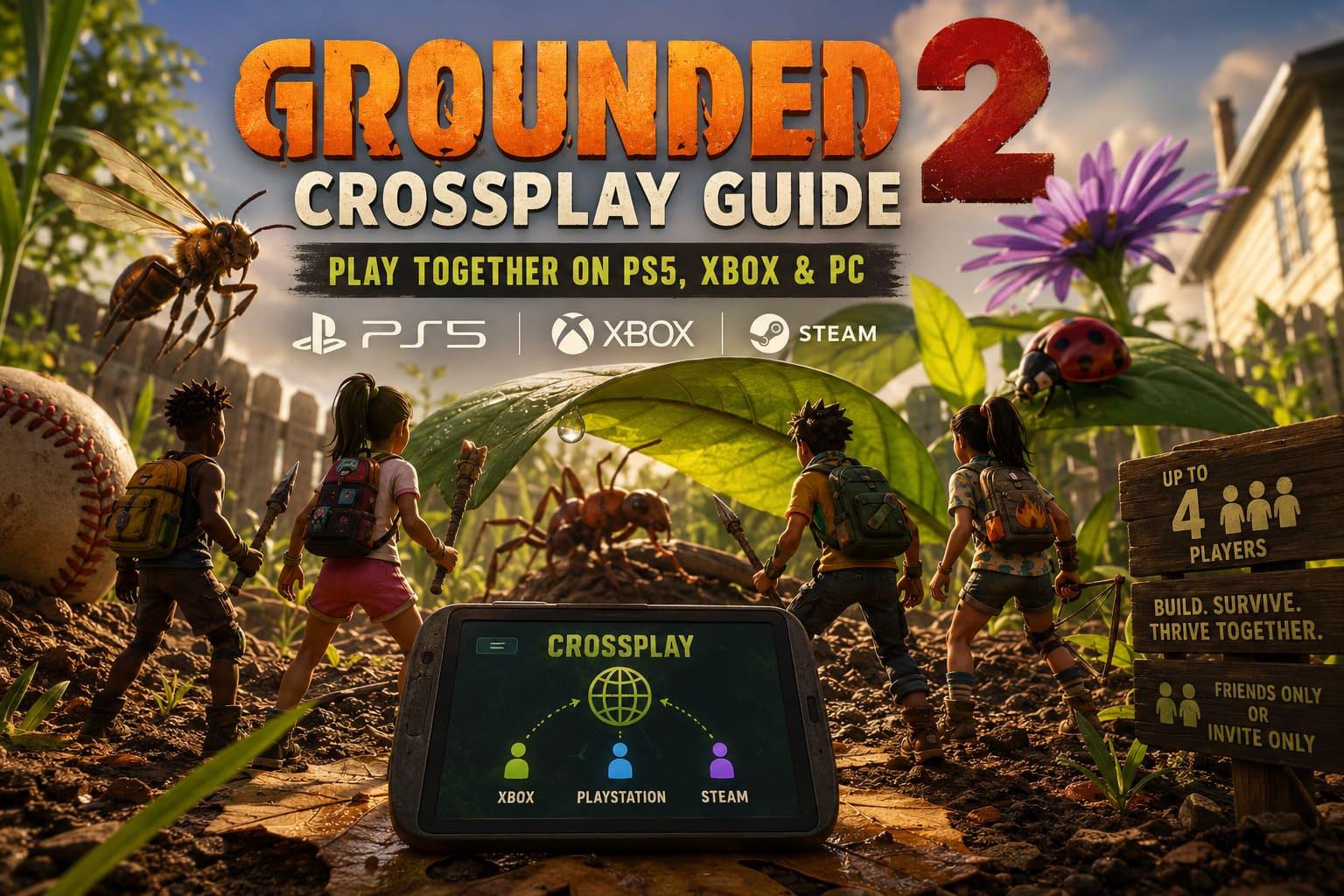
Grounded 2 Crossplay Guide: How to Setup Multiplayer on PS5, Xbox, and PC
If you have been waiting for a survival game where you can jump into the backyard with friends regardless of their platform, Grounded 2 finally makes that idea feel much more practical. With the PlayStation 5 version arriving alongside the Into the Abyss update, the player base is no longer split between separate console communities.
I have always thought Grounded works best when you are not playing it alone. Exploring a dangerous area is one thing, but having a friend panic because a giant insect suddenly appears behind them is a completely different experience. Grounded 2 leans heavily into that co-op feeling, and its crossplay system makes it possible to bring together players on PS5, Xbox Series X|S, and PC.
That said, getting everyone connected is not quite as simple as pressing “Play.” There is a little account linking involved, and understanding how the Microsoft account system works can save you a lot of frustration.
This Grounded 2 crossplay guide explains how to connect PS5, Xbox, Steam, and Microsoft Store players, add friends, host multiplayer worlds, troubleshoot connection problems, and use Shared Worlds when the original host is offline.
Does Grounded 2 Support Crossplay?
Yes. Grounded 2 supports cross-platform multiplayer between PlayStation 5, Xbox Series X|S, and PC, including PC players using Steam or the Microsoft Store.
The important part is that crossplay is tied to Microsoft’s online infrastructure rather than the individual storefront where you purchased the game.

In practical terms, that means:
- PS5 players can play with Xbox players.
- PS5 players can join PC players.
- Steam players can play with Xbox and PS5 users.
- Microsoft Store PC players can join console and Steam friends.
- Every player needs a Microsoft account for the cross-platform multiplayer system.
This is the first thing I would sort out before trying to organize a four-player session. If everyone creates or links their Microsoft account ahead of time, the rest of the setup becomes much less annoying.
Why You Need a Microsoft Account
Grounded 2 uses Microsoft’s Xbox network for its multiplayer infrastructure. Your Steam or PlayStation account still handles the platform-specific side of the game, but the crossplay connection is handled through the linked Microsoft profile.
Think of it as the bridge between platforms.
Your PSN friends list does not automatically become your Grounded 2 crossplay friends list, and a Steam friend isn’t necessarily visible to your Xbox friends simply because both of you own the game.
Instead, you use your Xbox Gamertag as the common identity.

What Each Platform Requires
| Platform | Microsoft Account | Crossplay Requirement |
|---|---|---|
| PS5 | Yes | Link Microsoft account to PSN |
| Xbox Series X/S | Yes | Usually connected to Xbox profile |
| Steam PC | Yes | Sign in through Grounded 2 |
| Microsoft Store PC | Yes | Uses Microsoft/Xbox profile |
If you are playing on Xbox or a Windows PC using the Microsoft Store, the process should feel fairly familiar because your Microsoft identity is already closely integrated with the platform.
PS5 and Steam users have a slightly more obvious account-linking step.
How to Link Your Microsoft Account on PS5
For PS5 players, this is the part I recommend doing before you invite everyone into a world.
Start Grounded 2 and wait until you reach the main menu.
PS5 Microsoft Account Setup
- Launch Grounded 2 on your PS5.
- Look for the Link Microsoft Account option.
- Select it to display a pairing code and QR code.
- Use your phone or another device to open Microsoft’s device sign-in page.
- Enter the code shown on your PS5.
- Sign in with your existing Microsoft account.
- If you don’t have one, create a free Microsoft account.
- Confirm the connection.
After the linking process finishes, your Xbox Gamertag should appear in Grounded 2.
That’s your confirmation that the PS5 version is now connected to the Microsoft multiplayer network.
One small piece of advice: make sure you link the Microsoft account you actually want to use. Switching accounts later can be considerably more irritating than spending an extra minute checking the details now.
How to Connect a Steam Account to Grounded 2
Steam players don’t need to abandon their Steam account or replace it with an Xbox account. Steam continues to handle the PC storefront side of the game.
You simply need to authenticate your Microsoft account inside Grounded 2.
Steam Setup
- Open Steam.
- Launch Grounded 2.
- Wait for the main menu to load.
- Select the Microsoft account sign-in prompt.
- Enter your Microsoft account credentials.
- Approve the required account connection.
- Return to the main menu.
Once completed, your Xbox Gamertag should be visible inside the game.
After that, your Steam copy can communicate with Xbox and PlayStation players through the shared multiplayer infrastructure.
How to Add Crossplay Friends
This is one of the most important differences between normal platform multiplayer and Grounded 2 crossplay.
Don’t rely entirely on your PSN or Steam friends list.
For cross-platform sessions, you should add players using their Xbox Gamertags.
From the game’s social interface:
- Open the Social menu.
- Select the player search option.
- Enter your friend’s exact Xbox Gamertag.
- Send a friend request.
- Wait for your friend to accept it.
- Once accepted, they should appear in your available multiplayer/social list.
You can also manage Xbox friendships through the Xbox mobile application if you prefer doing this from your phone.
I actually recommend that option when you’re organizing a group. Typing Gamertags with a controller can be surprisingly painful, especially when someone has a username full of numbers.
How to Host a Crossplay Multiplayer Game
Once your friends are connected, hosting a game is relatively straightforward.
From the Grounded 2 main menu:
- Select Multiplayer.
- Choose Host Game.
- Create a new world or load an existing save.
- Select the desired multiplayer privacy setting.
- Invite your friends if the world is invite-only.
- Start playing.
Grounded 2 supports up to four players in cooperative multiplayer, which feels like a pretty good group size for this type of survival game.
A smaller group also makes base building and resource management much easier. Four people can cover a surprising amount of ground, especially when everyone has a different job.
Friends Only vs. Invite Only
The basic idea is simple:
- Friends Only — allows eligible friends to find and join your session.
- Invite Only — gives you more direct control over who enters the world.
If you’re playing with a regular group, Friends Only is convenient. If you’re building a private world with a specific group of players, I’d stick with Invite Only.
How to Join a Friend’s Crossplay Session
Joining someone else’s game takes only a few steps.
- Open Multiplayer from the main menu.
- Select Join Game.
- Choose the option to search for available friends.
- Find your friend’s active session.
- Select the world.
- Accept an invitation if the session requires one.
If the host is using a friends-enabled lobby, their active game should become visible through the multiplayer interface.
If nothing appears, don’t immediately assume crossplay is broken. There are several settings that can prevent a session from appearing.
Grounded 2 Shared Worlds: The Feature I Like Most
The Shared Worlds system is arguably one of the best features for people who play survival games with an inconsistent schedule.
Normally, co-op survival games have one major problem: the host owns the world.
If that person isn’t online, everyone else is effectively locked out of the base and progression.
Shared Worlds changes that arrangement.
A multiplayer save can be converted into a Shared World, allowing authorized players to access it independently. The latest progression is stored through the game’s cloud-based system, so the world doesn’t have to depend entirely on the original host being online.
That means one friend can play on Tuesday, another can continue the adventure on Wednesday, and somebody else can jump in later without waiting for the original creator.
Why Shared Worlds Matter
With Shared Worlds, your group can:
- Continue playing when the original host is offline.
- Maintain shared base construction.
- Preserve world progression.
- Let different players take turns progressing the same world.
- Continue playing across supported platforms.
For a game built around gathering resources, exploring dangerous areas, and constantly upgrading your base, this is a huge quality-of-life improvement.
How to Fix Grounded 2 Crossplay Problems
Crossplay should be relatively painless once everything is linked, but multiplayer problems are inevitable in any online game.
If you can’t find a friend, start with the basics.
Check That Crossplay Is Enabled
Open the game’s Options menu and look through the multiplayer/general settings for the crossplay option.
Make sure it is set to Enabled.
If crossplay is disabled, your matchmaking may be restricted to players on the same platform.
Check Microsoft Account Privacy Settings
Microsoft account restrictions can also interfere with multiplayer communication.
Check the Xbox privacy and online safety settings associated with the account.
Pay particular attention to options controlling:
- Playing with people outside Xbox.
- Voice communication.
- Text communication.
- Multiplayer permissions.
If one member of the group has unusually restrictive privacy settings, they may be unable to join or communicate with players from another platform.
Make Sure Everyone Has the Same Game Version
This is probably the most boring troubleshooting step, but it is also one of the first things I check whenever multiplayer refuses to work.
Every player needs to be running a compatible version of Grounded 2.
If an update has just been released, one platform can sometimes receive it later than another.
Before blaming your internet connection, check for updates on:
- PS5
- Xbox Series X/S
- Steam
- Microsoft Store
Restarting the game after installing an update is also a good idea.
Grounded 2 Multiplayer Black Screen Loading Match: How to Fix
Grounded 2 Crossplay Troubleshooting Checklist
If your friend’s lobby isn’t appearing, run through this quick checklist:
- Microsoft account linked?
- Correct Xbox Gamertag added?
- Crossplay enabled?
- Multiplayer privacy settings allowing cross-platform play?
- Both players using the latest game version?
- Friend actually online?
- Host lobby set to Friends Only or Invite Only correctly?
- Game restarted after changing account settings?
Most connection problems are usually caused by one of these simple issues rather than anything seriously wrong with the game.
Final Thoughts
The arrival of PS5 crossplay makes Grounded 2 multiplayer much more appealing, especially if your group isn’t all playing on the same platform. Having a Steam player, an Xbox owner, and a PS5 player running around the same backyard is exactly the kind of flexibility modern survival games should offer.
The Microsoft account requirement adds one extra step, but once everyone is linked, it largely fades into the background. The bigger win is the combination of cross-platform multiplayer and Shared Worlds.
For me, Shared Worlds is the feature that makes the biggest difference. Survival games are much more enjoyable when you don’t have to organize everyone’s schedule around one person being online. You can build something together, leave it for a day or two, and come back knowing the world is still there.
So if your friends are split between PS5, Xbox, and PC, don’t let the different platforms put you off. Get everyone’s Microsoft accounts connected, add their Xbox Gamertags, enable crossplay, and start a Shared World. Once the initial setup is out of the way, Grounded 2’s backyard becomes one big multiplayer playground rather than three separate console communities.